Stop Snoozing Emails: Break the Habit Without Missing Deadlines

Snoozing an email feels like a small win. The message vanishes, your inbox looks calmer, and future you gets the problem. The trouble is that future you often meets the same email again with less time, or never meets it at all. To stop snoozing, you don’t have to give up the feature. You need to decide which emails have consequences, handle those first, and keep snooze for the few messages that truly can wait.
This guide shows how Gmail snooze works, where snoozed messages hide, how snooze differs from mute, and a simple set of rules for deciding what gets snoozed, what gets done now, and what gets dropped.
TL;DR
- Snoozing only moves the decision to a later time. It doesn’t make the decision, and a snoozed message with a deadline can return too late to act on.
- Before you snooze, ask one question: what happens if I miss this? Deadlines, money, contracts and replies someone is waiting on get handled or scheduled, not snoozed.
- Gmail brings a snoozed email back to your inbox at the time you pick, or right away if someone replies. Snoozed mail lives in its own folder, and you can find it with
in:snoozed. - Snooze is good for follow-ups and reminders. Mute is for conversations you never want to see again. Unsubscribing is for senders that keep coming back.
- A consequence-first routine, done in about 15 minutes a day, replaces most of your snoozing.
Table of Contents
- Why snoozing feels good and costs you later
- How Gmail snooze actually works
- Where snoozed emails go, and how to get them back
- Snooze, mute and unsubscribe are different tools
- Seven rules for snoozing less, and better
- What to do instead: sort by consequence
- Perspective: scaffolding around your attention
- A 15-minute daily routine that replaces most snoozing
- Let theNeedle do the consequence sorting
- FAQ
- Sources
Why snoozing feels good and costs you later
Snoozing is a form of triage with the hard part removed. Real triage means looking at a message, judging its stakes and choosing an action. Snoozing skips the judging. You tell your inbox “not now” without saying “when” in any meaningful way.
That is why the habit sticks. Each snooze delivers a small hit of relief. The inbox count drops. The email you were avoiding is out of sight. But three things tend to happen next:
- The email returns at a bad time. You picked “tomorrow morning” on impulse, and it lands in the middle of a packed day, next to fresh mail that pushes it down again.
- You snooze it again. An email that has been snoozed twice is rarely a matter of timing. It is usually a task you don’t want to do or a decision you haven’t made.
- The deadline passes while it’s hidden. If the message carries a due date, a renewal window, a claim deadline or a payment notice, the snooze time you chose may be later than the date that matters.
The cost is quiet. Nobody sends an alert that says you forfeited a refund, let a contract term lapse or left a client waiting. The email simply came back after the moment passed, or you swiped it away on autopilot. If you manage several accounts, the problem multiplies, because each inbox has its own pile of deferred decisions.
This is especially true if you have ADHD or struggle to prioritize. Out of sight can truly mean out of mind, and a snoozed message doesn’t announce itself until it pops back up. We come back to that in the Perspective section below.
How Gmail snooze actually works
Before changing the habit, it helps to know exactly what the feature does, because several of the surprises come from details.
According to Gmail Help, snoozing removes an email from your inbox temporarily, and it returns to the top of your inbox at the time you choose, such as tomorrow, next week or this evening. Nothing is deleted. The message is hidden, not handled.
Snoozing on a computer
- Open Gmail and point to the email.
- Click Snooze.
- Choose a later day and time.
To snooze several messages at once, select them and click Snooze. If you can’t find the button, it sits under More. All of this is described on the official Gmail snooze page.
Snoozing on iPhone and Android
On an iPhone, open the email in the Gmail app, tap the three-dot menu, tap Snooze, then choose a suggested time or Pick date & time, as this walkthrough explains. On Android the steps are nearly the same: open the message, tap the three-dot menu, select Snooze and choose a later day and time, per this tutorial.

The speed is the problem. Two taps and the email is gone. That ease is exactly why snoozing becomes automatic.
Where snoozed emails go, and how to get them back
If you want to stop snoozing, the first step is often an audit of what’s already snoozed. Most people are surprised by how much is in there.
- On Gmail desktop, click Snoozed in the left-hand menu, as the Gmail Help page describes.
- By search, type
in:snoozedin the search bar. This works well when the sidebar is collapsed. - On iPhone or iPad, tap Menu, then Snoozed, according to this guide.
To unsnooze, open the message in the Snoozed folder and choose Unsnooze. The message comes back to your inbox right away. If you’d rather not move it at all, archiving a snoozed message cancels the snooze date, as users in the Gmail community report. That works well once the conversation is finished.
One more detail worth knowing: if someone replies to a snoozed conversation, Gmail brings it back to your inbox immediately. That is helpful, but it also means a snoozed thread with no reply stays hidden until its timer runs out.
A five-minute snooze audit
Open your Snoozed folder and sort every message into one of four piles:
- Has a date or dollar amount attached. Handle it today, or put the real due date in your calendar.
- Someone is waiting on you. Reply now, even with two lines, or schedule a specific time to write the full answer.
- Reference or “someday.” Archive it, or move it to a to-do list or notes app where it can live with a proper label.
- Snoozed more than once. Decide today: do it, delegate it or delete it.
Most people find that the fourth pile is the largest and that it clears quickly once they stop postponing the choice.
Snooze, mute and unsubscribe are different tools
People often search for a way to “silence” emails and end up using the wrong tool. Here is how the three differ.
| Tool | What it does | Best for |
|---|---|---|
| Snooze | Temporarily removes a message from your inbox and brings it back at the time you choose | Follow-ups, reminders, things you truly can’t act on yet |
| Mute | Makes replies to that conversation skip the inbox and go straight to the archive | Long group threads you don’t need to follow |
| Unsubscribe | Stops future messages from a sender | Newsletters, promotions and persistent senders |
The mute behavior is described in Gmail’s guide to organizing and archiving email. The snooze behavior comes from the snooze help page.
The distinction matters because snoozing a message you never want to see is just a delayed annoyance. One Reddit-style tip that circulates is to snooze junk repeatedly, but that only resets the clock. If the same sender keeps landing in your inbox, the fix is to remove them. Our guide to unsubscribing from persistent senders walks through it, and the three-step unwanted email reset covers the wider cleanup.
Mute carries its own risk. Because replies skip your inbox, muting a thread where a deadline or a request might still appear can hide the one message that mattered. Use it only on conversations where you have nothing at stake.
Seven rules for snoozing less, and better
You don’t have to ban snooze. You just need to make it a deliberate act with a purpose. These rules do that.
- Never snooze a message with a date in it. Put the date in your calendar, then decide what to do with the email. If a message mentions a deadline, a renewal, a refund window or a payment, it deserves a decision now.
- Snooze to a specific moment, not a vague one. “Tomorrow” is a wish. “Thursday at 10:00, when I block time for vendor replies” is a plan.
- Snooze once. If a message comes back and you snooze it again, it has told you something. Act, delegate or delete.
- Reply with a holding line instead. “Got this, I’ll send details by Friday” takes 20 seconds, ends the sender’s uncertainty and lets you archive the message.
- Keep a short snooze list. If your Snoozed folder has more than a couple dozen items, it has become a second inbox. Review it weekly.
- Snooze for what truly depends on time. A flight check-in reminder, a meeting prep note or a follow-up you want to send in a week are all good uses. Gmail itself points to meeting reminders and follow-ups as typical cases.
- Use real reminders for real tasks. If an email is really a to-do, move it to a task manager or calendar. For appointment-style nudges, an app built for automatic appointment reminders can do the job better than a hidden email.
If you want a tour of what other snooze tools offer, our comparison of the best email snooze apps lays out what each does well. For follow-ups specifically, see our roundup of reply reminder tools.
What to do instead: sort by consequence
The deeper fix is to change the question you ask each email. Most inboxes are sorted by arrival time, sender or unread status. None of those tell you what you stand to lose.
Try sorting by consequence:
- Legal or contractual. Agreements, notices, terms changes, anything with a signature or a cancellation window.
- Financial. Invoices, payment failures, refunds, credits, settlement or claim notices, tax documents.
- Time-bound. Anything with a date: deadlines, calendar invites, renewals, expiring offers.
- People waiting. Unanswered replies from clients, managers or collaborators.
- Everything else. Newsletters, receipts, updates and chatter.
Only the last category is a good candidate for snoozing, bulk archiving or unsubscribing. The first four deserve a decision the first time you see them.
Two habits support this. First, track unanswered emails by reply rather than by whether they were opened, since an opened email is not a handled email. Second, stop notifications from pulling you into the low-stakes pile all day. Our piece on too many email notifications covers how to quiet them.
Calendar invites are another quiet leak. If they sit in a snoozed pile, you may reply after the meeting. See how to stop missing calendar invites in three steps.
Perspective: scaffolding around your attention
We built theNeedle on a simple observation: the inbox treats every message as equal, and your life doesn’t. A promotional email and a notice with a claim deadline arrive in the same list, in the same font, with the same swipe gestures available.
Snooze is a reasonable response to that sameness. It gives you a way to say “later.” But it can’t tell you which messages cannot afford a “later.” That judgment still falls on you, at the moment you are most overloaded, which is exactly when judgment is hardest.
That is why our approach is consequence-driven rather than volume-driven. theNeedle is designed to identify emails with deadlines, financial implications or other significant consequences, and to surface overdue, urgent and high-priority messages so they are not left to chance. It also flags replies you haven’t handled and opportunities like credits or refunds that are easy to forfeit without noticing.
For people with ADHD, we think this matters even more. Out of sight is often out of mind, and a long list is an invitation to freeze. So we designed one-at-a-time focus and consequence-based ranking: one message in front of you, chosen because of what it could cost you, not because it arrived last.
Think of it as scaffolding around your attention. You still make the decisions. You just stop spending your energy deciding what deserves one.
Glen Bover
A 15-minute daily routine that replaces most snoozing
A routine only works if it is short enough to survive a bad week. This one takes about 15 minutes, once a day.
- Scan for consequence (5 minutes). Look only for messages with a date, an amount, a contract or a person waiting. Ignore everything else for now.
- Act or schedule (5 minutes). Reply, pay, sign or book it. If it needs more than a few minutes, put a block on your calendar with the email linked, and archive the message.
- Triage the rest (5 minutes). Archive, unsubscribe or, for the few that truly depend on timing, snooze to a specific moment.
Once a week, spend ten more minutes on the Snoozed folder using the audit above. If you run several accounts, set up a structure first. Our guide to managing multiple inboxes compares three setups, and there is a Gmail-specific walkthrough for multiple inboxes on desktop. For an overdue backlog, the Gmail cleanup app guide covers catching overdue messages in 15 to 30 minutes.
Common objections
“I’m not ready to answer this yet.” That is fine. Send a one-line acknowledgment with a date, then archive the thread and put the date in your calendar.
“My inbox count will go up.” Yes, briefly. A count is a poor measure of progress. What matters is whether anything with a consequence is waiting.
“Snooze works for me.” Then keep it for time-dependent follow-ups. The goal is not zero snoozes. It is zero snoozes on messages you could not afford to see late.
Let theNeedle do the consequence sorting
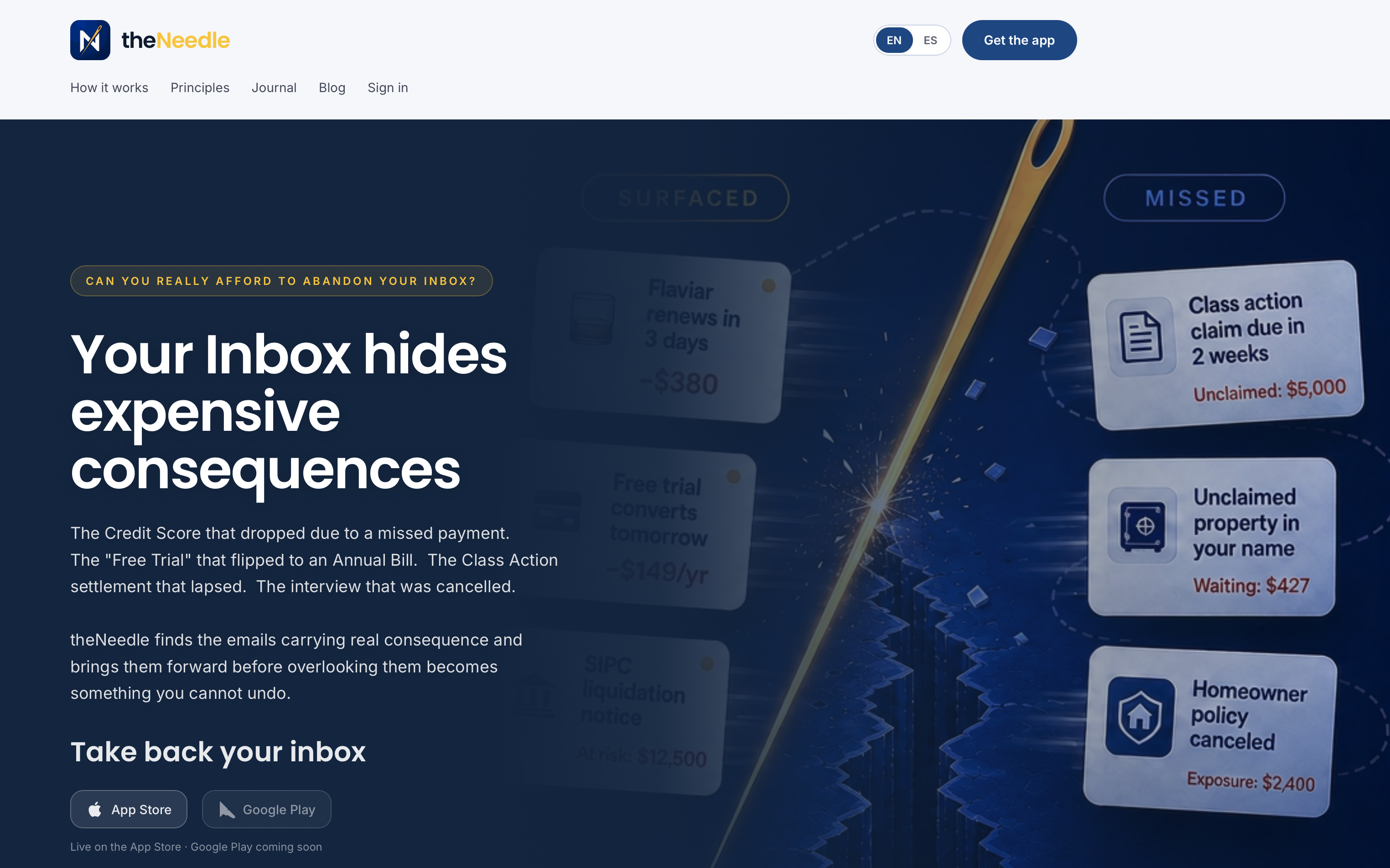
If you’d rather not run that scan by hand every day, that is the job theNeedle is built for. It connects to Gmail, Outlook, Microsoft, Yahoo and iCloud accounts, detects emails with deadlines or significant consequences, and surfaces overdue, urgent and high-priority messages. It also identifies unhandled replies, tracks opportunities such as credits or refunds, and includes built-in unsubscribe for persistent senders.
Plans are $9.99 per month or $99.99 per year, and there is a 7-day free trial. You can see the details on the pricing page or start with the monthly plan.
Not sure whether you need a dedicated tool? Our guide on how to choose email management software lays out the criteria. And if forgotten emails are part of a bigger pattern for you, the ADHD tax explains how small lapses add up to real money.
FAQ
How do I stop snoozing emails in Gmail?
Start by emptying your Snoozed folder with the four-pile audit above. Then adopt a rule: any email with a date, a dollar amount or a person waiting gets handled or scheduled, never snoozed. If you want to remove the feature entirely, Gmail users have asked about it in the community forum, but a habit change usually works better than hunting for an off switch.
How do I unsnooze an email?
On desktop, click Snoozed in the left menu, open the message and choose Unsnooze. You can also search in:snoozed. On iPhone, tap Menu, then Snoozed. The message returns to your inbox right away.
What is the difference between snooze and mute in Gmail?
Snooze hides a message and brings it back at a time you choose. Mute sends future replies in a conversation straight to the archive, so they never reach your inbox. Use snooze for things you will act on later and mute for threads you don’t need to follow.
Will a snoozed email come back if someone replies?
Yes. Gmail returns a snoozed conversation to your inbox immediately when someone replies. If nobody replies, it stays hidden until the time you picked.
Sources
- Snooze emails until later, Gmail Help
- Snooze emails until later (computer), Gmail Help
- Organize and archive email, Gmail Help
- How to snooze emails in Gmail (desktop, Android and iPhone), Mailmeteor
- How to snooze an email in Gmail, Simple Software Tutorials
- Cancel a snooze date without moving the email, Gmail Community
- How to disable Snooze, Gmail Community
- Automatic appointment reminders