3 Architectures to Manage Multiple Inboxes and Stop Missing Deadlines

If most of your work lives in one account, forward everything into a master inbox. If you reply from several identities or juggle more than five accounts, a unified desktop client with OAuth will scale better. If privacy or strict separation matters, use browser profiles instead. Whichever architecture you choose, pair it with a tool like theNeedle that surfaces consequential emails, so you catch deadlines and refunds instead of just clearing clutter.
TL;DR:
- Forward-to-master is effective for up to five accounts but struggles with more due to Gmail’s POP3 import limit, creating a scaling ceiling.
- Unified desktop clients handle six or more accounts with better scalability but require longer setup and may have mobile limitations.
- Browser profiles offer the strongest privacy separation, although switching between profiles is slower and more manual.
- Pair any inbox architecture with a prioritization tool like theNeedle to surface consequential emails such as deadlines and refunds, reducing missed critical messages.
- Using consistent labels, scheduled triage, and aggressive unsubscribe routines helps maintain control and prevents overwhelm at high email volumes.
Table of Contents
- How Do You Manage Multiple Inboxes the Right Way?
- Setting Up Each Architecture Step by Step
- How Do You Turn On Multiple Inboxes in Gmail?
- Which Email Client Actually Fits Your Setup?
- Daily Habits That Keep Multiple Accounts Under Control
- Why Consequence Matters More Than Clutter
- Stopping Duplicate Alerts and Misdirected Replies
- Third-Party Tools Worth Considering
- Keeping Multiple Accounts Secure
- Organizing and Ranking Emails Across Accounts
- Connecting Inboxes With Calendar and Contacts
- Handling High Volume Without Burning Out
- The Real Fix Isn’t Fewer Emails. It’s Better Ranking
- Try theNeedle as Your Prioritization Layer
- Sources
- FAQ
How Do You Manage Multiple Inboxes the Right Way?
Three architectures cover almost every situation, and picking the wrong one is why most people quit after a week of trying.
Forward-to-master routes mail from secondary accounts into one primary inbox using forwarding rules or POP3 import. It wins when one account already does most of the heavy lifting. The catch: Gmail caps POP3 secondary account imports at five, so this approach breaks down fast if you run a sixth or seventh address.
Unified desktop client connects every account through OAuth into one interface, letting you read and reply across identities without switching apps. It handles higher account counts than forwarding ever will, though setup takes longer and mobile parity varies by app.
Browser-profile per identity keeps each account fully separate in its own Chrome or Firefox profile. It’s the slowest to switch between, but the safest if you need a hard wall between, say, a business account and a personal one.
- Forward-to-master: fastest daily workflow, weakest at scale past five accounts
- Unified client: best for six or more accounts, steeper initial setup
- Browser profiles: strongest privacy separation, most manual switching
The single rule that saves people the most grief: pick one architecture and stick with it. Mixing forwarding with a unified client is exactly how duplicate notifications and wrong-address replies start.
Setting Up Each Architecture Step by Step
Here’s the exact sequence for whichever architecture you picked above.
Forward-to-master:
- Choose your master account, ideally the one you already check most.
- Turn on forwarding in each secondary account’s settings.
- In the master account, configure Send Mail As (Gmail) or the equivalent reply-from setting so replies leave from the correct address, not the master’s own.
- Send a test email to each forwarded address and reply from the master inbox to confirm the From line matches.
Unified client:
- Add each account through OAuth rather than a stored password. It’s more secure and survives password changes without breaking.
- Turn on the unified inbox view.
- Color-code or label each account so you can tell them apart at a glance.
- Test a reply-from-the-right-address message for every connected account.
- Note the client’s account ceiling and sync frequency, since some free tiers throttle sync intervals.
Browser profiles:
- Create a separate browser profile for each identity.
- Sign into one account per profile, never more.
- Pin the inbox tab in each profile so it opens automatically.
- Set notification rules per profile rather than per account, since browsers group by profile.
Common testing checklist: send yourself a test message on every account, confirm the reply lands with the correct sender address, and check the setup again on your phone, since mobile apps don’t always inherit desktop reply-from rules.
Pro Tip: Run your reply-from test before you tell anyone your new setup is live. A wrong sender address on a client email is a worse first impression than a slow reply.
How Do You Turn On Multiple Inboxes in Gmail?
Gmail’s Multiple Inboxes feature only works on desktop, and it’s built for splitting one account into visual sections, not for combining separate email addresses.
To enable it: open Settings, go to the Inbox tab, and under Inbox type, select Multiple Inboxes. Click Customize, then define each section using search operators like is:starred, from:boss@company.com, or label:invoices. Name each section, set the maximum number of conversations per section, and choose whether it appears above or below your main inbox.
- Use
is:unreadfor a catch-everything section - Use
from:plus an address or domain to isolate a client or vendor - Use
label:to surface anything you’ve already tagged
One figure worth flagging before you build a complex setup: Gmail limits secondary POP3 imports to five accounts, so if you’re forwarding six or more addresses into one Gmail account, this feature won’t fix the underlying ceiling.
The most common troubleshooting issue: forwarded mail replying from the wrong address. That happens when Send Mail As isn’t configured for the forwarded alias. Check that setting first, then re-run the reply test from the setup checklist above.
Which Email Client Actually Fits Your Setup?
Not every inbox tool is built for the same job, and the wrong pick shows up fast as duplicate alerts or replies from the wrong address.
Look for per-account signatures, OAuth login (never stored passwords), unified search across accounts, filter rules, a built-in unsubscribe helper, and offline search if you travel often. Microsoft’s guidance on managing multiple accounts recommends matching your tool to your provider mix rather than forcing everything into one ecosystem.
- Web-based providers (Gmail, Outlook.com): easiest setup, weakest scaling past five to six accounts
- Unified desktop apps: handle more accounts, better for mixing legacy POP3/IMAP with modern OAuth providers
- Specialized tools built for prioritization: add a filtering layer on top of whatever client you already use
Desktop apps generally scale past Gmail’s five-account forwarding ceiling, since they connect each account independently rather than funneling through one import limit. Mobile parity is the trade-off to check before committing. Some unified clients look great on a laptop and then bury half your accounts in a secondary tab on the phone version. Test the mobile app before you migrate everything.
Daily Habits That Keep Multiple Accounts Under Control
Architecture solves the structural problem. Habits solve the daily one.
- Turn off push notifications for every account except your one or two highest-priority addresses. Microsoft’s own advice is to concentrate alerts on the accounts that actually need real-time attention and check the rest on a schedule.
- Block two or three fixed times a day for triage instead of reacting to every notification as it lands.
- Use filters to auto-tag anything with urgency signals like “invoice,” “deadline,” or “action required.”
- Unsubscribe from recurring senders once a month rather than letting subscription noise pile up between cleanups.
Most people function best with three to five active accounts. Beyond that, dormant addresses start eating attention they haven’t earned. Archive or consolidate anything you check less than once a week. Our guide to organizing your inbox walks through building a review schedule that actually sticks, and AmmarAI’s productivity workflow guide covers automation patterns that pair well with scheduled triage.
Pro Tip: If you find yourself checking an account “just in case” more than once a day, that’s a signal it belongs in your main rotation, not on the sidelines with push notifications off.
Why Consequence Matters More Than Clutter
A clean inbox and a safe inbox aren’t the same thing. You can achieve zero unread messages and still miss the one email that mattered, a payment deadline buried under forty newsletter digests, or a client reply that needed an answer three days ago.
Consequence-first prioritization means ranking emails by what happens if you miss them, not by when they arrived. TheNeedle applies that logic directly: it flags deadlines, financial alerts, and unhandled replies so they surface before the noise does, an approach detailed on theNeedle’s product page. The point isn’t to replace your architecture. It’s to sit on top of it. A unified inbox fixes the friction of switching between accounts, but it doesn’t tell you which of the two hundred messages in that unified view actually needs your attention today.
The mistake most people make is treating a tidy inbox as the finish line. A unified view or a well-organized forward-to-master setup solves where you look. It does nothing to tell you what to look at first. Pairing either architecture with a consequence-ranking layer is what actually prevents the missed deadline or the forgotten refund window.
Use whichever architecture fits your account count. Then add a prioritization layer, whether that’s disciplined filters or a purpose-built tool like theNeedle, so structure and judgment work together instead of one standing in for the other.
Stopping Duplicate Alerts and Misdirected Replies
Duplicate notifications almost always trace back to one cause: two systems trying to manage the same account at once. If you forward an address into a master inbox and also leave push notifications on for the original account, you’ll get pinged twice for every message. Pick one system per account and turn off notifications everywhere else.
Wrong-account replies happen for a more specific reason: the reply-from setting doesn’t match the address the message arrived on. This is common with forwarded mail, since forwarding changes where a message lands but not which address a reply defaults to unless you’ve explicitly configured Send Mail As.
A few fixes cover most cases:
- Confirm Send Mail As or the equivalent reply-from setting is active for every forwarded or added account, not just your primary one.
- Send yourself a test message from each account and reply from your main workspace to verify the sender line before you trust the setup with real correspondence.
- Check mobile separately from desktop. Reply-from settings don’t always sync the same way across platforms, and a phone reply from the wrong address is an easy mistake to miss until a client points it out.
- If you’re using browser profiles, double-check you’re actually replying from the profile tied to the right account. It’s an easy mix-up when profiles look visually similar.
The fix is almost never a new tool. It’s usually a five-minute settings check you skipped during initial setup. Running the test-reply checklist from earlier in this piece after any change, adding an account, switching clients, updating forwarding rules, catches both problems before they cost you a client relationship or an embarrassing typo in a sender address.
Third-Party Tools Worth Considering
Beyond the built-in options from Gmail and Outlook, a category of dedicated unified inbox clients exists specifically to blend legacy POP3 and IMAP accounts with modern OAuth-based providers into a single workspace. These tools matter most once you’re managing accounts across different eras of email infrastructure, an old business POP3 account alongside a newer Gmail workspace, for instance.
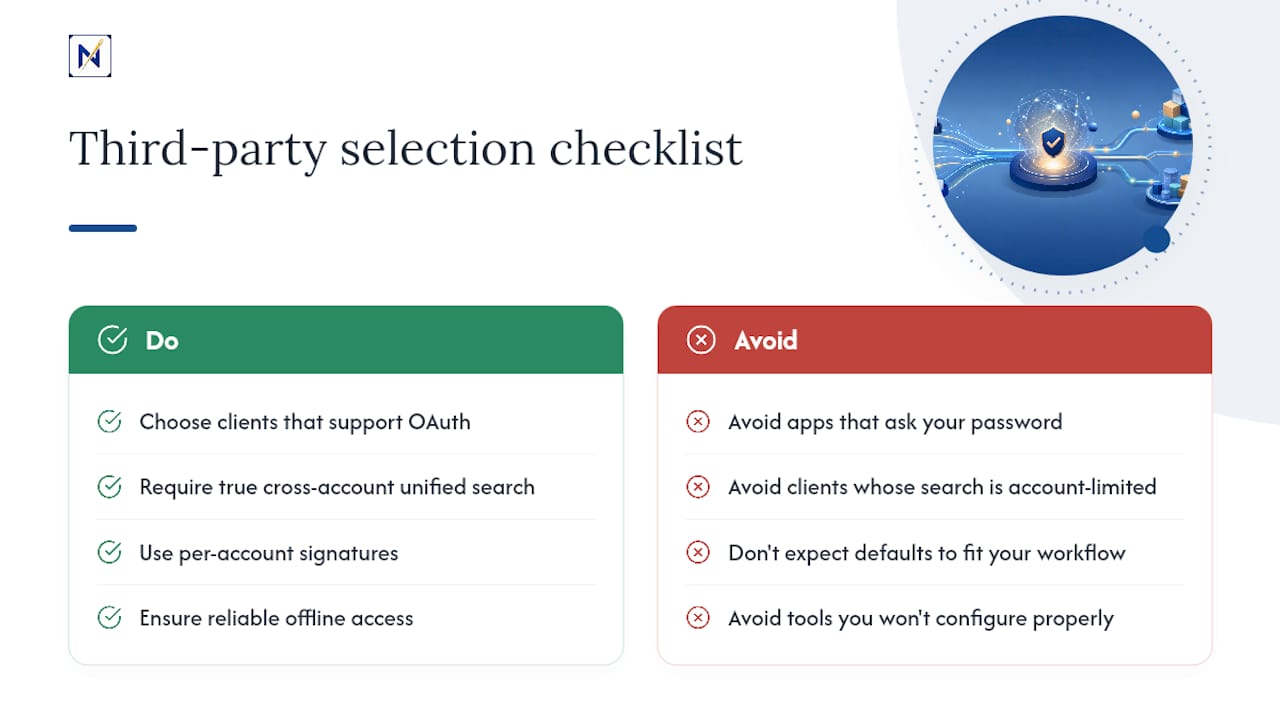
What separates a good third-party client from a mediocre one comes down to four things: whether it supports OAuth (skip anything asking for your password directly), how well its unified search actually works across accounts rather than within just one, whether it offers per-account signatures so your personal and business replies don’t cross wires, and how it handles offline access if you need to read mail without a connection.
Specialized prioritization tools are a separate category entirely. Rather than just displaying every account in one feed, they rank messages by consequence, surfacing a payment deadline over a newsletter regardless of which account either one landed in. Specialized prioritization tools fit here, connecting to multiple email providers and flagging overdue items, unhandled replies, and financial alerts across all of them at once.
The honest trade-off with any third-party tool: broader compatibility usually means a learning curve. Budget an afternoon to configure filters and notification rules properly rather than expecting default settings to match how you actually work. A tool set up in ten minutes and never revisited tends to drift back into the same chaos it was meant to fix within a month.
Keeping Multiple Accounts Secure
Every account you add to a unified setup is another potential point of failure, and the biggest risk isn’t sophisticated hacking. It’s convenience shortcuts.
Always connect accounts through OAuth rather than typing your password directly into a third-party client. OAuth tokens can be revoked individually without forcing a password reset across every connected app, while a stored password sitting in some app’s database is a liability you can’t easily undo if that app gets compromised.
Enable two-factor authentication on every account in your setup, not just your primary one. It’s tempting to secure only the account you check most, but a forgotten secondary address with a weak password is exactly the kind of entry point that goes unnoticed until it’s exploited.
Review connected app permissions periodically. Any unified client or browser extension you granted access to a year ago and stopped using should be revoked, since dormant permissions rarely get audited and represent standing risk with zero ongoing benefit.
If you use browser profiles for separation, that separation only works if you’re disciplined about it. Signing into a personal account inside your business profile, even once, defeats the purpose of keeping them apart. And if privacy between accounts is the whole reason you chose that architecture, extend the same logic to shared devices and public networks. Save sensitive account access for connections you trust.
Organizing and Ranking Emails Across Accounts
The instinct with multiple accounts is to treat each one as its own inbox to clear separately. That works until account four or five, when triage time multiplies instead of staying flat.
A better approach: rank by consequence across all accounts at once, rather than by account first and urgency second. A deadline in your side-business inbox matters more this morning than a promotional email in your primary one, but plenty of people check accounts in a fixed order and never compare urgency across them.
Practical tactics that hold up over time:
- Use consistent labels or tags across every account (Urgent, Waiting on Reply, Financial) so your brain doesn’t have to relearn a new system per inbox.
- Star or flag anything with a hard deadline the moment you see it, before you get distracted by the next message in the thread.
- Set a weekly recurring block to review “waiting on reply” items specifically, since these are the messages most likely to quietly stall and damage a relationship.
- If you’re using a tool like theNeedle, let it do the cross-account ranking automatically rather than manually re-sorting four separate inboxes by hand every morning.
The goal isn’t fewer emails. It’s fewer missed ones. Volume is rarely the actual problem; not knowing which twelve of your two hundred daily messages actually matter is.
Connecting Inboxes With Calendar and Contacts
Multiple email accounts usually mean multiple calendars too, and that’s where scheduling conflicts and duplicate contact entries start creeping in.
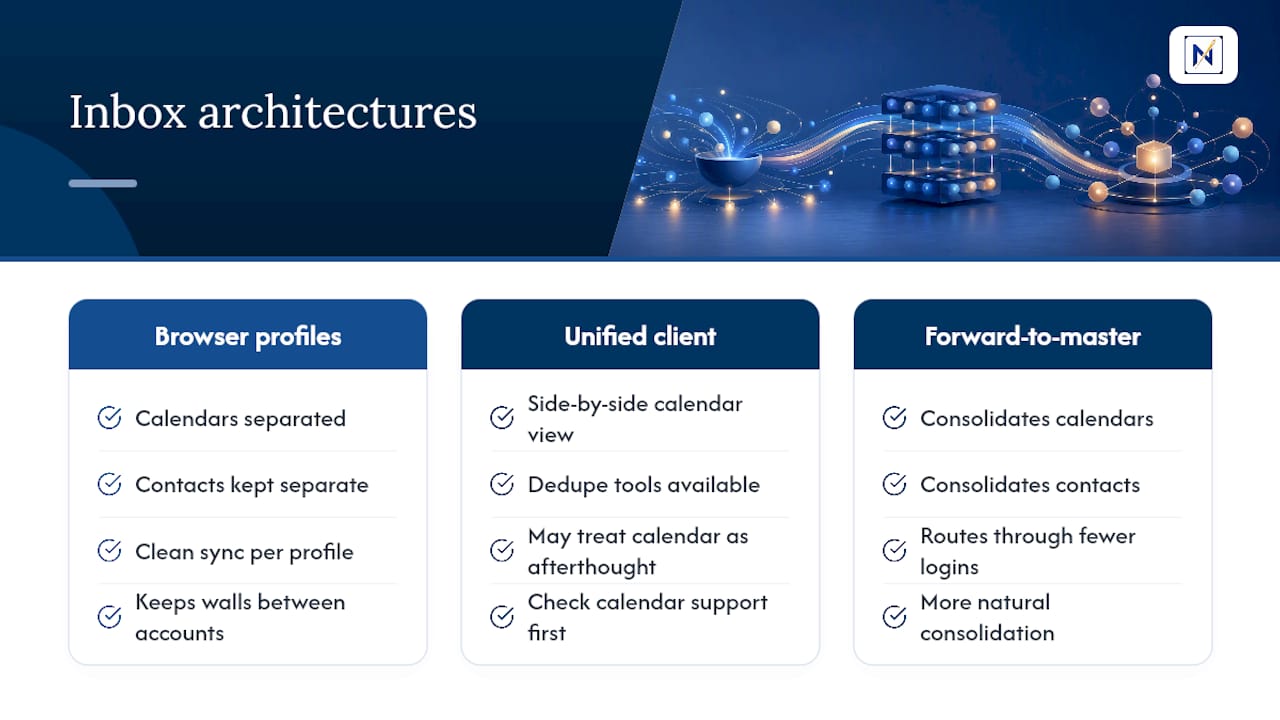
Most unified clients let you view calendars from every connected account side by side, which matters more than it sounds like. A meeting invite that lands in your business account needs to show up against your personal calendar’s availability, or you’ll double-book without realizing it. Check whether your chosen client supports this before committing, since some unified inboxes handle mail beautifully but treat calendar sync as an afterthought.
Contacts present a subtler problem: the same person often exists as three separate entries across three accounts, sometimes with different phone numbers or outdated titles. Most providers offer a contact merge or dedupe tool. Run it quarterly rather than letting duplicate contacts multiply, since autocomplete suggestions get noticeably worse once you’re choosing between four versions of the same client’s name.
If you went with browser profiles for separation, calendar and contact syncing stays cleanly separated too, which is either a benefit or a limitation depending on whether you actually want that wall. Forward-to-master and unified client setups tend to consolidate calendars more naturally, since everything routes through fewer distinct logins.
Whichever architecture you use, check calendar sync during your initial setup testing, not after you’ve already missed a meeting because two calendars disagreed on your availability.
Handling High Volume Without Burning Out
The average worker gets 117 emails a day, and that math doesn’t improve when you’re managing three or four accounts instead of one.
Volume itself isn’t usually the real problem. Most people can skim 100 messages in a reasonable amount of time. What burns people out is treating every message as equally worth reading in full. The fix is a hard filtering habit: decide within three seconds of opening a message whether it needs action today, action eventually, or no action at all, and route it accordingly instead of re-reading it four times across the day.
Batch processing helps more than constant checking. Checking email continuously feels productive but actually slows you down, since every check resets your attention and pulls you out of whatever you were doing before. Two or three dedicated blocks a day, each with a clear start and end time, will clear more real work than an inbox left open all day.
Unsubscribing aggressively is underrated as a volume strategy. A monthly pass through recurring senders you never open cuts daily volume more than any filter rule will, since it stops the noise at the source instead of managing it after the fact.
Finally, accept that at high volume, manual triage across multiple accounts eventually breaks down no matter how disciplined you are. That’s the exact gap a consequence-ranking layer like theNeedle is built to close: not reducing how much mail arrives, but making sure the handful of messages that actually carry financial or relational weight never get lost in the other hundred.
The Real Fix Isn’t Fewer Emails. It’s Better Ranking
Most advice on managing multiple inboxes focuses entirely on architecture: which forwarding rule, which unified client, which browser trick. That’s necessary groundwork, but it solves the wrong half of the problem. Architecture tells you where to look. It says nothing about what to look at first.
The conventional wisdom treats a unified inbox as the finish line, as if seeing everything in one place automatically means you’ll catch what matters. It doesn’t. A unified view with two hundred unread messages is just as capable of burying a payment deadline as five separate inboxes were. The friction changes. The risk of missing something consequential doesn’t.
What the reader should prioritize first isn’t which client to download. It’s deciding, honestly, whether their current setup lets an important message hide in plain sight. If a missed deadline or an unanswered client email has cost you something in the last few months, that’s the signal to add a prioritization layer on top of whatever architecture you choose, not to keep hunting for a cleaner-looking inbox. Structure and judgment aren’t competing solutions. They’re two different problems wearing the same complaint.
— Glen Bover
Try theNeedle as Your Prioritization Layer
Once your architecture is set, whether that’s forward-to-master, a unified client, or browser profiles, the next question is whether anything important is still slipping through. theNeedle connects to Gmail, Outlook, Yahoo, and iCloud and flags the messages that actually carry consequence: deadlines, financial alerts, refunds, and replies you never got back to.

It doesn’t ask you to change how you’re organized. It sits on top of whatever setup you already run and surfaces the handful of emails that matter most, one at a time, instead of adding another feed to scan. If missing a deadline or a client reply has cost you before, that’s the exact gap this closes. Try the live demo to see how it ranks a real inbox, or start a free trial and connect your accounts directly at theNeedle.
Sources
- Manage your emails with multiple inboxes - Gmail Help
- Gmail’s POP3 account import limit is 5 - Stack Overflow
FAQ
What Is the Best Way to Manage Multiple Email Accounts?
Pick one architecture, forward-to-master, a unified client, or browser profiles, based on your account count and privacy needs, then add filters or a prioritization tool like theNeedle so consequential messages don’t get lost in the volume.
How Do I Stop Gmail From Combining Inboxes?
Gmail’s Multiple Inboxes feature splits one account into custom sections rather than combining separate addresses; if you want to disable it, go to Settings > Inbox and switch the inbox type back to Default.
How Do I Turn Off Multiple Inboxes in Gmail?
Open Settings, select the Inbox tab, and change Inbox type from Multiple Inboxes to Default, then save changes at the bottom of the page.
Which Email App Is Best for Managing Multiple Inboxes?
It depends on your account count: web providers work fine under five accounts, unified desktop clients scale better past that, and a prioritization tool like theNeedle helps regardless of client by ranking messages by consequence instead of just displaying them in one place.