Stop Unwanted Emails in 15 Minutes: A 3 Step FTC Backed Reset

Unsubscribe from senders you recognize and trust, then block or filter anyone who ignores that request so their mail never reaches your inbox again. Mark phishing attempts as spam instead of clicking anything inside them, and if a sender keeps mailing you after an opt-out, report it to the Federal Trade Commission. Those three moves handle most of what’s clogging your inbox right now.
TL;DR:
- Unsubscribe from trusted senders and block or filter unknown or unwanted emails to prevent future clutter and maintain control over your inbox.
- Use filters based on sender, domain, or keywords to manage recurring spam and apply them retroactively to existing messages for faster cleanup.
- Employ bulk unsubscribe tools only when managing hundreds of subscriptions, as manual unsubscribe is quicker and safer for smaller lists.
- Maintain a short routine of weekly inbox checks and privacy audits to prevent new spam buildup over time.
- Report persistent spam and unsubscribe violations to authorities like the FTC to enforce legal compliance and protect your inbox.
Table of Contents
- Quick Wins to Stop Unwanted Emails in Under 15 Minutes
- How Do You Block or Filter Senders in Gmail, Outlook, and Apple Mail?
- Set Up Filters and Rules for Repeat Senders
- When Should You Use a Bulk-Unsubscribe Tool Instead of Doing It Manually?
- Habits That Keep Your Inbox Clean Long-Term
- What Does the Law Actually Require, and How Does Prioritization Fit In?
- A Realistic Workflow That Actually Sticks
- How theNeedle Complements Your Unsubscribe Routine
- Sources
Quick Wins to Stop Unwanted Emails in Under 15 Minutes
You don’t need a weekend project to see results. Most inboxes carry the same three categories of clutter: legitimate senders you’ve outgrown, unknown marketers who bought your address, and outright scams. Each gets a different response, and mixing them up is where people go wrong.
Here’s the order that actually works:
- Unsubscribe from senders you know. Look for the inline unsubscribe link at the bottom of the email, or the one Gmail and Outlook now surface near the sender’s name. Legitimate companies are required to honor this.
- Block anything unsubscribe doesn’t fix. If the link is broken, missing, or the sender is unfamiliar, block the address or the entire domain so future mail is redirected automatically.
- Mark spam as spam, not as “delete.” Deleting just clears your view. Marking it as spam trains your provider’s filter and keeps similar mail out later.
For anything that smells like a scam, whether it’s a fake shipping notice or a “your account is locked” threat, forward it to your provider’s abuse address and file a report at reportfraud.ftc.gov. The FTC’s own guidance on reducing email spam puts these same four actions, filtering, blocking, unsubscribing, and reporting, at the center of its consumer advice.
Pro Tip: Do the unsubscribe pass first, before you block anything. Once you’ve blocked a domain, you may never see whether they actually honored your opt-out request.
How Do You Block or Filter Senders in Gmail, Outlook, and Apple Mail?
Every major provider gives you the same three tools, blocking, filtering, and junk reporting, just under different menu names. Here’s where to find them.
Gmail:
- Click the inline Unsubscribe button next to the sender’s name in the message header for newsletters and marketing mail.
- Open the message, click the three-dot menu, and select Block “sender” to route all future mail from that address straight to Spam. Note that blocking in Gmail doesn’t delete anything already sent; it just diverts what comes next.
- Build a filter using the search bar (
from:@domain.comorsubject:unsubscribe), then choose Delete it or Skip the Inbox as the action. - Check Settings → Manage Subscriptions for a consolidated list of everything mailing you.
Outlook (web and desktop):
- Right-click a message and choose Block to add the address to your Blocked Senders list, or go to Settings → Mail → Junk email to manage blocked senders and domains directly.
- Add trusted contacts to your Safe Senders list so important mail never gets misfiled.
- Create an Inbox Rule (Settings → Mail → Rules) to automatically move or delete messages matching a sender or keyword. Microsoft’s own junk email and spam guidance walks through each of these settings in detail.
Apple Mail / iCloud:
- Tap the sender’s name in a message and select Block This Contact.
- Under Mail → Preferences → Rules, build a rule to move or delete messages from specific addresses automatically.
- Use the flag icon in the message toolbar to report junk directly to Apple, which improves its filtering over time.
Set Up Filters and Rules for Repeat Senders
Blocking one sender at a time is a losing game if new junk mail keeps arriving from slightly different addresses. Filters solve that by acting on patterns instead of individual senders.
Build filters around three things: the sender’s domain, keywords like “unsubscribe” or “% off,” or Gmail’s built in category:promotions tag, which already separates most marketing mail from your primary inbox. Once a filter exists, apply it retroactively to your existing backlog instead of just future mail. Gmail and Outlook both let you check a box to run a new filter against all matching messages already sitting in your inbox.
Newsletters you still want, just not cluttering your main view, deserve a label and a “skip the inbox” rule rather than an outright block. That keeps them searchable without demanding your attention every morning.
- Create a filter using sender, domain, or keyword criteria.
- Set the action to skip the inbox and apply a label, or delete outright for known junk.
- Apply the filter to matching messages already in your inbox to clear the backlog in one pass.
Pro Tip: Keep a short “safe senders” list of five or six addresses you never want filtered, family, your bank, your employer, before you start building aggressive rules. It’s much easier to protect them upfront than to hunt through a Trash folder later.
When Should You Use a Bulk-Unsubscribe Tool Instead of Doing It Manually?

If you’re facing a dozen unwanted subscriptions, do it by hand. Gmail’s Manage Subscriptions view or Outlook’s sender list makes that a five-minute job. But if your inbox has accumulated hundreds of mailing lists over the years, a manual sweep becomes its own multi-hour chore, and that’s when a dedicated bulk-cleanup tool earns its keep.
The catch: not all of these tools work the same way. Some genuinely unsubscribe you at the source; others just build filters on top of the mess, which means the sender still has your address even if you stop seeing their mail. Look for tools that connect through OAuth rather than asking for your email password directly.
- Use provider dashboards or a reputable bulk tool once your subscription count reaches the hundreds.
- Stick to manual unsubscribe for a handful of senders. It’s faster and safer.
- Never click “unsubscribe” inside a message you never signed up for. Mark it as spam instead. A working unsubscribe link is proof you’re a real, engaged inbox, which is exactly what a spammer wants confirmed.
- Pair any bulk cleanup with the filters from the previous section so new junk doesn’t quietly rebuild the pile.
Habits That Keep Your Inbox Clean Long-Term
Cleanup day feels great until three months later, when the same clutter creeps back in. A short recurring routine beats another big one-time purge.
- Use a separate email address for signups, trials, and one-off purchases, and keep your primary address reserved for people and services you trust.
- Audit your active subscriptions every quarter. Anything you haven’t opened in that window gets unsubscribed.
- Check privacy settings at the point of signup. Many forms pre-check a box that shares your address with “partners.”
- Block ten to fifteen minutes weekly for inbox maintenance: clear new junk, update filters, and unsubscribe from anything new that snuck in.
What Does the Law Actually Require, and How Does Prioritization Fit In?
Unsubscribing and blocking aren’t just good habits. They’re backed by federal law. Under the CAN-SPAM Act, commercial senders are required to honor your opt-out request within a reasonable compliance period. If a sender keeps mailing you past that window, you have a documented legal complaint, not just an annoyance.
If you unsubscribe and the emails keep coming, save the confirmation and file a report at reportfraud.ftc.gov. The FTC’s guidance treats persistent noncompliance as exactly the kind of behavior worth escalating.
Provider documentation from Google and Microsoft backs up every blocking and filtering step covered above. But even a perfectly clean inbox doesn’t solve the deeper problem: theNeedle’s research puts the average worker’s daily email volume at 117 messages. Unsubscribing trims that number, but it doesn’t tell you which of the remaining messages actually matters today, which is a separate problem that filtering alone can’t fix.
A Realistic Workflow That Actually Sticks
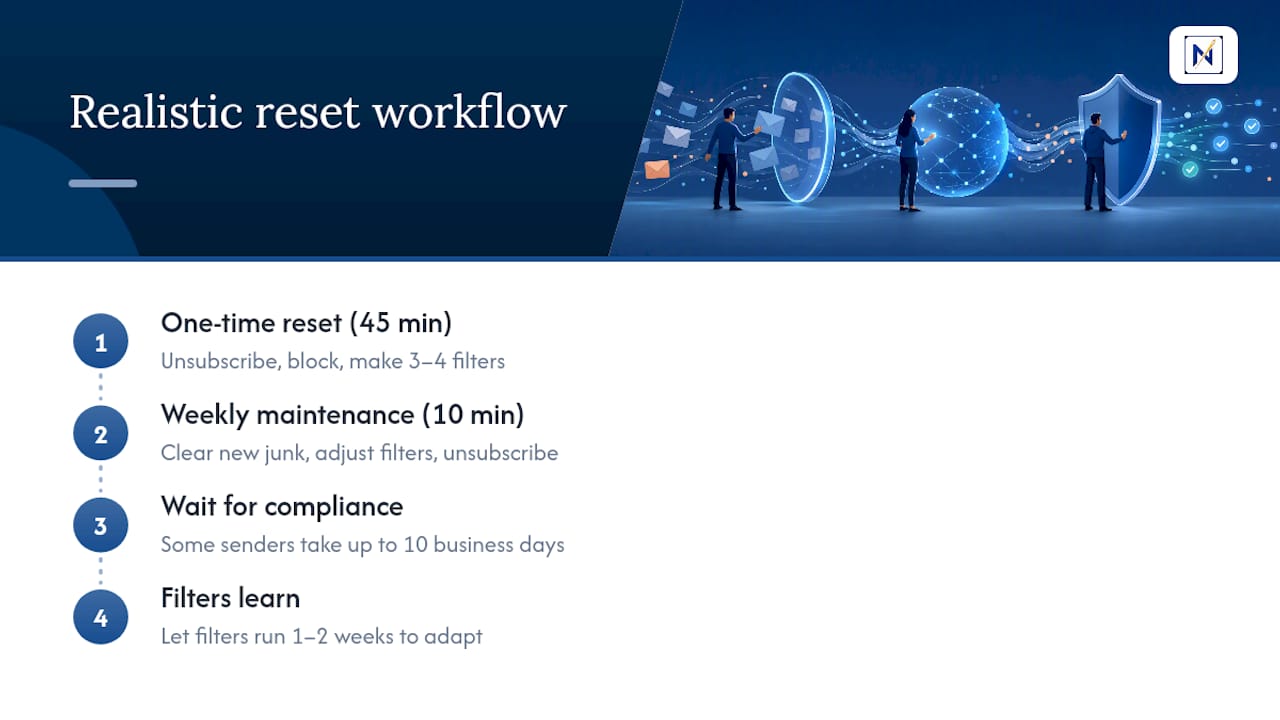
Block 45 minutes once: unsubscribe from recognized senders, block the rest, build three or four filters for repeat offenders. That’s your reset. After that, ten minutes weekly is plenty, clear new junk, adjust a filter, unsubscribe from whatever crept back in.
Don’t expect silence overnight. Some senders take the full 10-business-day window to comply, and filters need a week or two of real mail to catch everything they should.
— Glen Bover
How theNeedle Complements Your Unsubscribe Routine
Unsubscribing and filtering clear out the noise, but they don’t tell you which of your remaining 117 daily emails actually needs your attention today. That’s a different problem, and it’s the one theNeedle was built to solve. Instead of sorting by sender or keyword, theNeedle scans your inbox across Gmail, Outlook, Yahoo, and iCloud and surfaces the messages with real consequences: a deadline, a financial alert, a client waiting on a reply.

theNeedle also includes built-in unsubscribe for the persistent senders you never got around to blocking, so cleanup and prioritization happen in the same place instead of two separate chores. It’s designed for people managing more than one inbox who can’t afford to miss the one email that actually matters among dozens that don’t, freelancers, professionals juggling client accounts, anyone who’s tired of re-reading the same 40 subject lines to find the one that counts. If your unsubscribe list is under control but your attention still feels scattered, try theNeedle and see what it flags in your own inbox this week.
Sources
- How to get less spam in your email — FTC
- Block or report spam in Gmail
- Filter junk email and spam in Outlook — Microsoft Support
- ReportFraud — Federal Trade Commission