Stop Too Many Email Notifications From Hijacking Your Focus

The fastest fix for too many email notifications is simple: disable every nonessential alert, then audit where the mail is actually coming from. Muting a notification stops the interruption; auditing the source stops the flood at its origin. Do both, and most people notice the difference within a day.
The immediate payoff is real. Fewer buzzes and banners mean fewer context switches, and each interruption you eliminate saves you the roughly 21 minutes it typically takes to refocus after a distraction. Try these first:
- Mute your email app’s badge and sound
- Turn on Do Not Disturb for the next hour
- Add your two or three most urgent contacts to a whitelist
Key Takeaways
Reducing too many email notifications requires disabling nonessential alerts at the device level and unsubscribing or filtering at the source, since muting alone never shrinks inbox volume.
| Point | Details |
|---|---|
| Turn off first, audit second | Disable banners and push alerts immediately, then find and fix the senders causing the volume. |
| Build a small whitelist | Limit true urgent-alert access to 10 to 15 senders you’ve actually vetted. |
| Use platform digests | Gmail’s high-priority mode and Apple’s Scheduled Summary batch low-value mail automatically. |
| Alias your SaaS tools | Assign each automated sender its own address so you can mute or filter it in one click. |
| Rank by consequence, not volume | Theneedle surfaces overdue, urgent, and financial emails first instead of treating all 117 daily messages equally. |
Table of Contents
- Immediate Steps To Silence Too Many Email Notifications
- How To Triage Every Sender: Whitelist, Mute, Unsubscribe, Or Filter
- Turning Off Email Notifications On Gmail, Outlook, And Apple Mail
- Batching Low-Priority Mail Into Digests Instead Of Real-Time Alerts
- Cleaning Up Machine-Generated Noise From SaaS And Billing Alerts
- A Daily Workflow That Keeps The Inbox From Refilling
- Try Theneedle To Prioritize What Actually Costs You Money
- Sources
Immediate Steps To Silence Too Many Email Notifications
You don’t need a new system to feel relief today. You need five minutes and a willingness to turn things off.
- Kill the banners and sounds. Go into your email app’s settings and disable pop-up banners and alert tones, on both desktop and mobile.
- Set a Do Not Disturb window. Block off a 90-minute stretch where nothing pings you, even if you leave your phone unlocked on your desk.
- Turn off push notifications for email on your phone. Push is the biggest offender. Switch to manual fetch or scheduled fetch instead.
- Build a two-name priority list. Pick your boss, your biggest client, or your partner. Only they get through right now.
- Change preferences on your three noisiest senders. Open the last three promotional or automated emails you got and adjust their frequency or unsubscribe outright.
Pro Tip: Do the “24-hour blackout” test. Pause every nonessential notification for a full day, then only re-enable the ones you genuinely missed. Most people re-enable fewer than a third.
How To Triage Every Sender: Whitelist, Mute, Unsubscribe, Or Filter
Not every email deserves the same response, and treating them all equally is exactly how notification overload happens. A reproducible framework beats reacting sender by sender.
Start by pulling up the last 30 days of mail and sorting by sender frequency. Then bucket everyone into one of four categories:
- Whitelist (10 to 15 senders max): your manager, direct reports, key clients, your bank, and anyone tied to a real deadline or financial consequence.
- Mute: newsletters or updates you occasionally want but never need instantly, like industry digests or product changelogs.
- Unsubscribe: promotional senders you have not engaged with in 90 days. If you would not miss it, cut it.
- Filter: recurring transactional mail, like shipping confirmations or calendar invites, that belongs in a folder, not your inbox.
The rule of thumb: mute controls interruptions, but it does nothing about inbox volume. Only unsubscribing or filtering at the source actually shrinks the pile.
Pro Tip: If a sender has emailed you more than 20 times in 30 days and you’ve replied to fewer than two of those threads, it almost never belongs in your inbox. Filter it.
Turning Off Email Notifications On Gmail, Outlook, And Apple Mail
Every major platform buries its notification controls somewhere different, so the fastest path to quiet depends on what you’re running.
- Gmail: Under Settings, switch to “High priority only” so only starred or important mail triggers an alert. This works separately from your browser: even with Gmail’s own notifications muted, Chrome can still show banners through the OS notification center unless you disable them there too.
- Outlook: Notification rules live under Settings > Notifications. Users frequently report Outlook flagging a “getting too much email” warning; Microsoft’s own guidance walks through removing that item and adjusting the underlying alert settings.
- Apple Mail & iOS: Turn on Scheduled Summary to batch lower-priority mail into a single digest, and use Focus filters to allow only specific accounts or VIP senders through during work hours.
- General: If badge counts alone pull your eye to your phone, turn those off too. A red number is still an interruption even without a sound.
Many SaaS tools, including project trackers like Asana, bury their own notification frequency settings a few menus deep. Check each app’s own preferences, not just your inbox.
Batching Low-Priority Mail Into Digests Instead Of Real-Time Alerts
Real-time alerts train your brain to expect constant interruption. Digests train it to expect calm, predictable check-ins instead.
Apple’s Scheduled Summary feature collects everything below your priority threshold into a single, timed delivery, rather than dozens of individual pings. If your platform doesn’t offer a native digest, a third-party rule or filter that batches mail into an hourly or daily folder does the same job.
Set two or three fixed processing windows, say 9 AM, 1 PM, and 4:30 PM, and tell your team that’s when you check. This isn’t a productivity nicety; batching directly reduces the recovery cost of interruptions, since each unbatched alert costs about 21 minutes of lost focus to recover from.
Cleaning Up Machine-Generated Noise From SaaS And Billing Alerts
Automated mail, not human correspondence, is usually the real source of too many email notifications. Billing receipts, analytics summaries, and monitoring pings pile up fast because no one is on the other end deciding whether you need them.
Run a 30-day sender audit and rank by volume with help from tools like Agent Inboxes with a Full Email Inbox API to consolidate and manage notification sources effectively. You’ll usually find that five to ten automated tools account for the majority of the clutter.
- Assign a unique alias or per-service address to each SaaS tool, so you can mute or filter by alias instead of hunting down individual senders.
- Route flagged aliases straight into a digest folder with a “skip inbox” rule, but carve out an exception for anything tied to security or system outages.
- One alias-based filtering approach reports cutting notification-driven inbox volume dramatically once every SaaS tool gets its own mutable address.
Pro Tip: Before you mute a monitoring alert, ask what it costs you if you miss the one that actually matters. Critical alerts (server downtime, fraud flags) should bypass every filter you build.
A Daily Workflow That Keeps The Inbox From Refilling
Cleanup only sticks if you replace reactive checking with a routine.
- Pick two or three fixed processing windows and close your inbox entirely outside them.
- During each window, run every message through one of four actions: respond, schedule, delegate, or archive.
- Once a week, spend five minutes refreshing your whitelist and mute rules as new senders show up.
- If you catch yourself checking push notifications between windows, that’s the signal to turn push off entirely, not just mute the sound.
Fixing Duplicate Or Repeating Notifications
Getting the same alert twice usually traces back to one of three culprits.
- You’re logged into the same account on two devices with push enabled on both, and possibly a browser tab open too.
- A forwarding rule or a second subscription (like a shared distribution list plus your direct address) is delivering the same message twice.
- An app, its browser extension, and its desktop client are all firing notifications for one event.
Pause each channel one at a time for a day to isolate which one is actually duplicating the alert, then disable the redundant one permanently.
Why Consequence Beats Volume As A Notification Strategy
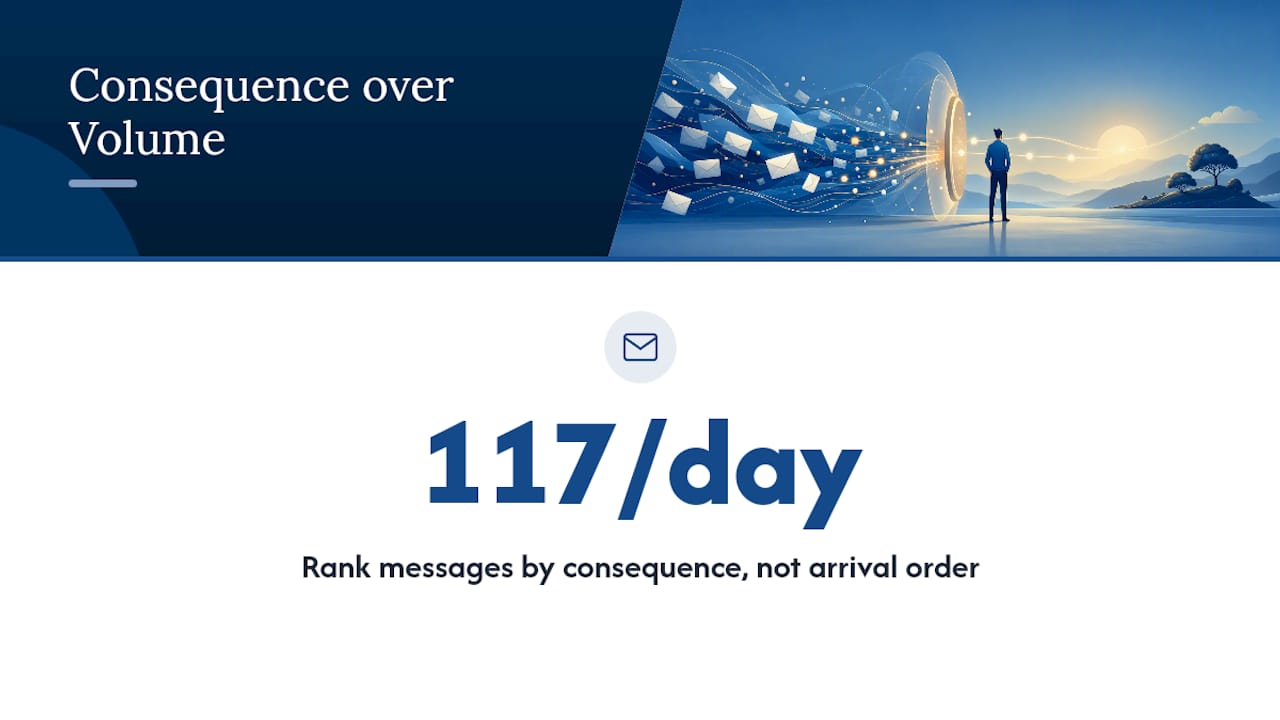
Most inbox advice treats every message as equally worth an alert, and that premise is the actual problem. The average worker receives 117 emails a day, and no whitelist or Focus mode changes that math. What changes the outcome is ranking messages by consequence, not chronology: a deadline or a billing dispute buried on page three matters more than twenty read receipts sitting at the top.
Tactics like muting, filtering, and batching reduce noise, but they still assume you’re the one deciding, message by message, what’s urgent. That’s the gap a consequence-first system closes.
— Glen
Try Theneedle To Prioritize What Actually Costs You Money
Filters and digests cut the noise, but they still leave you scanning for the one email with a deadline attached. Theneedle skips that step entirely: it ranks your inbox by consequence, not chronology, surfacing overdue replies, financial alerts, and time-sensitive messages before the newsletters ever get your attention.

It connects to Gmail, Outlook, Microsoft, Yahoo, and iCloud at once, so if you’re juggling multiple inboxes, you get one prioritized view instead of five separate ones to triage manually. Built-in unsubscribe tools handle the persistent senders you never got around to blocking, and the one-at-a-time focus mode is designed for anyone who finds a crowded inbox genuinely hard to process, including people with ADHD. Busy professionals and freelancers managing more than one account tend to see the biggest shift, since that’s exactly where consequential messages get buried fastest.
If missing a deadline or a refund window has cost you before, start a trial and let it flag what actually matters before you open a single newsletter.
Sources
- Gmail Help — Notifications
- Manage notifications in Mail on Mac - Apple Support
- Reduce Email Notifications by 80% With an Alias-Based Filtering Strategy
- How to Manage Email Notifications From Apps and Services
- How do I remove the item saying ‘Getting too much email?’ - Microsoft Q&A