Stop Missing Replies: Track Unanswered Emails by Reply, Not Opens

The fastest fix is thread-based reply detection paired with one follow-up reminder: search for messages where you were the last sender, save that view, and set a nudge to revisit it. From there, you have three paths depending on your effort tolerance: built-in client features (minutes to set up), scripts or automation (a few hours), or a dedicated app like theNeedle, built for the reality that the average worker gets 117 emails a day. It may take days to trial, but it’s built for scale.
TL;DR:
- Using thread-based reply detection and reminders improves follow-up tracking, especially when combined with labeled folders and calendar alerts for small, focused inboxes.
- Gmail search operators, labels, and built-in Nudges can help identify unanswered threads, but filtering automated responses is necessary to avoid false positives.
- Outlook flags, search folders, and VBA macros offer more native options for tracking unanswered emails across multiple accounts or teams.
- Automated reply detection based on Message-ID and webhook automation provides scalable, reliable follow-up alerts for multiple inbox management.
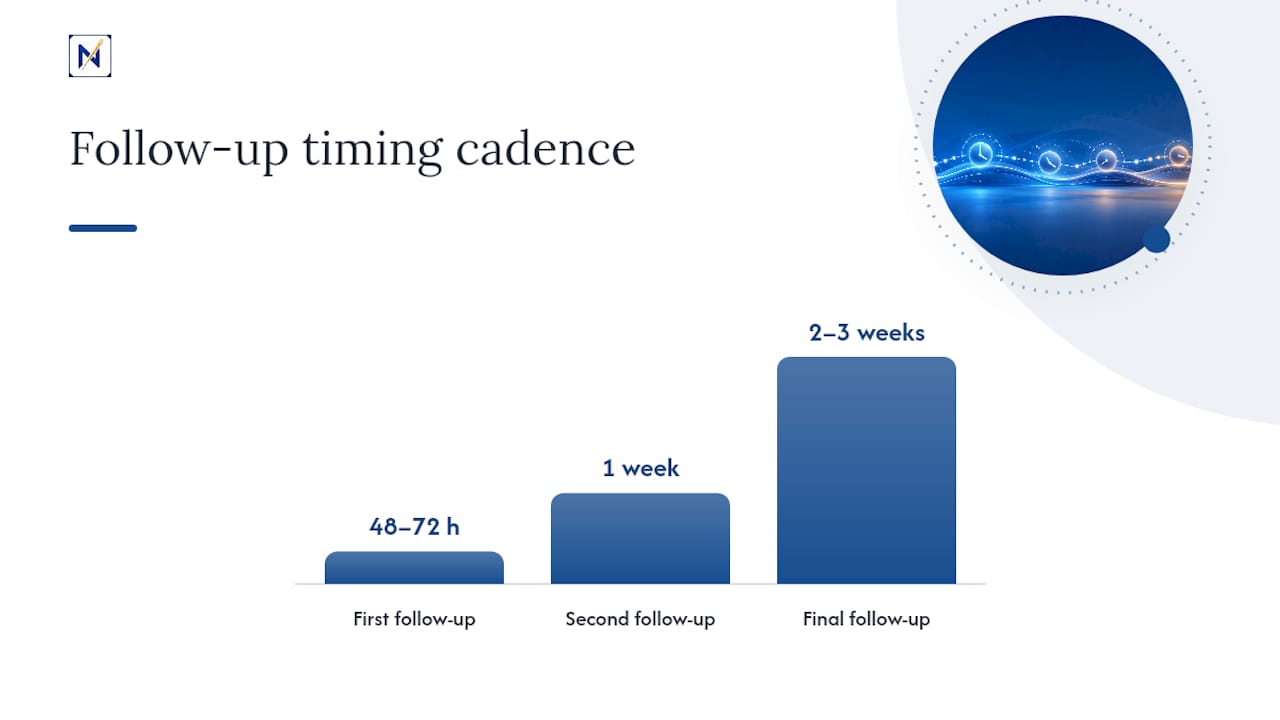
- Response timing and templates should follow a structured cadence, with follow-ups at 48–72 hours, one week, and two to three weeks, to balance patience and urgency.
Table of Contents
- Quick Action Checklist: 7 Steps to Start Tracking Unanswered Emails Today
- Gmail Techniques: Search Operators, Labels, and Nudges
- Outlook Techniques: Flags, Search Folders, and Add-Ins
- Automation and Developer Approaches: Reliable Reply Detection at Scale
- Evaluating Third-Party Tracking Tools: What to Check Before You Trust One
- Follow-Up Timing and Templates That Actually Get Replies
- Why Reply-Based Tracking Beats Open Tracking
- theNeedle: A Consequence-Driven Way to Catch What Slips Through
- A Practical Closing Note on Building the Habit
- Try theNeedle Instead of Building Your Own Rule Engine
- Where to Go for Deeper Setup Guidance
- Sources
- FAQ
Quick Action Checklist: 7 Steps to Start Tracking Unanswered Emails Today
You don’t need new software to start today. You need a system, and most of it takes less time to build than to read about.
Here’s the sequence that gets you from chaos to control in one sitting:
- Create a “Waiting on Reply” folder or saved search and pin it somewhere visible.
- Search for threads where the last message is yours, using operators like
from:mecombined with a date range. - Flag or star every important sent thread the moment you send it, not after you forget it.
- Add a calendar reminder tied to your expected response window, not a vague “someday.”
- Draft two or three follow-up templates now, so you’re not writing from scratch under pressure.
- Send a test email to yourself, mark it as waiting, and confirm your reminder actually fires.
- Review the folder daily instead of relying on memory or a sinking feeling in your stomach.
A few habits make this stick:
- Keep the waiting folder small. If it grows past 20 threads, you’re not following up, you’re hoarding.
- Name your saved search something obvious, like “Awaiting Reply,” so you don’t forget why you built it.
Pro Tip: Run the one-email test in step six before you trust the system with anything that actually matters. A reminder that silently fails is worse than no reminder at all, because it gives you false confidence.
Gmail Techniques: Search Operators, Labels, and Nudges
Gmail’s search bar is more powerful than most people give it credit for. Instead of scrolling for that email you sent Tuesday and never heard back on, run a targeted search and let Gmail do the sorting.
Try these operators to isolate threads where you spoke last and got silence in return:
from:me to:client@company.com -in:chatsnarrows results to a specific contact.is:sent -is:replied(with a third-party add-on, since Gmail lacks a native “unreplied” flag) approximates the same thing.older_than:3d newer_than:14dcombined with a label filter surfaces stale threads without burying you in ancient history.
Save any of these as a filter with a label like “Follow Up,” and it syncs across every device automatically.
Gmail’s built-in Nudges feature bumps old sent emails back to the top of your inbox after a few days of silence. It’s genuinely useful for catching things you’d otherwise forget, but it only looks at recency, not importance. A low-stakes newsletter reply and a client contract both get the same nudge treatment, which means you still have to do the prioritizing yourself.
For hands-off tracking, Google Apps Script can scan your Sent folder, flag threads with no reply after a set number of days, and email you a digest. It takes some setup, but once running, it needs no daily attention.
Pro Tip: Combine a saved search with a Gmail filter that auto-labels matching threads. That turns a one-time search into a living, self-updating list.
Outlook Techniques: Flags, Search Folders, and Add-Ins
Outlook gives you more native tools for this than Gmail does, which is worth knowing if your organization already runs on Microsoft 365.
Start with follow-up flags. Right-click any sent message, choose “Follow Up,” and set a due date. Outlook’s own support documentation recommends this as the primary built-in method, and it works well for individual messages you’d otherwise forget.
Quick Steps take it further. Build a custom Quick Step that flags a sent email and simultaneously moves a copy into a “Waiting” folder, all in one click instead of three.
The real workhorse, though, is a Search Folder. Create one with a rule like “sent items where I was the last person to reply” and pin it to your favorites. It updates automatically and never needs manual maintenance:
- Right-click Search Folders, choose “New Search Folder,” then select “Mail from and to specific people” as your base and customize the criteria.
- Set the search to include the Sent folder and exclude anything already marked complete.
- Rename it something you’ll actually check, like “Needs a Reply.”
If you’re comfortable with a bit of code, a small VBA macro can loop through Sent Items and cross-reference the Inbox for matching subject lines. Check with your IT department first. Some organizations restrict macros for security reasons, and server-side scanning tools can occasionally flag automated Outlook activity as suspicious behavior, which creates false positives worth ruling out before you rely on the script.
Automation and Developer Approaches: Reliable Reply Detection at Scale
Manual tracking works for one inbox. It breaks down fast once you’re managing multiple accounts, a sales team, or a support queue where dozens of threads need answers on any given day.
The technical fix is matching Message-ID to In-Reply-To. Every email carries a unique Message-ID header, and a genuine reply references that ID in its In-Reply-To or References header. This match is close to definitive, unlike scanning for keywords or guessing based on timing. EmailEngine’s documentation on reply tracking lays out this exact pattern for developers building reply-detection systems, and it’s worth storing the original messageId in your own records so you’re not re-parsing headers every time you check status.
Webhooks make this actionable instead of theoretical; for example, effective sales outreach automation and agent mailboxes can trigger timely follow-ups and track replies across teams. A mailbox API can trigger a webhook the moment a matching reply lands, updating a CRM record, closing a task, or firing a reminder if too much time passes without one.
The tricky part is filtering noise. Auto-responses, out-of-office replies, and bounce notifications all technically “reply” to your message without a human ever reading it. Reliable systems check for:
- An
Auto-Submittedheader, which flags automated responses. Return-Pathpatterns typical of bounce messages.- Subject lines containing common out-of-office phrasing.
- List headers like
List-IdorList-Unsubscribe, which indicate mailing-list traffic rather than a direct reply.
Once you’re filtering correctly, two metrics become genuinely useful: reply rate (what percentage of sent threads eventually get a response) and average response time (how long that takes). Track those over a month and you’ll see patterns in who ghosts, who’s fast, and where your own follow-up timing needs adjustment.
Evaluating Third-Party Tracking Tools: What to Check Before You Trust One
Plenty of add-ins promise to solve this for you. Some do it well. Others just add another notification to ignore.
Before installing anything, confirm it covers these basics:
- Reply detection, not just open tracking, as its core mechanism.
- Cross-client support if you juggle Gmail, Outlook, and other accounts.
- A “Done” marking feature so resolved threads stop showing up.
- Clear disclosure of where your email data is processed and how long it’s retained.
Ask directly what the tool reads. Does it need full message body access, or does it work from headers and metadata alone? A tool that only needs headers is inherently less invasive than one that ingests every word you write.
Run a two-week pilot on a single mailbox before rolling anything out further. Watch for false positives specifically. If it flags things as “replied” that weren’t, or misses obvious replies, that’s a signal the matching logic is weak.
Pro Tip: Treat any vendor claiming “perfect” open-tracking accuracy as a red flag. No tool can guarantee that, and the honest ones say so.
Follow-Up Timing and Templates That Actually Get Replies
Timing matters as much as wording. Chase too soon and you look impatient. Wait too long and the request has lost its urgency, or worse, its relevance.
A cadence that works for most professional contexts:
- First follow-up at 48 to 72 hours after the original message.
- Second follow-up at one week, with slightly more direct language.
- Final follow-up at two to three weeks, framed as a last check before you move on.
Subject lines matter more than people assume. Reusing the original subject with “Re:” performs better than a fresh one, since it signals continuity rather than a new ask.
Three templates worth keeping on hand:
- Polite nudge: “Circling back on this in case it slipped through. Happy to resend anything you need.”
- Deadline reminder: “Wanted to flag that this needs a response by [date] to stay on schedule.”
- Break-up message: “I’ll assume this isn’t a priority right now and won’t follow up again unless you’d like to revisit it.”
Once a thread gets a real answer or genuinely doesn’t need one, mark it Done immediately. A stale “waiting” list full of resolved items is exactly how people stop trusting their own tracking system.
Why Reply-Based Tracking Beats Open Tracking
Open pixels feel useful because they give you a number. That number is frequently wrong.
Corporate security scanners, antivirus tools, and privacy features like Apple’s Mail Privacy Protection routinely trigger a tracking pixel without a human ever seeing the message. Litmus has documented how this inflates open rates and makes them unreliable as a proxy for actual engagement. Microsoft’s own Dynamics 365 documentation states plainly that open counts are approximations for this exact reason, not a precise engagement measure.
Reply detection avoids this problem entirely because a reply requires an actual human action. Use opens for rough, early triage, as a hint that something might be worth watching, but never as your final signal for whether a thread needs follow-up. Combine reply status with click data and response timing when you want a fuller picture, and let replies carry the deciding weight every time.
theNeedle: A Consequence-Driven Way to Catch What Slips Through
Manual tracking works until your inbox spans five accounts and 117 messages a day, at which point building saved searches everywhere stops scaling. There are apps that connect multiple email services and identify unhandled replies alongside deadlines and financial alerts, ranking them by consequence rather than by sender or subject line.
A specialist tool earns its place when three things are true:
- You’re managing multiple inboxes and can’t maintain separate saved searches in each.
- You need messages ranked by actual stakes, a missed refund window or contract deadline, not just recency.
- You want one-at-a-time focus instead of a wall of flagged threads competing for attention, which theNeedle builds specifically with ADHD-friendly workflows in mind.
If DIY searches and reminders feel like enough, stick with them. If you’re aggregating across accounts and still missing consequential threads, that’s the gap theNeedle is built to close.
A Practical Closing Note on Building the Habit
Start small: one saved search, one automated reminder. That alone catches most of what slips through.
Then shift your mindset from inbox zero to consequence triage. Not every unanswered email deserves equal urgency. Pair that with one-item focus and a reliable “Done” flag, and the system stays usable instead of becoming another source of guilt.
— Glen Bover
Try theNeedle Instead of Building Your Own Rule Engine
Scripts and saved searches help somewhat, but they still require daily decisions on priorities. theNeedle connects to multiple inboxes and ranks unanswered messages by consequence and deadlines, helping reduce manual triage.

If you’re juggling more than one inbox, a two-week pilot on your busiest account is the fastest way to see whether consequence-based ranking catches what your current saved searches miss. For readers who also want follow-up nudges by text rather than another email notification, theNeedle’s SMS enrollment offers that as an alternate channel. Start by checking out theNeedle’s live product page to see how it surfaces the one email you actually need to handle today.
Where to Go for Deeper Setup Guidance
- Microsoft Learn: Email Engagement for how open and reply tracking works in Dynamics 365.
- EmailEngine’s reply-tracking docs for developer-grade Message-ID matching.
- Litmus on open-rate reliability for why opens mislead.
- Microsoft Support on flagging emails for Outlook’s native follow-up tools.
Sources
- Use email engagement to view message interactions | Microsoft Learn
- Tracking replies — EmailEngine docs
- Why ‘read’ metrics mislead and how to interpret open rates | Litmus blog
FAQ
How Do I Follow Up on an Email That Got No Response?
Wait 48 to 72 hours, then send a short nudge referencing the original subject line rather than starting a new thread. If a second follow-up at the one-week mark still gets silence, send a final message that gives the recipient an easy out, then mark the thread Done either way.
How Do I Find an Email I Already Replied To?
Search your Sent folder using operators like to: combined with a keyword from the original subject, or check your client’s “Sent” view filtered by date. Gmail and Outlook both let you search across Sent and Inbox simultaneously, which surfaces the full thread including your reply.
How Can I Find Emails I’ve Been Ignoring in Outlook?
Build a Search Folder that isolates messages where you were the last person to respond, or check any threads you’ve flagged for follow-up under the Tasks view. Outlook’s flagging feature is designed specifically for surfacing exactly these ignored threads.
Why Are Some of My Emails Not Coming Through?
Missing emails are usually caught by spam filters, blocked by outdated contact rules, or misrouted by aggressive server-side scanning that misreads legitimate messages as suspicious. Check your spam and junk folders first, then review any mail rules that might silently redirect or delete matching messages.
Does theNeedle Replace Manual Email Tracking Entirely?
theNeedle is built for readers managing multiple inboxes who need consequence-based ranking rather than manual saved searches in every account. Current pricing and trial details are available directly on theNeedle’s site.