4 min readEN
How to Choose the Best Email Management Software
Sorting tools organize messages. Accountability tools keep the action an important email requires in view until it's resolved. How to tell which one your workflow actually needs.
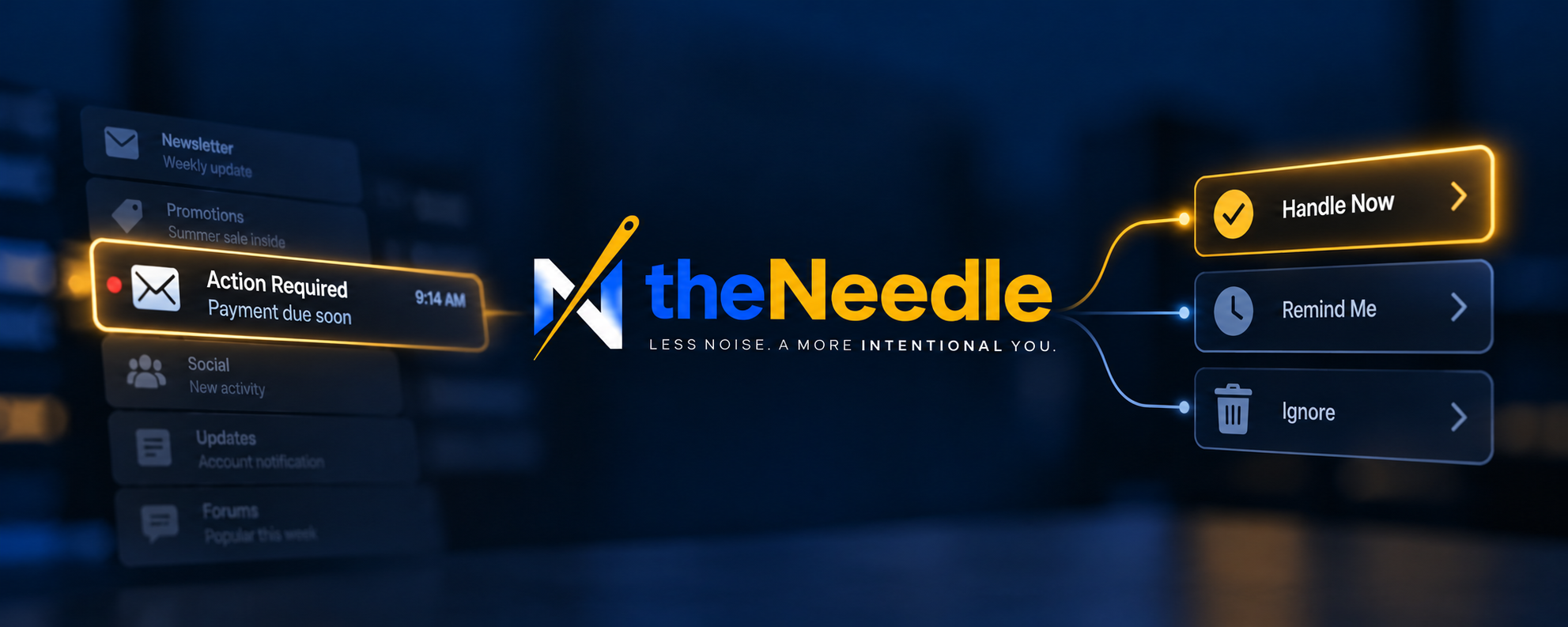

You saw the email. You meant to deal with it. Then a busy day filled your inbox, and the deadline, payment, or opportunity slipped past.
That isn’t just an inbox organization problem. It’s a follow-through problem.
The best email management software for you depends on which part of email is failing: sorting messages, handling replies, remembering commitments, or keeping an unresolved action visible. This guide compares those approaches and gives you a practical way to evaluate them. It isn’t another roundup of the “best email apps”; for that, see our guide to best email management apps.
First, identify what you need the software to manage
“Email management software” can mean several different things. The categories overlap, but they solve different problems:
- Email providers like Gmail and Outlook deliver and store your messages. Their built-in features may cover your needs already.
- Email clients like Superhuman and Spark offer another interface for handling one or more existing email accounts.
- Filtering and follow-up tools like SaneBox work alongside your current setup, sorting messages or surfacing conversations that may need a response.
- Email accountability tools focus on the action an important message requires, and whether that action remains visible over time.
Before comparing features, name the failure you want to prevent. Do you spend too long sorting? Lose messages in clutter? Forget to follow up? Read an important email and still fail to act?
A cleaner inbox can help with the first two. It may not solve the last two.
Compare tools by the job they do
The products below represent different approaches, not interchangeable apps. Their features and plans can change, so check each provider’s current details before making a decision.
| Approach | Examples | Worth evaluating when… | Check carefully for… | |---|---|---|---| | Built-in provider features | Gmail with Gemini; Outlook with Copilot | You want to stay within the email platform you already use | Eligibility, licensing, and whether the features cover your specific follow-up workflow | | Dedicated email client | Superhuman; Spark | You want a different interface, faster triage, or additional workflow and collaboration features | Cost, device support, team requirements, and whether its extra features solve your actual problem | | Filtering and reply tracking | SaneBox | You want to keep your current inbox but reduce noise or spot unanswered sent messages | Which messages the tool tracks, when reminders appear, and how exceptions are handled | | Persistent action tracking | Tools designed around email accountability; theNeedle (pre-launch, building in public) | Your main concern is that an unresolved obligation disappears from view | How the tool treats open actions, urgency, user control, privacy, and pre-launch limitations |
theNeedle is a pre-launch option we’re building in public, included here only as a labeled example within that category.

For example, Google lists Gemini features in Gmail such as thread summaries, writing help, and, on eligible plans, AI Inbox. Availability varies by account type and plan. Google’s feature guide explains the current options.
Microsoft describes Outlook Copilot features including priority classification, message summaries, and drafting. Its documentation also notes limitations, including that some Copilot scenarios aren’t available in shared or delegate mailboxes. See Microsoft’s Outlook Copilot FAQ.
For a dedicated client, Superhuman’s plans list tools such as split inboxes, reminders, snooze, and team collaboration. Spark’s plans include features such as Smart Inbox, reminders, and paid options for AI and collaboration.
For a different kind of follow-up, SaneBox explains how SaneNoReplies groups sent messages that may still need a response, with settings for deciding when a reply counts as overdue.
These examples show why an app-by-app winner can be misleading. A tool that helps you write faster is not automatically the best choice for remembering a deadline. A tool that sorts your inbox may not track what you’re waiting for.
Use these six criteria to compare email management tools
1. Triage: Can you find what matters?
Test how each tool separates urgent or actionable messages from newsletters, routine updates, and low-priority mail.
Don’t judge only by how tidy the inbox looks. Check whether the tool misses an important message or incorrectly pushes a routine one to the top. Both errors matter.
2. Follow-up: What happens after you send or read a message?
A sent email can create an open commitment: someone owes you a reply, or you need to act once they respond. An email you’ve read may also require a future step.
Check whether the tool supports reminders for sent messages, tracks unanswered conversations, or lets you set a due date. Then ask whether those follow-ups stay visible without relying on you to remember where you filed the message.

3. Resolution: Does the tool distinguish “seen” from “done”?
Opening, archiving, or marking a message as read doesn’t necessarily resolve its request.
Test what happens when you read a consequential message but can’t act immediately. Can you keep the action in view until you finish it? Is there a clear way to mark it resolved? If not, you may need another place to track the work.
4. AI and automation: Can you verify the result?
Summaries, priority scores, filters, and suggested replies can save time. But they should be evaluated against real messages, not marketing examples.
Try a thread involving a deadline, a changed appointment, or a specific promised action. Verify the details. Look for review and undo options before enabling automatic actions such as archiving, filing, or sending.
5. Fit: Does it work with your actual accounts and workflow?
Confirm provider compatibility, devices, multiple accounts, shared mailboxes, calendar connections, and any required workplace controls.
For a team, check assignment, collaboration, administration, and access requirements. For personal or professional messages, read how the service handles email access and data. “Works with Gmail” doesn’t tell you everything you need to know.
6. Cost: What will you pay for the workflow you need?
Compare the total price for the features you’ll use, not the lowest advertised tier. Consider annual versus monthly billing, plan eligibility, add-ons, and whether every team member needs a paid account.
Also count the cost of extra steps. If one tool requires you to copy deadlines into a separate task manager by hand, that workflow has a time cost even if the software is inexpensive.
Run a small pilot before you switch
Test candidates with your normal mail, or a carefully chosen set of real examples. Include messages that need a reply, a follow-up, a calendar action, or a deadline, and ordinary mail that should stay low priority.
For each tool, check:
- Can you find the consequential message quickly?
- Does it surface a follow-up when expected?
- Can you tell what remains unresolved?
- Can you correct a mistake or reverse an action?
- Does the workflow feel manageable on the devices you use?
Record missed follow-ups, mistaken priorities, time spent, and any steps you had to complete outside the tool. A short trial won’t prove that software can prevent every missed deadline. It can reveal whether the tool fits how you work.

Choose the tool that matches the failure, not the feature list
If your main issue is clutter, filtering or a focused inbox may be enough. If you spend too much time drafting and processing messages, a dedicated client or provider AI features may help. If your work depends on shared ownership, prioritize team workflows and administrative controls.
But if the recurring problem is, “I saw the email, meant to act, and forgot,” start with follow-through. Ask whether the software keeps the required action visible after the message is read, and whether it remains visible as days pass.
That’s the difference between managing messages and managing what those messages require of you.
At theNeedle, we’re building around that distinction: helping keep consequential email and its required action in view until it’s resolved. We’re sharing the process as we build. See what we’re working on.
One obligation at a time, from the inbox you already have.
theNeedle is live on the App Store and Google Play.
Get the app