For Busy Pros, Unsubscribe Persistent Senders in 10 Business Days

Use your email provider’s built-in unsubscribe when a sender is legitimate, and expect it to take a few days to clear. If the message looks unsolicited or suspicious, don’t click anything inside it. Report it as spam or phishing and block the sender instead. The CAN-SPAM Act gives real companies 10 business days to honor an opt-out, and the RFC 8058 List-Unsubscribe standard is what makes the safest opt-outs work quietly in the background.
TL;DR:
- Legitimate unsubscribe requests can take up to 10 business days to be fully honored, especially if the sender adheres to the CAN-SPAM Act.
- Bulk search and deletion of all emails from a sender saves time once you’ve identified multiple messages, preventing repetitive manual cleanup.
- Suspicious emails with slightly altered domains, urgent language, or vague unsubscribe links should be reported as spam or phishing instead of clicked.
- Most major email providers now include built-in unsubscribe tools that utilize RFC 8058 standards for safer one-click opt-outs.
- Consistently managing your inbox by unsubscribing promptly and cleaning old messages weekly prevents backlog buildup and reduces clutter.
Table of Contents
- The Safe Checklist for How to Unsubscribe from Persistent Senders
- Why Clicking Unsubscribe on Suspicious Mail Can Backfire
- How Gmail, Outlook, Apple Mail, and Yahoo Handle Unsubscribing
- Choosing Between Manual Unsubscribes and Bulk Cleanup Tools
- When Unsubscribing Fails: Blocking, Filters, and Reporting
- Clearing the Backlog Once You’ve Unsubscribed
- Where theNeedle Fits for Readers Who Want a Hands-Off Fix
- What Actually Keeps an Inbox Clean
- Try theNeedle for Inbox Peace That Actually Sticks
- Sources
- FAQ
The Safe Checklist for How to Unsubscribe from Persistent Senders
Before you touch anything, size up the sender. A legitimate business email usually comes from a recognizable domain, ties back to an account you actually opened, and carries a proper unsubscribe header your email client can read. A stranger pretending to be your bank rarely gets all three right.
- Check the domain and relationship. Does the sending address match the company’s real website, and did you ever sign up with them?
- If legitimate, unsubscribe through the inline button or footer link. Give it 24 to 72 hours, and know that some senders use the full 10 business day CAN-SPAM window before it fully stops.
- If anything feels off, skip the link entirely and follow expert advice from Scruteon’s free scam prevention guide to stay safe. Use “Report spam” or “Report phishing” and block the sender or domain in one motion.
- Search your inbox for more mail from that sender using terms like “unsubscribe” or a
from:search, then handle the whole batch at once instead of message by message.
That fourth step is where most people quit too early, and it’s exactly why the backlog keeps growing.
Pro Tip: Before you unsubscribe from anything, search your inbox for the sender’s exact email address. If you find twelve messages instead of one, you’ll want to bulk delete after opting out, not one at a time.
Why Clicking Unsubscribe on Suspicious Mail Can Backfire
Clicking a link in a message you don’t trust does more than fail to stop the mail. It can confirm to whoever sent it that your address is active and being read, which often increases the spam you receive rather than reducing it. That confirmation signal is valuable to list sellers, and once your address is flagged as “live,” it tends to get sold or shared again.
Watch for these red flags before you click anything:
- A sender domain that’s almost right but slightly off (like a company name with an extra letter)
- Urgent or threatening language pushing you to act immediately
- No physical address, phone number, or way to verify who’s writing
- A generic “unsubscribe” link that leads to an unfamiliar site asking for more information than an opt-out should need
When you spot any of these, the FTC’s own guidance is blunt: don’t click, report it as spam or phishing instead, block the sender, and set a filter so anything similar gets routed straight to trash.
How Gmail, Outlook, Apple Mail, and Yahoo Handle Unsubscribing
Every major provider now builds unsubscribe tools directly into the inbox, and that’s the first place to look before installing anything else.
- Gmail shows an inline “Unsubscribe” button next to the sender’s name on qualifying messages, and its Manage subscriptions dashboard lists every active subscription in one screen so you can clear several at once. Gmail sends the opt-out request on your behalf, and Google’s own support documentation confirms this works without you leaving the app.
- Outlook places similar controls in the message header on desktop, with a slightly different “Unsubscribe” prompt on mobile that sits above the message body.
- Yahoo flags bulk senders automatically and offers one-tap unsubscribe alongside its block and filter options.
The technical reason these inline buttons feel faster and safer than a footer link comes down to a protocol called RFC 8058 List-Unsubscribe. It lets your email client send a direct, one-click request behind the scenes instead of routing you through a preference center on the sender’s website. That matters because those preference pages are exactly where dark patterns live: extra clicks, pre-checked boxes, and vague language designed to keep you subscribed.
Statistic Callout: Gmail’s own subscription tools can take a few days to fully process an opt-out request, even when the sender complies immediately.
Choosing Between Manual Unsubscribes and Bulk Cleanup Tools
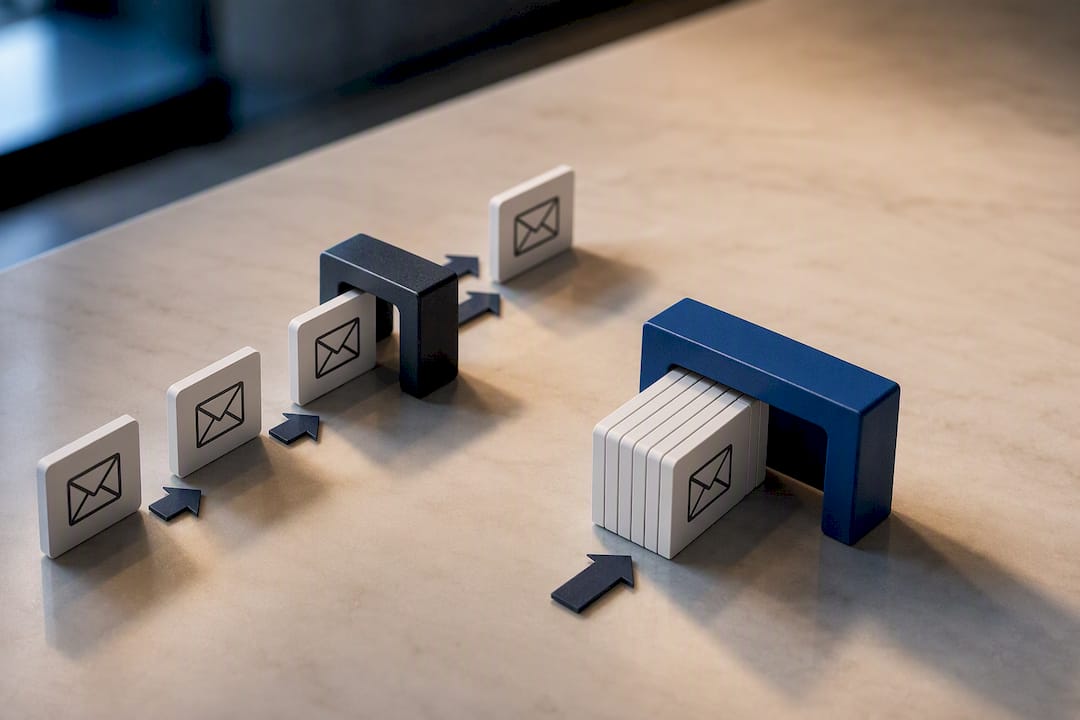
Clicking unsubscribe one email at a time works fine when you’re dealing with three or four senders. Past that, most people hit a wall, usually somewhere around a dozen unread newsletters, where manual cleanup stops being worth the time.
That’s the point to consider a bulk tool, whether it’s your provider’s own dashboard or a third-party service. Before you hand one access to your inbox, run through a short privacy check:
- What permissions is it requesting, and does it need to read message content or just headers?
- Does it perform a genuine List-Unsubscribe request, or does it just hide messages from your view without ever contacting the sender?
- What’s its data retention policy, and can you revoke access later?
Pro Tip: Test any bulk tool on one sender first. Wait a week, then check whether new mail from that sender actually stopped. If it didn’t, the tool likely archived the messages instead of unsubscribing you.
When Unsubscribing Fails: Blocking, Filters, and Reporting
Some senders ignore opt-out requests entirely, and that’s when you escalate past clicking links.
- Give it the full window. The CAN-SPAM Act requires commercial senders to honor opt-outs within 10 business days. If mail keeps arriving after that, the sender is noncompliant.
- Create a provider filter that auto-deletes or archives anything from that address or domain going forward.
- Block the sender outright rather than relying on the filter alone.
- Report the sender to your email provider and, for persistent violations, to the FTC, including the sender’s address, the date you unsubscribed, and screenshots of continued mail.
Clearing the Backlog Once You’ve Unsubscribed
Stopping new mail is only half the job. The old messages still clutter your inbox unless you go back and clean them out.
- Search by sender, not by scrolling. A
from:addresssearch or a keyword search for “unsubscribe” surfaces every related message instantly. - Select all and delete in bulk using Gmail’s “Select all conversations that match this search” option or Outlook’s equivalent multi-select.
- Set a filter to auto-archive anything from senders you’ve already opted out of but who might still slip through during the processing window.
- Run a five-minute check weekly. A short recurring scan catches new noise before it becomes another backlog, and it’s a habit worth pairing with broader inbox organization practices if clutter has been a recurring problem.
Watch for “win-back” or reactivation campaigns from senders you already left. These often arrive months later under a slightly different name, so treat them with the same scrutiny as a first contact, not as an old friend.
Where theNeedle Fits for Readers Who Want a Hands-Off Fix
Manually triaging every sender works, but it takes time most busy professionals don’t have to spare. theNeedle takes a different approach: instead of sorting mail by sender or subject line, it ranks messages by actual consequence, deadlines, financial alerts, unanswered replies, and surfaces built-in unsubscribe options for the persistent senders cluttering everything else.
- Best suited for people juggling multiple inboxes or client accounts where a missed message has real cost
- Works alongside the safety steps above rather than replacing them
- Most useful once you’ve already cleared the obvious backlog and want to stop it from rebuilding
If your inbox problem is less about spam and more about finding important messages, other tools may be more suitable.
What Actually Keeps an Inbox Clean
Most people treat unsubscribing as a one-time cleanup instead of a habit, and that’s the real reason inboxes refill within weeks. The fix isn’t more aggressive filtering. It’s a short, consistent routine: unsubscribe from trusted noise the moment it arrives, report and block anything suspicious without hesitation, and spend five minutes a week checking what snuck through. If you use a third-party bulk tool, read what it actually does to your data before trusting it with mailbox access. Safety and tidiness aren’t competing goals here. They’re the same habit, repeated weekly.
— Glen Bover
Try theNeedle for Inbox Peace That Actually Sticks
Some email management tools help users who have unsubscribed from obvious senders but still miss important messages because of competing emails. Rather than sorting mail by volume or sender, these tools may rank messages by consequence, such as deadlines, financial alerts, and unanswered replies, and provide unsubscribe options for persistent low-value senders.

If you’re managing more than one inbox or you’ve missed something costly because it got buried under newsletters, try theNeedle and see what surfaces once volume stops being the priority.
Sources
- CAN-SPAM Act: A compliance guide for business | FTC
- Unsubscribing from hundreds of newsletters became effortless with this Gmail feature | Android Police
- What is RFC 8058? | Mailgun
- Consumer
- What Happens If You Click a Phishing Link? | LifeLock (Norton)
FAQ
How Do I Stop Persistent Unwanted Emails?
Start with your provider’s built-in unsubscribe tool if the sender is legitimate, and give it up to 10 business days to fully stop. If the sender ignores that window or the message looked suspicious from the start, block the domain and set a filter rather than clicking anything inside it.
Why Do I Keep Getting Spam After Unsubscribing?
Some senders simply ignore opt-out requests, which is a CAN-SPAM violation you can report. In other cases, clicking a suspicious unsubscribe link actually confirms your address is active, which can increase spam instead of stopping it.
Why Should You Never Delete Spam Without Reporting It?
Deleting hides a message but teaches your provider’s spam filter nothing, so similar mail keeps arriving in your inbox instead of your spam folder. Reporting it as spam or phishing trains the filter and helps flag the sender for other users too.
How Can I Unsubscribe from All Marketing Emails from One Company?
Search your inbox for the company’s domain or sender name to find every message at once, then use the inline unsubscribe button or the sender’s link on any single message; most companies apply the opt-out across their entire list. If mail continues past 10 business days, block the domain directly instead of unsubscribing again.
What Does theNeedle Cost?
Pricing for theNeedle isn’t listed publicly; current details are available on theNeedle’s site.