Set Up Gmail Multiple Inboxes for a Cleaner Desktop Workflow

Turn on Multiple Inboxes in Gmail from a desktop browser to split your mail into up to five custom sections, each defined by a search query you write yourself. Go to the Gear icon, then See all settings, then the Inbox tab, then set Inbox type to Multiple inboxes, click Customize, and Save. Two limits matter before you start:
- Only a limited number of custom sections plus your primary inbox, total.
- The feature works on desktop only and is unavailable on mobile apps.
Key Takeaways
Gmail’s Multiple Inboxes organizes mail by search query on desktop, while consequence-based tools like Theneedle organize mail by what actually needs your attention.
| Point | Details |
|---|---|
| Enable through settings | Go to Gear, See all settings, Inbox tab, then choose Multiple inboxes and save. |
| Five-section cap | You get five custom sections plus your primary inbox, so combine overlapping queries with OR. |
| Quote sender addresses | Use quotes around an email address to avoid catching aliases and Drive notifications. |
| Match layout to screen size | Right of inbox suits wide monitors; above or below suits laptops and reference material. |
| Desktop-only feature | Mobile Gmail apps don’t support Multiple Inboxes, so rely on labels and search there instead. |
| Automate for consequence | Theneedle complements manual sections by flagging overdue and high-stakes emails across every connected account. |
Table of Contents
- How Do You Create Gmail Multiple Inboxes?
- What Search Queries Work Best for Gmail Sections?
- Which Layout Position Fits Your Screen?
- Best Practices for Keeping Sections Useful
- Why Isn’t Multiple Inboxes Working Correctly?
- When Does a Manual Dashboard Stop Being Enough?
- When I’d Stick With Manual Sections vs. Switch to Automation
- A Practical Next Step Beyond Manual Sections
- Frequently Asked Questions
- Sources
How Do You Create Gmail Multiple Inboxes?
The setup takes about five minutes once you know where Google buried the controls. Here’s the exact sequence.
- Open Gmail on your desktop and click the Gear icon in the top right, then select See all settings.
- Click the Inbox tab near the top of the settings page.
- Under “Inbox type,” select Multiple inboxes from the list of options (Default, Important first, Unread first, Starred first, Priority Inbox, Multiple inboxes).
- A new section appears below labeled Multiple Inboxes. Click into the first “Search query” field and type the query that defines what lands in that section.
- Name the section in the field next to it. This label appears above the emails in that box, so make it something you’ll recognize at a glance.
- Repeat for up to four more sections. Set Maximum page size near the bottom, which controls how many emails show per section before you have to click through.
- Choose where the sections display: right of the inbox, above, or below.
- Scroll down and click Save Changes.
Refresh Gmail and check that each labeled section is pulling in the right emails. If a box sits empty, the query probably needs adjusting, which the next section covers.
According to Gmail’s own setup documentation, multiple inboxes can only be configured on a computer, so don’t waste time hunting for this option in the Gmail mobile app.
Pro Tip: Build one section at a time and save after each one. If Gmail throws an error or a query behaves oddly, you’ll know exactly which field caused it instead of troubleshooting five changes at once.
What Search Queries Work Best for Gmail Sections?
Every Multiple Inboxes section runs on the same search syntax you already use in Gmail’s search bar. That’s the part most guides skim past, and it’s the part that actually determines whether your sections are useful or just noisy duplicates of your main inbox.
The core operators: is: (starred, unread, important), label: (any Gmail label), from: and to: (sender or recipient), subject:, has:attachment, and newer_than:7d for recency. Combine terms with a space for AND, use OR between terms, and use a minus sign for NOT. Quoting an address, like from:"billing@vendor.com", keeps Gmail from pulling in every alias tied to that sender.
Ready-to-use queries:
is:starred— anything you flagged for follow-up.is:unread— everything you haven’t opened yet.from:boss@company.com OR from:client@company.com— your VIP list.subject:invoice has:attachment— billing documents with a file attached.label:receipts newer_than:30d— recent purchases only.from:@vendor1.com OR from:@vendor2.com— combined vendor domains in one box.has:attachment newer_than:7d— recent files without digging through threads.to:me -label:newsletters— direct messages, minus subscription clutter.
One quirk worth knowing: unquoted sender searches can catch a person’s Google Drive sharing notifications along with their regular email, since both technically come “from” that address. Gmail’s advanced search documentation confirms that quoting the exact address restricts matches and avoids that overlap.
Which Layout Position Fits Your Screen?
Gmail gives you three placement options for your custom sections, and the right one depends more on your monitor than your preference.
- Right of the inbox works best on wide monitors, since it puts priority sections side by side with your main list without heavy scrolling.
- Above the inbox stacks your most urgent section at the top, which suits laptops where horizontal space is tight but vertical scrolling is fine.
- Below the inbox treats sections as reference material you check occasionally, like archived receipts or completed tasks.
For the maximum page size setting, smaller numbers between 10 and 25 usually work better than the default. A section showing 50 emails defeats the purpose of a focused view, according to independent testing of the feature. Keep each box scannable in a glance, not another wall of text to scroll.
Best Practices for Keeping Sections Useful
Multiple Inboxes only stays helpful if the sections behind it stay accurate, and that depends on your filters doing their job automatically.
Set up Gmail filters that apply labels the moment mail arrives, rather than relying on search queries alone to catch everything retroactively. If you’re bumping against the five-section cap, combine related queries with OR instead of creating a sixth section Gmail won’t allow. Name each section for what it does, not what it contains. “Needs Reply” tells you more at a glance than “Label 3.”
Give a new layout at least a week before judging it. Habits around email take a few days to form, and switching positions every other day tells you nothing useful.
- Apply labels through filters, not manual sorting.
- Combine overlapping queries with OR to stay under the cap.
- Test one layout for a full week minimum.
Pro Tip: If you manage more than one email address inside Gmail, replies to messages surfaced in your sections often default to your primary address. Set up additional “Send mail as” identities so your replies go out from the correct account instead of confusing the person on the other end.
Why Isn’t Multiple Inboxes Working Correctly?
Most problems trace back to one of four causes.
- The option isn’t showing up at all. Confirm you’re using Gmail in a desktop browser, not the mobile app, and that you’re viewing the full settings page rather than a quick-settings panel.
- A section pulls in the wrong emails. Recheck your query syntax, especially unquoted sender addresses that may be catching aliases. Review any filters that auto-apply labels, since a misconfigured filter upstream will throw off every query downstream.
- A section stays empty. Verify the label actually exists and has messages, check that your maximum page size isn’t set to zero, and confirm a
newer_than:filter isn’t excluding everything you expected to see. - Mobile shows nothing custom. That’s expected. Multiple Inboxes doesn’t exist on Gmail’s mobile app. Use labels and the mobile search bar as a manual workaround until you’re back at a desktop.
When Does a Manual Dashboard Stop Being Enough?
Google’s own product team positions Multiple Inboxes as the right call for what they call “email DIY” users, people who want a dashboard view and are willing to maintain it themselves. As Google’s Gmail lead Laura Mae Martin explains, it’s built for readers who prefer manual control over automated sorting.
Multiple Inboxes gives you visibility into different slices of your mail at once, but it sorts by query, not by consequence. It shows you where an email lives, not whether ignoring it will cost you something.
That distinction matters more as volume grows. The average worker receives 117 emails a day, and a layout change alone doesn’t tell you which three of those 117 actually carry a deadline or a financial risk.
When I’d Stick With Manual Sections vs. Switch to Automation
Multiple Inboxes earns its place when you’re managing one account with predictable patterns, like a starred section and an invoices section you check twice a day. It falls apart once you’re juggling several accounts or once “important” stops meaning “starred” and starts meaning “has a deadline attached.” At that point, no query syntax replaces something that reads consequence instead of keywords. Organizing your inbox with layout alone only gets you halfway there.

A Practical Next Step Beyond Manual Sections
Multiple Inboxes gets you organized by query. It doesn’t know that the email buried in section three has a payment deadline attached, or that the “unread” box hides a reply your client has been waiting on for four days. That’s the gap Theneedle was built to close: it connects across Gmail, Outlook, Microsoft, Yahoo, and iCloud, and instead of sorting by sender or label, it flags the messages carrying real consequences, missed deadlines, unhandled replies, refunds you’d otherwise let expire.

If you’re managing more than one inbox or you’ve caught yourself missing something important despite a well-organized layout, try Theneedle and see what it surfaces in your own accounts. You can also preview it live before setting anything up.
Frequently Asked Questions
Can I use Gmail multiple inboxes on my phone? No. Multiple Inboxes only works in a desktop browser. The Gmail mobile app shows your standard inbox, so use labels and saved searches as a workaround on your phone.
How many sections can I create with Gmail multiple inboxes?
Up to five custom sections in addition to your primary inbox. If you need more categories, combine related search queries with OR inside one section rather than trying to add a sixth.
Why is my Gmail multiple inboxes section showing the wrong emails?
Usually a query issue. Check for unquoted sender addresses catching aliases, confirm any label-applying filters are working correctly, and double-check date filters like newer_than:.
Does Gmail multiple inboxes work with labels and filters? Yes, and it works best when it does. Set filters to apply labels automatically, then reference those labels in your section’s search query so new mail populates the section without manual sorting.
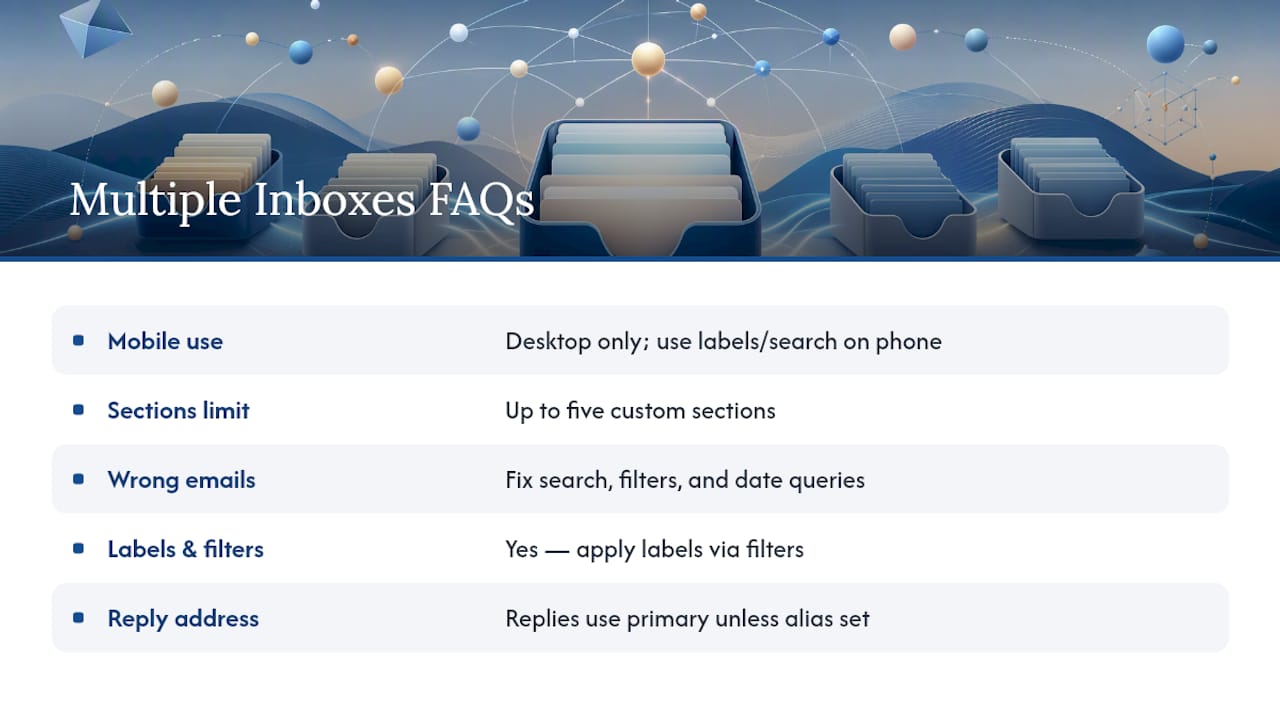
What happens when I reply to an email inside a multiple inboxes section? Gmail defaults to your primary address unless you’ve set up additional “Send mail as” identities. If you manage several accounts, configure those aliases first to avoid replying from the wrong address.
Sources
- Manage your emails with multiple inboxes - Gmail Help
- How to choose the right Gmail inbox type
- Gmail Multiple Inboxes: How to Set Up and Customize the Feature (2026)