Stop Missing Calendar Invites: Start With Your Inbox in 3 Steps

If an invite has vanished, search your inbox and spam folder first, then confirm your calendar is set to auto-add invitations and your app notifications are actually turned on. Most missing invites are sitting in a filter or a settings toggle, not lost in transit. If the organizer swears they sent it and you still see nothing, ask them to resend or share a direct event link while you troubleshoot.
TL;DR:
- Most missing invites are due to filters, inbox routing, or incorrect account settings rather than actual delivery failure.
- Checking spam folders, inbox filters, forwarding rules, and account permissions quickly resolves the majority of invitation issues.
- Platform-specific issues, such as Outlook’s alias handling or iCloud’s email address settings, can cause invites to appear in unexpected locations.
- Email filtering and inbox overload are common reasons invites go unnoticed, making prioritization tools or a focused inbox critical for retention.
- Persistent alarms and pre-meeting routines help ensure time-sensitive invites are noticed, especially when notification systems fail or are ignored.
Table of Contents
- How Do You Stop Missing Calendar Invites Right Now?
- Where Do Google Calendar, Outlook, and Apple Invites Go Wrong?
- Why Do Invitations Get Lost Before They Reach Your Calendar?
- How Do You Make Reminders You Actually Notice?
- What Habits Actually Reduce Missed Meetings?
- Why the Mailbox Comes Before the Calendar
- When Inbox Overload Is the Real Problem
- Sources
- FAQ
How Do You Stop Missing Calendar Invites Right Now?
Work through these in order. Most people find the fix in the first three steps.
- Search your mailbox by sender name, event title, or approximate send time, and check spam or junk folders specifically.
- Confirm you’re in the right account. If you juggle a work and personal calendar, the invite may have landed in the other one.
- Check your auto-add setting. Google Calendar lets you choose whether invitations are added automatically for everyone or only for known senders; Apple Calendar has a similar preference for receiving invitations.
- Review app and OS notification permissions, and check whether Do Not Disturb or a focus mode is silencing calendar alerts.
- Ask the organizer to resend the invite or send you the direct event link as a backup.
- Inspect forwarding rules, inbox filters, and blocked-sender lists that might be quietly rerouting mail.
- Force a sync. Close and reopen the calendar app, sign out and back in, or toggle calendar sync off and on in your phone’s account settings.
- Set a backup alarm on your phone for anything time-sensitive until you’ve confirmed notifications are reliable again.
Pro Tip: Before changing any settings, add frequent meeting organizers to your contacts. Google Calendar treats invites from known senders differently than ones from strangers, and that single step quietly fixes a surprising share of “disappearing” invites.
Where Do Google Calendar, Outlook, and Apple Invites Go Wrong?
Each platform has its own weak points, and knowing which one you’re dealing with saves a lot of guessing.
Google Calendar. Open Settings, find the calendar in question, and check whether invitations are set to “Automatically add invitations,” “From everyone,” or a restricted option. If you’re not seeing browser notifications at all, check your site permissions for calendar.google.com. Also, Google’s own troubleshooting guide points to Desktop notification settings and per-calendar notification settings as the two most common culprits when alerts silently stop.
- Confirm event notifications are enabled per calendar, not just globally.
- Check browser and OS-level notification permissions separately. One can be on while the other blocks the alert.
- If someone forwarded you an invite instead of adding you directly, it behaves differently than a native invitation and may not sync the same way.
Outlook. Check the Junk Email folder before anything else. Inbox rules are the second suspect. A rule created months ago to sort project emails can just as easily be quietly filing meeting invites somewhere you never look. Also check whether the invite came from an alias or alternate “From” address; Outlook sometimes treats these differently than your primary address. Desktop and mobile sync settings can drift out of alignment too, especially on Exchange or Office 365 accounts with admin-level mail flow rules.
Apple/iCloud Calendar. iCloud Calendar lets you pick which address both sends and receives invitations, and whether those invitations show up as in-app notifications or as plain email. If you’ve never checked that setting, it’s worth five minutes. Also check the Mail app for filters or VIP settings that might be routing invitation emails away from your main inbox.
If you’re signed into multiple accounts on the same device, an invite sent to your secondary address will land in that account’s calendar, not the one you’re currently viewing. It’s not missing. It’s just somewhere else.
Why Do Invitations Get Lost Before They Reach Your Calendar?
A calendar invite is an email before it’s anything else. That single fact explains most “missing invite” mysteries.
Spam filters and inbox rules intercept a large share of invitations before your calendar app ever sees them, which is why a mailbox search resolves most cases faster than any calendar setting you could change. Forwarding is the second big cause. When an invite gets forwarded or rerouted through an alias, it can break the sender authentication checks that mail providers use to filter spam, including SPF, DKIM, and DMARC. That broken authentication is often enough to get a legitimate meeting invite quietly buried.
The third cause sits on the sender’s end. If a company’s email domain has weak authentication setup or a shaky reputation, invites sent from that domain can fail delivery checks across many recipients at once, not just you.
A quick diagnostic order saves time:
- Ask whether other invitees received the invite. If nobody did, the problem is on the sender’s side.
- Search your mailbox by sender and subject before touching any settings.
- Check spam, junk, and any custom folders your filters might route mail into.
- Trace forwarding paths and alias addresses if you use more than one email for calendar invites.
How Do You Make Reminders You Actually Notice?
A notification that fades from your lock screen after ten seconds is easy to miss during deep work, a long call, or when your phone is face down in another room. That’s a visibility problem, not a delivery problem, and it needs a different fix.
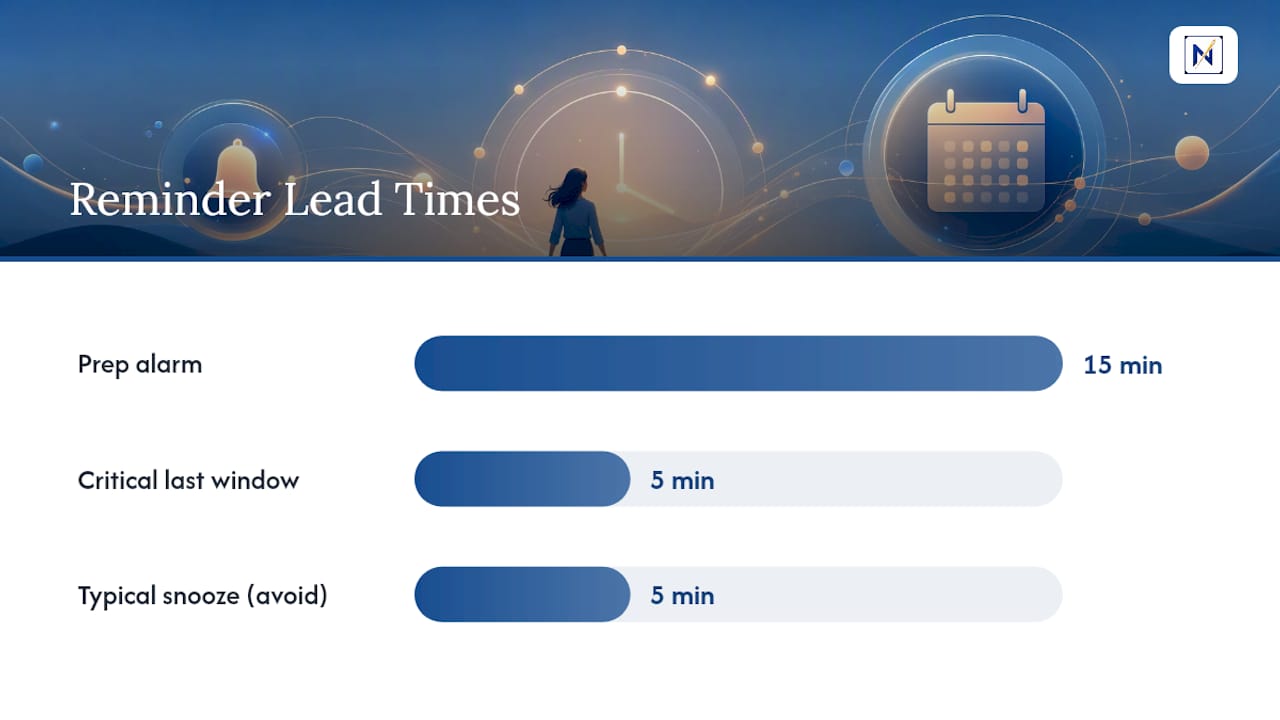
Apps like OnTimer take a different approach: instead of a dismissible push notification, they turn a calendar event into a persistent alarm that stays active until you acknowledge it. That pattern matters most in the last five minutes before a meeting, when a standard notification has often already been swiped away without registering.
A few practical habits close most of the gap even without a dedicated app:
- Stack reminders across channels: calendar push notification, phone alarm, and an email nudge, each with a different lead time.
- Set your “final” alarm to match your actual walk-to-the-meeting or click-to-join window, not a generic default.
- Avoid single short snoozes. A five-minute snooze on a meeting reminder usually just delays the miss.
Pro Tip: Set one strong alarm 15 minutes before a meeting to prepare, and a second, louder one right at start time to join. Two well-placed alarms beat five ignorable ones.
What Habits Actually Reduce Missed Meetings?
Settings fix delivery. Habits fix attention. You need both.
Build a short pre-meeting routine: a five to ten minute buffer before each call to glance at the agenda and physically move toward wherever you take meetings. That buffer also gives you a natural moment to notice if something’s missing from your schedule before it’s too late to fix.
Accountability helps more than people expect. Asking a colleague to ping you two minutes before a call, or posting meeting times in a shared team channel, creates a second signal that doesn’t depend on your notification settings working perfectly.
Time-blocking reduces the deep-work blind spot where notifications get buried under focus. If you know you tend to lose track of time once you’re absorbed in a task, block visible gaps on your calendar as a visual cue rather than relying on an alert to interrupt you.
- For chronic lateness or ADHD-related time blindness, reduce competing notifications and use one-at-a-time focus tools instead of a dashboard of alerts fighting for attention.
- Keep only the reminders that matter loud, and mute or delay everything else so the important ones stand out.
- Review your calendar once at the start of the day and once mid-afternoon, rather than only reacting to alerts as they fire.
Why the Mailbox Comes Before the Calendar
Start with the inbox, not the calendar app. Most missing invites turn out to be filtering or forwarding problems, and a quick search resolves them faster than digging through settings menus. If more than one person missed the same invite, stop troubleshooting your own device and flag it to the sender or their IT team; that pattern points to a sender-side authentication problem, not something broken on your end.
For people who miss meetings even when the invite arrived fine, chasing a rare technical fault wastes time. Redundancy, a second alarm, a shared reminder, a persistent-alarm app, fixes the real problem faster than another round of settings checks.
— Glen Bover
When Inbox Overload Is the Real Problem
Sometimes the invite arrived exactly on time and settings are fine. It just got buried under dozens of other emails competing for your attention. The average worker receives 117 emails a day, and a meeting invite carries no special visual weight in a crowded inbox unless something flags it as consequential.

That’s the gap some email management tools aim to close by identifying messages with real consequences, deadlines, financial alerts, unanswered replies, scheduling requests, and surfacing them ahead of the noise. If you’re using a calendar tool correctly and still losing invites in the shuffle, the fix isn’t another notification. It’s an inbox that tells you which email actually needs your eyes right now.
Look for the same qualities in any prioritization tool: direct integration with Gmail, Outlook, or iCloud, clear surfacing of urgent messages, and fast actions so you can RSVP or set a reminder without leaving your inbox. Some tools offer ADHD-friendly, one-at-a-time focus views built around that workflow. If missed invites are a symptom of a chaotic inbox rather than broken settings, start a trial and see whether the right message finally gets the attention it deserves.
Sources
- Automatically add invitations and how invites are handled — Google Calendar Help
- Send and receive invitations in iCloud Calendar — Apple Support
- Google Calendar Invite Missing? 2026 Troubleshooting — Venture Lab
FAQ
How Do I Stop Unsolicited Calendar Invites?
Turn off automatic invitation adding for unknown senders in your calendar settings, and report unwanted invites as spam rather than declining them, since declining confirms your address is active.
Why Do People With ADHD Keep Missing Appointments?
Time blindness and competing notifications make it easy to lose track of upcoming events, which is why persistent alarms and one-at-a-time focus tools tend to work better than standard calendar alerts for this group.
Why Are My Meeting Invites Disappearing in Outlook?
The most common causes are the Junk Email folder, an old inbox rule sorting mail automatically, or an invite sent to an alias address that Outlook handles differently from your main inbox.
Why Are Events Missing From My Calendar on My iPhone?
Check which address is set to receive invitations in your iCloud Calendar settings, since invites sent to an address you’re not actively monitoring won’t show up as expected notifications.
Why Do I Keep Missing Calendar Invites Even With Notifications On?
If settings check out fine, the invite email itself may be buried in a high-volume inbox; a prioritization tool that surfaces consequential messages, like theNeedle, addresses that specific case.