How to Organize a Chaotic Inbox: Start With Consequences

To organize a chaotic inbox, stop sorting by tidiness and start sorting by consequence. Folders, labels and filters help, but the emails that cost you money or a deadline are rarely the ones that look important. theNeedle is built around that idea: it detects emails with deadlines or significant consequences and puts them in front of you, so the cleanup protects what matters first and the rest can wait.
Below is a practical routine you can run this week, from clearing the backlog to keeping it from coming back.
TL;DR
- Chaos is a priority problem more than a storage problem: find the emails with deadlines, money or a waiting person before you file anything.
- Clear the backlog by archiving, not deleting, so nothing you may need disappears.
- Keep your structure small: five to ten labels and a few filters beat an elaborate folder tree.
- Triage each message once with the Five Ds, and check email in set windows instead of all day.
- theNeedle surfaces overdue, urgent and high-priority messages, unhandled replies and refund or credit opportunities across Gmail, Outlook, Yahoo and iCloud.
Table of Contents
- Why a chaotic inbox costs more than time
- Step 1: Find the emails that have consequences
- Step 2: Clear the backlog without losing anything
- Step 3: Build a small structure
- Step 4: Triage each message once with the Five Ds
- Step 5: Check email in windows, not all day
- Step 6: Keep multiple inboxes and teams manageable
- If you have ADHD or struggle to prioritize
- Where the 3-email rule fits
- Putting it together: a 60-minute reset
- Try theNeedle on your own inbox
- Our perspective
- FAQ
- Sources
Why a chaotic inbox costs more than time
The visible cost is hours. MIT Sloan Management Review reports that many business users receive 100 or more emails a day and spend two to three hours a day on email-related activity. The same piece notes research linking constant email interruptions to stress, fragmented work, errors and weaker decisions.
The quiet cost is what slips through. In Asana’s 2022 Anatomy of Work Report, as summarized by CIO Dive, 34% of workers said they struggle to respond to important messages, and 62% felt they had to reply to emails straight away. Those two numbers pull against each other: the pressure to answer everything instantly is exactly what makes the one message with a deadline easy to lose.

A renewal notice, a contract question, a refund window, a client who is still waiting for your answer: each looks like any other line in the list. That is why the first move in organizing a chaotic inbox is not a folder.
Step 1: Find the emails that have consequences
Before you tidy anything, ask one question of the pile: what here costs me something if I ignore it? Look for four kinds of message:
- Deadlines: filing dates, renewals, approvals, anything with a “reply by” or “due”.
- Money: invoices, payment failures, fee notices, and the upside too, such as credits or refunds you are owed.
- People waiting: threads where the last message is theirs and you have not answered.
- Official or contractual mail: legal, insurance, tax, employment.
Doing this by hand means scrolling and searching one keyword at a time, and the search only finds what you already remember. This is where theNeedle does the heavy lifting. It connects to Gmail, Outlook, Microsoft, Yahoo and iCloud accounts, detects emails with deadlines or significant consequences, and surfaces overdue, urgent and high-priority messages. It also identifies replies you have not handled and tracks opportunities like credits or refunds. You start the cleanup with a ranked list of what matters instead of a blank search box.
How the ranking works is the point. Most inbox tools sort by sender, volume or rules you write yourself. theNeedle ranks by consequence, so a message from someone you have never emailed can still rise to the top if it carries a real deadline.
Step 2: Clear the backlog without losing anything
A backlog of thousands of messages feels like it needs a heroic delete session. It does not. The safest approach is to archive.
In Gmail, archiving removes a message from the inbox but keeps it searchable. Two details from Google’s help page are worth knowing before you start:
- An archived conversation returns to your inbox if someone replies to it.
- A muted conversation stays out of the inbox, but it can still arrive if you are in the To or Cc field, if it is sent to a Google Group you belong to, or if it is sent to you alone. You can find muted mail with the
is:mutedsearch.
If you do delete, remember that trashed Gmail messages are removed automatically after 30 days, so the trash is a short grace period, not storage.
A workable backlog plan:
- Process the consequence list from Step 1 first, so the deadlines are handled while you are fresh.
- Archive everything older than a cutoff you choose, such as 30 or 60 days, once the consequence list is clear.
- Unsubscribe from the senders that keep returning. theNeedle has built-in unsubscribe for persistent senders, so you can cut the source of the noise as you go instead of archiving the same newsletter every week.
This order matters. Archiving first and searching later is how people bury the one overdue message under three thousand others.
Step 3: Build a small structure
Once the backlog is cleared, give new mail somewhere to go. The common mistake is an elaborate system that takes more effort to maintain than the inbox itself.
SUCCESS magazine’s September 2026 guide by Lisa A. Beach recommends an email architecture built on folders by project, client or priority, plus automated rules that route mail, for example everything from or about one client into that client’s folder. It also suggests snoozing important-but-not-urgent messages so they come back at a better moment.
Keep it lean:
- Five to ten labels or folders. Our guide to a Gmail labeling strategy using 5 to 10 labels explains why fewer choices means less decision fatigue every time you file something.
- Two or three filters for predictable traffic: receipts, newsletters, notifications from tools you use.
- One place for action. Filing a message is not the same as handling it. Anything that needs you should be visible somewhere other than a folder you rarely open.
Routing works for any recurring kind of mail. Even something as specific as how to organize travel confirmation emails comes down to the same principle: send each type of message to a predictable place with a filter.
A word on snoozing. It feels productive, but a snoozed email is a promise to your future self that is easy to forget. We cover the habit in how to stop snoozing emails without missing deadlines.
Step 4: Triage each message once with the Five Ds
The Five Ds give you a fixed set of choices so you stop re-reading the same email. One version, from Agent Skills, reads:
| Action | What it means |
|---|---|
| Do | Reply now if it takes under two minutes |
| Delete | Remove what you will never need again, and unsubscribe from useless mail |
| Designate | File important information into a folder or sub-folder |
| Delegate | Forward it to the person who will handle it |
| Defer | Start a reply and leave it in Drafts as a to-do for your next inbox session |
The weak spot in any version is Defer. A deferred email with no date attached is just an email you will see again tomorrow, and again next week. Pair each deferral with a specific day, or put the deadline on your calendar. If you want a model for scheduling work against deadlines rather than leaving it in a list, this system for managing deadlines with calendar sync shows the same idea applied to coursework.
This is also where consequence ranking earns its keep. When the system tells you which messages are overdue or carry a deadline, the Defer decision is mostly made for you: the consequential ones get handled first, and the rest get a date or a delete.
Step 5: Check email in windows, not all day
Organization fails when you are reacting to every notification. Several recent guides agree on a simple fix: batch.
- monday.com’s inbox zero guide recommends checking in two or three daily batches, turning off mobile alerts, and letting filters route newsletters and receipts out of the main view.
- rock.so’s email organization guide suggests two or three windows a day and ending each session when every email is processed or scheduled, which it calls cognitive zero, rather than chasing a literally empty inbox.
- In the SUCCESS piece, expert Olsen describes a quick morning triage of under three minutes and longer blocks later for complex messages, and stresses the mental shift of letting go of the instant-reply reflex.
Notifications are the other half of this. If every ping pulls you out of work, see how to stop too many email notifications from hijacking your focus.
A sample day: a five-minute triage when you start work, a second window after lunch, a third late in the afternoon. Between windows, you are not ignoring email, you are trusting that anything with real consequences will be surfaced to you. That trust is what theNeedle is for: you can stay out of the inbox because the deadline-driven messages are put in front of you.
Step 6: Keep multiple inboxes and teams manageable
If you juggle a work address, a freelance address and a personal one, the chaos multiplies. Zenind’s guide to managing multiple business email accounts recommends a unified view that keeps each address’s identity, a small number of high-value rules, and a clear split between shared accounts (support, general inquiries) and private ones (payroll, legal, personal).
For teams, the same guide suggests written rules on who owns a response, how fast, and when to escalate, such as the first person to claim a message becoming responsible for it.
For your own accounts, the aim is one list of what needs attention across all of them. theNeedle connects several accounts, so a deadline in your iCloud address does not hide behind a quiet Gmail inbox. For a deeper walk-through, read our three architectures for managing multiple inboxes and the guide to Gmail multiple inboxes.
When a chat thread keeps growing, our piece on moving chat to email after three or four replies shows how teams keep decisions in a place they can be found.
If you have ADHD or struggle to prioritize
A long, unsorted list is the hardest format for an attention that jumps. The usual advice (check everything, decide everything) adds decisions rather than removing them.
Two changes help most. First, reduce the choices: fewer labels, fewer rules, fewer places to look. Second, narrow the view to one item at a time. theNeedle offers ADHD-friendly features built around one-at-a-time focus and consequence-based ranking, so you see the next thing that matters instead of the whole pile. Our note on one thing at a time explains the thinking.
Pair that with fixed checking windows and a firm rule that a deferred message always gets a date.
Where the 3-email rule fits
The 3-email rule is not a way to organize the inbox. It caps a thread at three messages before you switch to a call or meeting. AmplifyWise explains that it shortens the life of stuck conversations but does not reduce total volume, so it works alongside volume habits like batching and triage. Business Insider’s 2015 piece makes the practical point that it only works if you actually invoke it and resist sending one more quick message.
Putting it together: a 60-minute reset
- Minutes 0 to 15: Surface the consequence list. Handle anything overdue.
- Minutes 15 to 30: Archive the backlog older than your cutoff. Unsubscribe from repeat senders.
- Minutes 30 to 45: Create five to ten labels and two or three filters.
- Minutes 45 to 60: Choose your checking windows, switch off non-essential alerts, and decide how you will triage with the Five Ds.
Then repeat a short version of step one every day. The structure holds only if the important messages keep surfacing.
Try theNeedle on your own inbox
theNeedle is an email management app that finds the emails with deadlines and consequences, surfaces overdue and urgent messages, flags replies you have not handled, and helps you unsubscribe from persistent senders. It connects to Gmail, Outlook, Microsoft, Yahoo and iCloud, and it comes with a free trial. After the trial, the monthly plan is $9.99 per month and the annual plan is $99.99 per year.
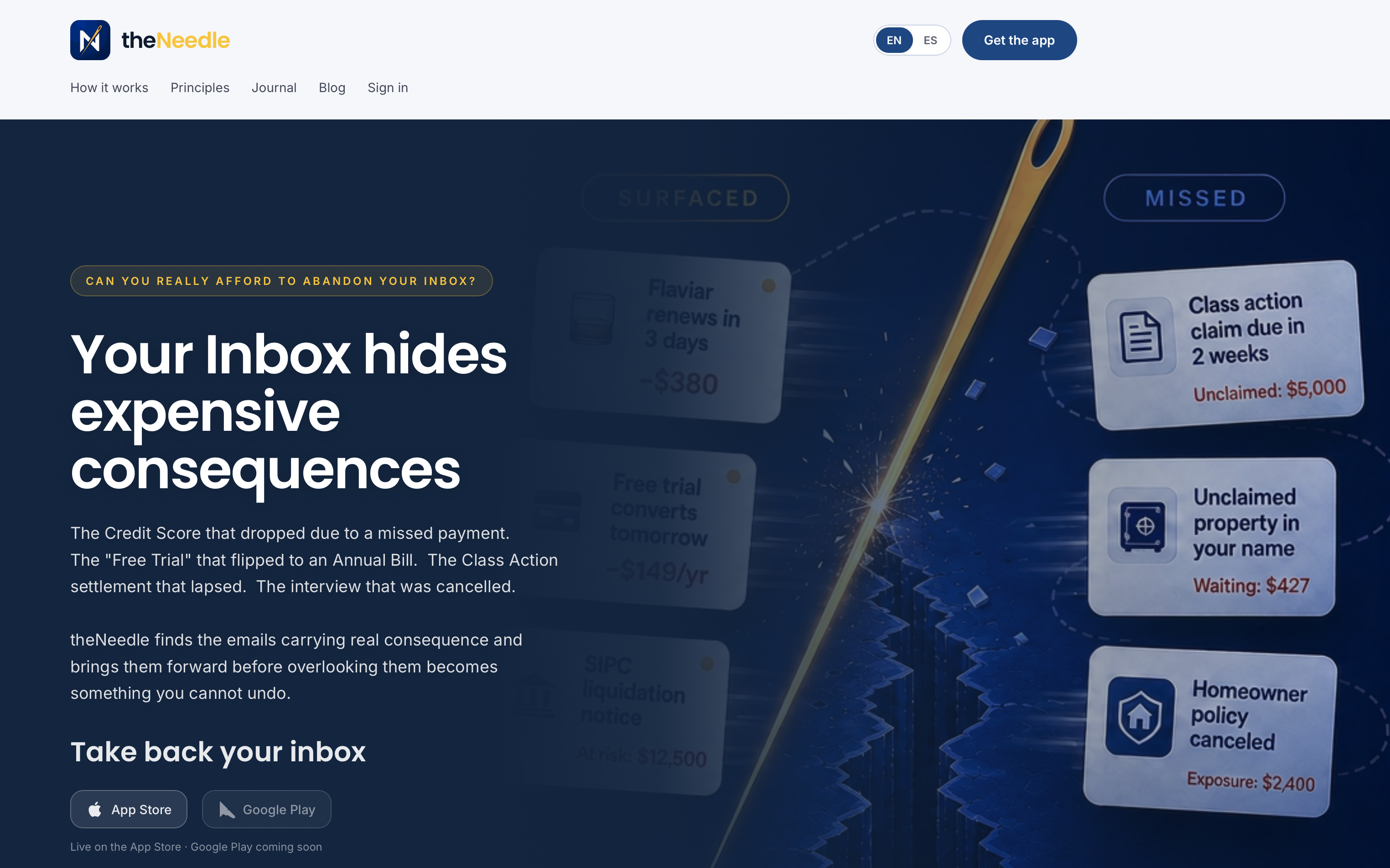
Start with theNeedle on the plan that suits you, see how the six moves from seen to resolved work, or get the iPhone and Android apps.
Our perspective
Most advice on a chaotic inbox treats the problem as clutter. We see it as a decision problem. Every message asks you to decide whether it matters, and when there are 100 a day, you make those decisions tired, fast and often wrong.
The messages that hurt are the consequential ones: the deadline buried in a thread, the refund window that quietly closes, the person still waiting for your reply. Importance by sender or by volume does not catch them. That is why we built theNeedle around consequence. It is scaffolding around your attention, so you are not the only thing holding the triage together.
Organization still matters. Small labels, a few filters and set checking windows all help. But we would rather you spend your effort acting on the right ten emails than perfecting a folder tree for the other ninety.
Glen Bover
FAQ
How do I organize a chaotic inbox quickly?
Start by finding the emails with deadlines, money or a waiting person, and handle those first. Then archive older mail rather than deleting it, so it stays searchable. Finish with a handful of labels and a couple of filters.
What are the 5 Ds of email management?
They are a set of choices for each message: Do, Delete, Designate, Delegate and Defer, in one common version. Do it if it takes under two minutes, delete what you will not need, file what matters, forward what is not yours, and give deferred mail a specific date.
What is the 3-email rule?
It means that after three messages in a thread, you move to a call, meeting or another channel. It shortens drawn-out conversations but does not reduce how much mail arrives, so use it with triage and checking windows.
How do I keep up with several email accounts?
Use one view that shows what needs attention across all of them, and keep your rules few. theNeedle connects Gmail, Outlook, Yahoo and iCloud accounts and ranks messages by consequence, so a deadline in any account reaches you.
Sources
- Are You Part of the Email Problem? (MIT Sloan Management Review)
- Notification fatigue is tanking productivity, report says (CIO Dive)
- Archive or mute Gmail messages (Google)
- Organize & archive email (Gmail Help)
- Strategies to Manage Email Overload and Reclaim Your Time (SUCCESS)
- Get Control of Your Email with the Five D’s (Agent Skills)
- Inbox zero: What it is and how to achieve it (monday.com)
- Email Organization Strategies (rock.so)
- How to Manage Multiple Business Email Accounts (Zenind)
- What Is the 3 Email Rule? (AmplifyWise)
- The 3-Email Rule (Business Insider)
- How to Organize Travel Confirmation Emails
- Manage college deadlines with syllabus sync