Stop Decision Fatigue: Gmail Labeling Strategy Using 5 to 10 Labels

The most effective Gmail labeling strategy is a small set of context labels, five to ten, automated by filters, layered under a three-bin triage of Action, Follow-up, and Later. Context labels (Clients, Finance, Newsletters) survive because they describe what a message is, not its temporary status. Filters do the sorting so you stop re-deciding where the same type of email belongs every single day.
TL;DR:
- Keep core labels limited to five to ten, nesting only one or two sublevels, and create filters for automatic sorting based on specific criteria.
- Use label colors and visibility settings strategically to enhance at-a-glance scanning, and regularly audit labels and filters to prevent clutter and misclassification.
- Build labels for permanent context rather than temporary statuses, and apply filters mainly to handle recurring email types like newsletters, receipts, or client notifications.
- Apply labels on mobile only for quick triage, as detailed filter creation and editing require desktop access; searching and applying labels on either platform remains straightforward.
- Rely on an additional layer, theNeedle, to identify messages with deadlines or financial importance that labels alone cannot prioritize or flag.
Table of Contents
- How to Use Gmail Labels: Creating, Editing, and Applying Them
- Do Label Colors and Visibility Settings Actually Matter?
- Building a Label Hierarchy Without It Turning Into Clutter
- How Do You Automate Gmail Labels With Filters?
- What’s the Right Number of Labels to Keep Long Term?
- Does Gmail Labeling Work the Same on Mobile as Desktop?
- Troubleshooting: Label Limits and Common Fixes
- Why Labels Alone Don’t Solve Inbox Overload
- Why Most Labeling Advice Optimizes the Wrong Thing
- A Faster Way to Handle the Emails That Actually Matter
- Sources
How to Use Gmail Labels: Creating, Editing, and Applying Them
Building a working Gmail labeling strategy starts with mechanics you’ll touch constantly, so get comfortable with them on desktop first.
- Create a label: In the left sidebar, scroll down and click “Labels,” then “Create new label.” You can also open any message, click the label icon in the toolbar, and choose “Create new.”
- Nest a label: When creating or editing one, check “Nest label under” and pick a parent, giving you a hierarchy like Clients/Acme.
- Edit or delete: Hover over a label in the sidebar, click the three-dot menu, and choose Edit or Remove. Deleting a label removes the tag from messages but doesn’t delete the messages themselves.
- Apply or remove labels: Select one or multiple messages using checkboxes, click the label icon, and check or uncheck the labels you want.
Archiving and labeling work together, not against each other. Archiving just removes a message from the inbox view; the label stays attached, so you can always find it by clicking that label in the sidebar. This is the core advantage labels have over folders: one message can carry multiple labels and surface under each one without being duplicated or filed away in only one place.
Do Label Colors and Visibility Settings Actually Matter?
Color and visibility settings aren’t cosmetic. They’re what make a labeling system scannable at a glance instead of requiring you to read every subject line.
- To change a label’s color, hover over it in the sidebar, open the three-dot menu, and select a color or click the palette icon for a custom shade.
- Gmail caps you at 100 custom color combinations, which sounds generous until you realize most people only ever need six or eight distinct visual signals before the color-coding stops meaning anything.
- Hide low-use labels from the sidebar (uncheck “Show” in label settings) to keep your navigation panel from turning into a wall of text.
- Conversation view groups replies into one thread, and a label applied to any message in that thread makes the entire conversation appear under that label, even if only one reply matched your filter.
That last point trips people up constantly. If a filter labels an incoming reply in an old thread, the whole conversation resurfaces under that label, not just the new message.
Building a Label Hierarchy Without It Turning Into Clutter
Nesting feels productive right up until it becomes a maze. The rule that holds up over time: top-level categories, one or two sublevels, and stop at three tiers deep.
- Top level: broad, stable categories like Clients, Finance, or Projects.
- First sublevel: the specific entity, like Clients/Acme or Finance/Receipts.
- Second sublevel (rare): a further split only when volume justifies it, like Clients/Acme/Contracts.
Name labels for context, not action. “Clients/Acme” tells you what a message is about permanently; “Reply Today” describes a status that expires the moment you reply. That distinction is the single biggest reason labeling systems fall apart within a few months, according to guidance from Draftery’s inbox organization framework. Create a sublabel when a top-level category has enough recurring volume to justify a search shortcut. Split into an entirely separate label when the content has nothing conceptually in common with its would-be parent.
How Do You Automate Gmail Labels With Filters?
Manual labeling doesn’t scale past a few dozen emails a week. Filters do the sorting automatically, and they’re the actual engine behind any Gmail labeling strategy that survives contact with a busy week.
- Click the search bar’s dropdown arrow (or the sliders icon) to open search options.
- Fill in criteria: From, Subject, has the words, doesn’t have, has attachment, or size.
- Click “Create filter” once your search returns the right messages.
- Choose actions: Apply label, Skip the inbox (archive), Mark as read, Star it, Never send to spam, or Categorize as.
- Check “Also apply filter to matching conversations” if you want it to backfill your existing backlog, since filters otherwise only affect future mail.
A few templates that pull real weight:
- Newsletter sorter: search
has:unsubscribe, apply a Newsletters label, and skip the inbox. - Receipts and invoices: search
subject:(receipt OR invoice), apply Finance/Receipts. - Calendar notifications: search
from:calendar-notification@google.com, apply Calendar, skip inbox. - Client highlighter: search
from:@clientdomain.com, apply Clients/[Name], star it. - VIP override: search
from:boss@company.com, apply Priority, and make sure it never skips the inbox regardless of other rules.
These match the copy-ready filter set that consistently shows up across practical Gmail workflows, and advanced operators like filename:pdf or larger:5M sharpen a filter further when a plain keyword search catches too much.
Pro Tip: Test any new filter on a narrow search first, look at the actual results it returns, and only then click Create filter. A filter that’s too broad silently mislabels weeks of mail before you notice.
What’s the Right Number of Labels to Keep Long Term?
The system that lasts is boring on purpose. Keep five to ten core labels, nest sparingly, and only build a filter when you can name its destination in one word.
- Use labels for context. Use archive, star, and snooze for state and urgency.
- Skip status labels like “Urgent” or “Reply Soon.” They go stale the moment you act on them, and nobody remembers to remove them.
- Run a daily 30-minute triage where every inbox message gets sorted into Action, Follow-up, or Later.
- Audit filters weekly or monthly. Retire labels nothing has touched in months.
| Habit | Frequency | What it prevents |
|---|---|---|
| Inbox triage (Action/Follow-up/Later) | Daily, ~30 minutes | Backlog buildup and re-reading the same emails |
| Filter audit | Weekly or monthly | Brittle rules that need constant exceptions |
| Label cleanup | Monthly | Sidebar clutter from unused or duplicate labels |
| New filter creation | As needed, destination-first | Overlapping or contradictory routing rules |
The Google Workspace Learning Center recommends building label-based inbox sections for exactly this kind of triage, turning Action, Follow-up, and Later into visible, one-click destinations rather than mental categories you have to remember.
Does Gmail Labeling Work the Same on Mobile as Desktop?
Filter creation and full filter editing require the desktop site. Mobile is built for applying labels on the fly, not architecting the system.
- On mobile, you can apply existing labels to a message and create simple new labels, but detailed filter conditions aren’t available.
- Third-party mail apps connecting over IMAP often show Gmail labels as folders, and some only sync a subset, so don’t assume perfect parity outside Gmail’s own apps.
- For quick mobile triage, apply a label, archive, and move on. Save any real filter-building for your next desktop session.
- Searching
label:financeor tapping a label directly finds everything filed there instantly, on either platform.
Troubleshooting: Label Limits and Common Fixes
Gmail allows up to 5,000 labels and 100 custom color combinations per account, far more than any usable system needs.
- Test a filter’s search terms in the regular search bar before turning it into a filter.
- Rename a label from its sidebar menu without losing any messages tagged under it.
- To merge two overlapping labels, apply the label you’re keeping to all messages under the one you’re retiring, then delete the old one.
- Regularly review and edit filters that misfire, since rules requiring constant exceptions tend to cause more mislabeling than they solve.
Why Labels Alone Don’t Solve Inbox Overload
Labels tell you where something belongs. They don’t tell you whether it matters right now, and that gap is where most labeling systems quietly fail. The average worker gets 117 emails a day, and no amount of nesting or color-coding changes the fact that most of those messages carry zero real consequence while a handful carry deadlines, financial stakes, or a relationship that depends on a timely reply.
A label answers “what category is this?” It never answers “what happens if I ignore this for three more days?” Those are two different questions, and most inbox systems only solve the first one.
theNeedle sits on top of a labeling system rather than replacing it. Your Clients and Finance labels still organize by context; a consequence-based layer flags which message inside those labels needs your eyes today. If you want one tactical move, keep your context labels lean and let a prioritization layer handle the daily “what first” decision instead of building an ever-growing pile of urgency labels to answer it.
Why Most Labeling Advice Optimizes the Wrong Thing
Most Gmail guides treat labeling as an organization problem, and the organization part is genuinely simple; many teams enhance this process using affordable task, project and CRM management tools in concert with email labeling. Build five to ten context labels, wire up a handful of filters, done. The article you just read confirms that. The bigger failure I see is people extending that same energy into building elaborate priority hierarchies inside labels, Urgent, Semi-Urgent, Reply-When-Free, when Gmail was never built to track shifting status. That’s a workflow problem wearing a labeling costume.
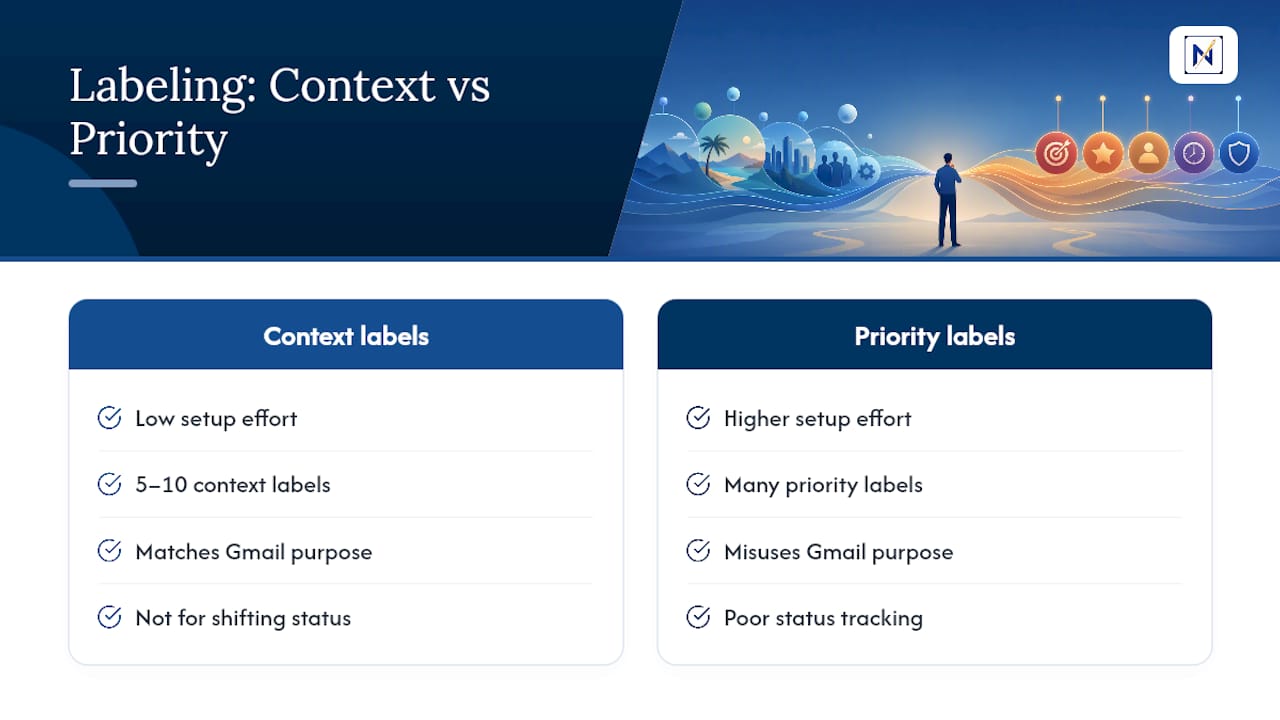
The conventional advice undersells one thing: filters are only as good as the destination you can name. If you’re stuck deciding between three overlapping labels for one filter, that’s a signal the label itself is too vague, not that you need a fourth label. Fix the naming before you build more automation.
What should you prioritize first? Get the context labels and filters running exactly as outlined here. Then stop tinkering with your label tree and put your energy into the actual triage decision, what’s consequential today versus what can wait, because that’s the part labels were never designed to answer.
— Glen Bover
A Faster Way to Handle the Emails That Actually Matter
theNeedle is the layer a labeling system doesn’t have: it reads what’s already sitting in your inbox and surfaces the messages tied to deadlines, money, or a reply someone’s waiting on, without you needing a dozen priority labels to do it manually.

Your Clients, Finance, and Newsletter labels keep doing their job of organizing context. theNeedle handles the harder question underneath all of it: which message, out of everything sitting in your inbox right now, actually has consequences if you miss it. That’s the piece a filter can’t judge on its own, no matter how well you’ve written the search terms. It also catches things labels typically miss entirely, like unhandled replies you forgot you owed someone, or a refund window closing without a receipt label ever flagging it as time-sensitive.
If your inbox is drowning in more than the daily average of 117 messages and your label tree hasn’t stopped that feeling, see how theNeedle prioritizes your inbox and try it against your own account.
Sources
- Create & manage labels in Gmail
- Gmail Filters That Saved Me 4 Hours a Week (10 Rules to Steal)
- Email Inbox Organizer: The 2026 System for Gmail | Draftery Blog
- Organize and filter emails in Gmail with labels