Process Emails Individually: Send One by One or Work Through Your Inbox

“Process emails individually” means two different jobs, and people searching for it usually want one of them. The first is sending: you have one message and a list of people, and each person should get their own copy with only their name on it. The second is receiving: you have a crowded inbox, and you want to deal with messages one at a time instead of skimming everything at once. This guide covers both, with the exact steps, limits and trade-offs, so you can take the half you came for.
TL;DR
- To send one message to many people as separate emails, use mail merge. Gmail has it on paid Google Workspace plans, and Outlook does it through Word on the desktop.
- BCC is the quick option for a small, one-off send when you only need to hide addresses. It is not personalized, and large BCC sends can look like spam.
- Check your daily sending limits before a big send: 500 recipients a day on a free Gmail account, and 1,500 mail-merge recipients a day on Google Workspace.
- To process incoming email individually, rank messages by consequence (deadlines, money, contracts) and handle them one at a time, most consequential first.
- If your inbox is the problem, we built theNeedle to do that ranking for you.
Table of Contents
- Which meaning of “individually” do you need?
- Sending one email to many people as separate messages
- Processing your inbox one message at a time
- Our perspective
- Try consequence-first email with theNeedle
- FAQ
- Sources
Which meaning of “individually” do you need?
The two meanings share a principle: a message handled as a person-to-person exchange does better than one handled as part of a pile. A recipient who sees a greeting with their own name reads it differently from one who sees a blast addressed to “undisclosed recipients.” A reader who opens one email at a time, in the right order, makes better decisions than one who scans forty subject lines and acts on the loudest.
If you are sending, start with the next section. If you are drowning in incoming mail, skip to processing your inbox one message at a time.
Sending one email to many people as separate messages
There are three practical routes: mail merge in Gmail, mail merge in Outlook, and BCC. Which one you choose depends on whether you need personalization, how many people are on the list, and which account you use.
Gmail mail merge
Gmail’s built-in mail merge sends a unique email to each recipient. According to Android Police’s walkthrough, you click Compose, add recipients (manually or from a spreadsheet), choose Mail Merge, write the message, and click Send all. You personalize with tags such as @firstname, @lastname, @fullname and @email, and Gmail swaps in each recipient’s data.
The catch is the plan. The built-in feature is available only on paid Google Workspace plans, including Workspace Individual, Business Standard, Business Plus, and the Enterprise and Education Standard and Plus tiers. Free Gmail accounts and Business Starter do not have it, according to YAMM.
A few other details from the same source worth knowing before you build your list:
- Gmail’s mail merge sends to up to 1,500 recipients per day.
- It adds an automatic unsubscribe link to every email.
- It allows only one Cc or Bcc address per message, and none when recipients come from a spreadsheet.
If you are on a free account, you can fall back on BCC or a third-party add-on such as YAMM, which Android Police names as an option.
Outlook mail merge through Word
Outlook does not have a one-click equivalent. It works through Word and Excel. The University of Wisconsin-Eau Claire’s Outlook mail merge guide lays out the sequence:
- In Excel, build a recipient list with columns such as FirstName, LastName and EmailAddresses.
- In Word, choose Mailings, then Start Mail Merge, then Email Messages, and select your Excel list.
- Insert merge fields where the name or other details should appear, and preview the results.
- Choose Finish & Merge, then Send Email Messages. Select the email-address field, enter a subject, choose HTML, and click OK.
Word then sends each message individually through Outlook.
There are requirements. SecureMailMerge notes that this route needs desktop Word with Classic Outlook as the default mail app on Windows, or Word for Mac with Outlook for Mac. It does not work with New Outlook or Outlook on the web, and it cannot attach individual files or add a CC per recipient. If your merge fails on the final step, check which version of Outlook is set as your default before anything else.
BCC for small, one-off sends
BCC is the fastest way to keep recipients from seeing each other. In Gmail, Twilio explains, you put the addresses in the BCC field and can enter your own address in the To field. Outlook lets you add recipients to BCC when composing too.
BCC hides addresses, but it does not make each email individual. Everyone gets the same message with the same greeting. Two risks follow:
- Spam filtering. The North Carolina Bar Association warns that sending more than 50 messages at once via BCC may get the email flagged as spam and could even get your address blocked. Salesforge makes a similar point and suggests keeping BCC sends to 50 to 100 recipients.
- Reply-all surprises. The same bar association piece notes that if a BCC’d person uses reply all, anyone in the To or Cc line receives the response.
A simple rule: use BCC when the list is short, the message is the same for everyone, and nobody needs to feel personally addressed. Use mail merge when the message should read as one-to-one or when you will repeat the send. Overloop frames the difference as one that matters for both privacy and reply rates.
Quick comparison
| Gmail mail merge | Outlook via Word | BCC | |
|---|---|---|---|
| Personalized greeting | Yes, with tags | Yes, with merge fields | No |
| Hides other recipients | Yes | Yes | Yes |
| Account needed | Paid Google Workspace plan | Desktop Word and Classic Outlook (or Word and Outlook for Mac) | Any |
| Individual attachments | Not covered in the sources above | No | Not individual |
| Best for | Recurring or personalized sends | Spreadsheet-driven sends from Outlook | Small one-off sends |
Sending limits to check first
Limits are where individual sending most often goes wrong. Per Google’s Workspace documentation, the daily limit is 2,000 messages per user, or 1,500 for mail merge. A single message can have up to 2,000 recipients, with a maximum of 500 external recipients. After reaching a limit, you can’t send new messages for up to 24 hours.

For free accounts, Mailmeteor reports a limit of 500 recipients per day, counting every address across To, Cc and Bcc. If you hit it, Gmail blocks sending for up to 24 hours. Split a long list across days instead of pushing against the cap.
Keep it legal if the message is promotional
In the US, the CAN-SPAM Act applies to any email whose primary purpose is advertising or promoting a commercial product or service, and the law makes no exception for business-to-business email. The North Carolina Bar Association, citing the FTC, says compliance requires a physical postal address and opt-out options. Gmail’s mail merge adds an unsubscribe link automatically, but the postal address is yours to include. If you send promotional mail at volume, ask your company’s counsel to review your template.
Make each message worth reading
Personalization is more than a first name. The best individual sends mention something specific to the person: their project, their last conversation, their deadline. Starting from a tested structure saves time, and a set of customer communication templates gives you wording to adapt for common situations before you merge in names and details.
Processing your inbox one message at a time
Now the other meaning. When your inbox holds hundreds of messages, the instinct is to scan, react to whatever looks urgent, and leave the rest. The cost is quiet: a deadline buried under newsletters, a refund window that closes, a reply someone is still waiting for. We think of it as a forfeited right nobody told you about.
We work from the figure that the average worker receives 117 emails a day. At that volume, “read everything” is not a plan. Handling messages individually works only if you control the order.
Step 1: Decide the order before you open anything
Sender and subject line are poor guides. A message from your manager about lunch outranks nothing; an automated notice from a lender may outrank everything. Rank by consequence: what happens if this sits for a week?
A workable first pass sorts messages into these groups:
- Deadlines and dated obligations: contracts, filings, renewals, invoices.
- Money: charges, refunds, credits, settlement claims, payment failures.
- People waiting on you: unanswered replies, requests with a clock on them.
- Everything else: newsletters, notifications, promotions.
Our guide to turning emails into tasks walks through consequence-first moves for the first group, and deadline reminders cover how to set two timely nudges so a due date does not depend on memory.
Step 2: Open one message and finish it
The point of individual processing is that each email gets a decision, not a glance. For each message, choose one:
- Do it now if it takes a couple of minutes.
- Schedule it by turning it into a task with a date.
- Reply and set a follow-up if you are waiting on someone else.
- Unsubscribe or archive if it has no consequence.
Then move on. Reopening the same message three times is how inboxes fill with half-handled mail. For a fuller approach to unwanted senders, see how to unsubscribe from persistent senders.
Step 3: Keep multiple inboxes in one line of sight
If you juggle work, personal and freelance accounts, individual processing breaks down because the most urgent message may be in the account you did not check. You can build structure with Gmail multiple inboxes on a desktop, or choose among architectures to manage multiple inboxes so nothing hides behind a login. If you would rather use a dedicated app, see our comparison of multi-account email apps.
Step 4: Close the loop on replies
Processing individually also means tracking what you sent. Unhandled replies, the messages where someone wrote back and you never answered, are among the easiest to lose. A reminder tool helps; our roundup of reply reminder tools compares the options.
If you have ADHD or struggle to prioritize
A long list of unread messages can freeze the decision. One-at-a-time focus removes that: you see a single message, decide, and the next one appears. We explain the thinking in one thing at a time. The scaffolding around your attention matters more than willpower.
Our perspective
Most email tools compete on volume: more filters, more folders, more rules. Volume was never the real problem. The real problem is that two messages that look identical in a list can carry very different consequences, and no sender rule can tell them apart.
We built theNeedle around a different question: what happens if you miss this? A message with a deadline, a financial alert, a contractual term or a legal consequence deserves your attention before one that is merely loud. Handling email individually, one message at a time, only helps when the order is right.
That is why theNeedle connects to Gmail, Outlook, Microsoft, Yahoo and iCloud accounts, surfaces overdue, urgent and high-priority messages, flags unhandled replies, tracks opportunities like credits or refunds, and offers built-in unsubscribe for persistent senders. For people with ADD or ADHD, it offers a one-at-a-time focus with consequence-based ranking, so the next decision is always the one that matters most.
Triage is a skill, but it should not cost you an hour of attention every morning. We designed theNeedle to carry that weight.
Glen Bover
Try consequence-first email with theNeedle
If the second half of this article described your mornings, theNeedle is built for exactly that. It reads across your connected inboxes, ranks what carries a deadline or a financial or legal consequence, and shows you messages one at a time. You can see the steps in how it works.
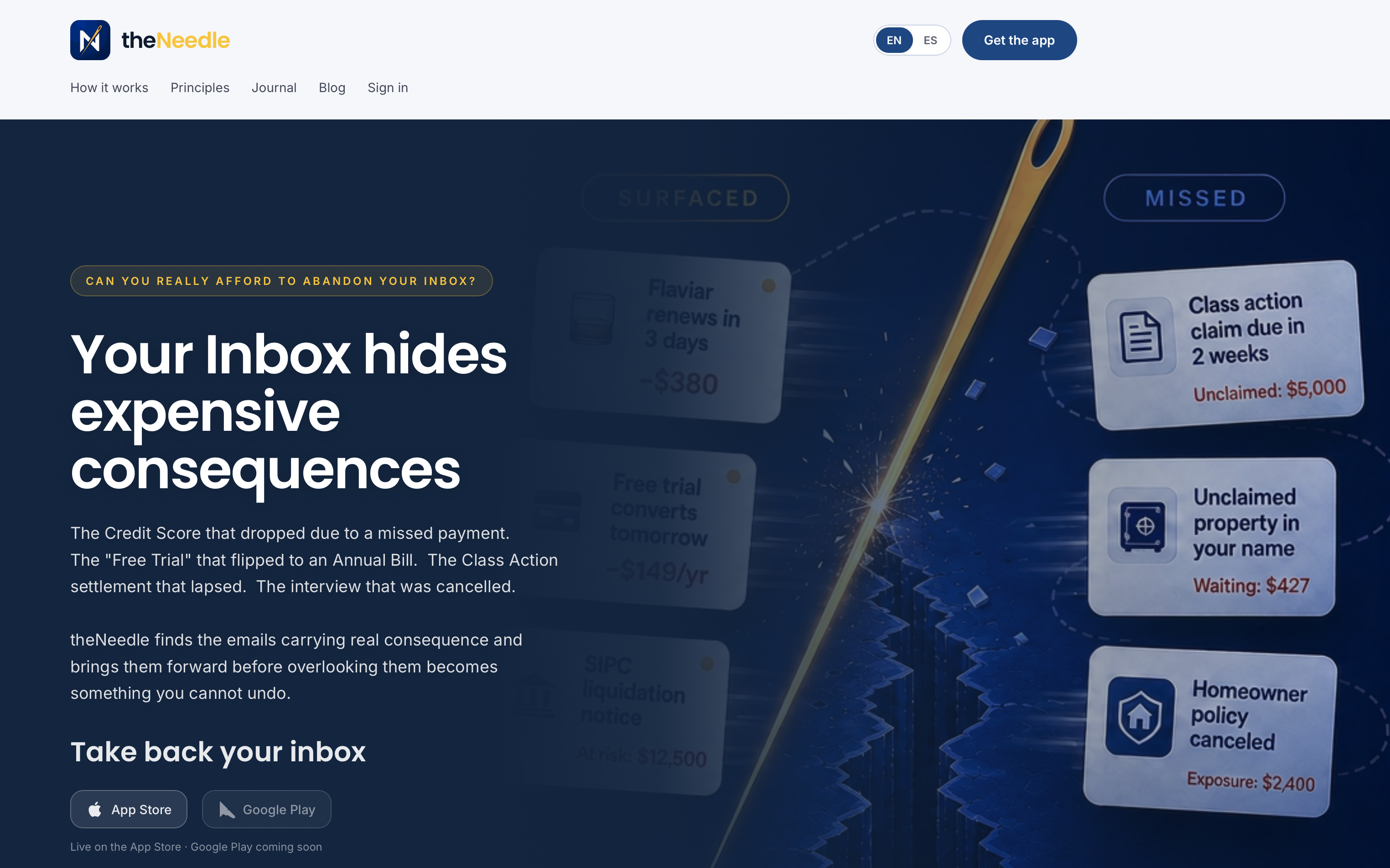
Plans cost $9.99 per month or $99.99 per year, and there is a free trial period. Details are on the pricing page, and you can start from the theNeedle monthly plan. If you are still comparing options, our guide to choosing email management software sets out the criteria.
FAQ
How do I send an email to multiple recipients individually without them knowing?
Use BCC, or mail merge. In Gmail, put the addresses in BCC and optionally your own address in To. Recipients in BCC will not see each other. Mail merge goes further: each person receives a separate message with only their own name and address.
How do I send a mass email individually in Gmail?
Click Compose, add recipients, select Mail Merge, write your message with tags like @firstname, and click Send all. Mail merge requires a paid Google Workspace plan. On a free account, use BCC or a third-party tool such as YAMM.
How can I send mass individual emails in Outlook?
Build a recipient list in Excel, start an email merge in Word, add merge fields, and choose Finish & Merge, then Send Email Messages. It needs desktop Word with Classic Outlook on Windows, or Word and Outlook for Mac. It does not work with New Outlook or Outlook on the web.
When is BCC better than mail merge?
BCC fits a small, one-off send where personalization does not matter and you only need to hide addresses. Keep it well under 50 recipients to avoid spam filtering. For personalized, recurring or customer-facing messages, mail merge is the better choice.
How do I process my own inbox one email at a time?
Rank messages by consequence first, then open one, decide what to do, and move on. Deadlines, money and people waiting on you come before everything else. theNeedle automates that ranking and shows messages one at a time.
Sources
- Android Police: Gmail mail merge walkthrough
- YAMM: Send the same email to multiple recipients separately in Gmail
- University of Wisconsin-Eau Claire: Outlook mail merge
- SecureMailMerge: How to send a mass email in Outlook
- Twilio: How to hide email recipients
- North Carolina Bar Association: Sending mass emails
- Salesforge: Send email to multiple recipients individually
- Overloop: Email multiple recipients individually
- Google Workspace: Gmail sending limits
- Mailmeteor: How to send mass emails in Gmail