Busy Professionals: 4 Consequence First Moves to Turn Emails into Tasks

The fastest way to turn emails into tasks is to use your inbox’s built-in conversion tool: Gmail’s “Add to Tasks” button, Outlook’s drag-to-To-Do (or the right-click “Create Task” workaround when dragging fails), or a forward-to-project address for anything recurring. With the average worker facing 117 emails a day, the real skill isn’t converting more messages. It’s converting the right ones.
TL;DR:
- Flagging and adding emails work best for immediate deadlines but may not carry attachments consistently across platforms.
- Drag-and-drop is the quickest method when supported but can silently fail if the feature isn’t reliable in your email client.
- Automating email-to-task workflows is effective for recurring messages, but it requires testing and verification of forwarding addresses first.
- Sorting emails by consequence, rather than volume, ensures focus remains on critical messages with financial or deadline implications.
- AI tools can identify and surface high-impact emails, but human judgment remains essential before converting messages into tasks.
Table of Contents
- Quick Methods to Convert Emails Into Tasks Right Now
- How Do You Create Tasks From Email in Outlook and Gmail?
- Can You Automate Turning Emails Into Tasks?
- What’s the Best Triage Method for Deciding What Becomes a Task?
- Why Consequence-Based Prioritization Beats Volume-Based Filtering
- Do Todoist, Asana, and Trello Work With Email-to-Task Conversion?
- How Should You Use Flags and Categories to Prioritize Email Tasks?
- Can AI Tools Suggest or Automate Task Creation From Emails?
- A Habit Worth Stealing From Consequence-First Triage
- theNeedle: Built for the Emails That Actually Cost You Something
- Sources
Quick Methods to Convert Emails Into Tasks Right Now
You don’t need a new system to start turning emails into tasks. You need four small moves you already have access to, used at the right moment.
Flag and add. In most clients, flagging an email and pushing it to your task list takes two clicks: flag the message, then add it to Tasks. This works well for anything with a hard due date attached.
Drag-and-drop. Where it’s supported, dragging an email directly onto your Tasks pane creates a task that carries the subject line and often the body text with it. This is the fastest method when it works, but it’s also the least reliable across Outlook views, which we’ll cover next.
Right-click → Create Task. When drag-and-drop stalls (a red “no” icon instead of a drop confirmation), right-click the message and look for an advanced action to create a task. It’s a couple of extra clicks, but it never fails the way dragging sometimes does.
Forward to a project address. For anything that repeats, like weekly status requests or recurring invoices, forwarding to a dedicated project email address turns the email body into a task description automatically, without you touching a mouse more than once.
- Flag and add: best for one-off deadlines
- Drag-and-drop: best for speed when your client supports it
- Right-click → Create Task: best as a fallback when dragging fails
- Forward-to-project: best for recurring, predictable message types
Each method preserves different pieces of the original email. Flagging keeps everything in place since the email stays put. Dragging and forwarding usually carry over the subject and body, but attachments are hit-or-miss depending on the platform.
Pro Tip: Before you commit to drag-and-drop as your default, test it once with a throwaway email. If it silently fails, you’ll want the right-click method already in muscle memory instead of discovering the gap mid-deadline.
How Do You Create Tasks From Email in Outlook and Gmail?
Outlook and Gmail handle email-to-task conversion differently enough that switching between them without knowing the quirks will cost you time.
In Outlook:
- Open the email you want to convert and drag it onto the To Do tab inside the My Day pane, which Microsoft Support’s official instructions confirm creates a task automatically.
- If the drag shows a blocked icon instead of dropping, right-click the message, open Advanced Actions, and select Create Task. Microsoft’s own Q&A support threads confirm this is the intended workaround, not a bug you need to troubleshoot further.
- Move the new task from My Day into a dedicated list if you want it to persist past today, since My Day is designed as a temporary view rather than permanent storage.
In Gmail:
- Open the email, click the three-dot menu or the Tasks icon, and select “Add to Tasks.” Gmail’s help documentation confirms this saves the subject and body directly into Google Tasks.
- Alternatively, open the Tasks side panel and drag the email onto it for the same result with one less click.
- On mobile, both platforms trim the feature set. Outlook’s mobile app supports flagging more reliably than dragging, and Gmail’s app buries “Add to Tasks” inside the overflow menu rather than showing it up front.
Can You Automate Turning Emails Into Tasks?
For anything that shows up on a schedule, invoice reminders, client check-ins, weekly reports, manual conversion is a waste of the very time you’re trying to protect. Automation handles the repeat traffic so you only think about the exceptions.
The underlying pattern is simple. When a new message arrives matching a condition (sender, subject keyword, or label), the automation fires an action: create a task in your task system, or append the message to a triage list for a human to glance at later.
Forwarding is the low-effort version of this. Send an email to a project’s dedicated address, and most task systems will map the subject line to the task name and the message body to the task description. Asana’s help documentation lays out this exact mapping, and it holds true as a general pattern across platforms that support email-to-task forwarding, not just that one tool.
A mail rule that routes qualifying messages to that forwarding address, or to a label you review during triage, closes the loop without you lifting a finger once it’s set up.
A few things worth checking before you trust this at scale:
- Attachment size limits vary by platform, and large attachments sometimes get silently dropped rather than flagged as an error
- Some forwarding addresses require the sending account to be pre-authorized, which can block automated forwards from shared inboxes
- Test with one real message before rolling a rule out to your whole inbox
With workers facing 117 emails a day on average, even a handful of automated conversions per week adds up to real time back.
What’s the Best Triage Method for Deciding What Becomes a Task?
Not every email deserves a task. The two-minute rule is the fastest filter: if you can fully resolve the message in under two minutes, do it now instead of creating a task you’ll have to reopen, reread, and then act on anyway.
For everything else, ask whether the email carries a real consequence: a deadline, a financial stake, or a relationship you’d damage by ignoring it. If yes, convert it. If it’s just informational or low-stakes, archive it or let it sit.
A simple three-list structure keeps this manageable during inbox review:
- Triage — new conversions waiting for a first look
- Today — tasks with a same-day deadline or consequence
- Waiting — tasks blocked on someone else’s reply
When you convert, carry over the due date and the name of whoever’s responsible. Losing that context is how task lists quietly become unusable.
Pro Tip: Run triage in two short sessions rather than one long one. A ten-minute morning pass and a five-minute end-of-day pass catch more than a single 30-minute block, because your inbox keeps filling while you work.
Why Consequence-Based Prioritization Beats Volume-Based Filtering
Most inbox advice focuses on processing more email faster. That’s backwards. With the average professional receiving 117 emails daily, the bottleneck isn’t speed, it’s judgment about which messages actually matter.
theNeedle was built around that distinction. Instead of sorting by sender or subject line, it flags emails carrying real consequences, missed deadlines, financial alerts, unanswered replies that are overdue, and surfaces those first.
The problem was never that people can’t process 117 emails. It’s that buried in those 117 are three or four that carry real financial or professional weight, and traditional inboxes give them the same visual priority as a newsletter.
That one-at-a-time focus mirrors the triage habits above: it does the consequence filtering automatically, so the manual decision framework becomes a backup rather than your only line of defense.
Do Todoist, Asana, and Trello Work With Email-to-Task Conversion?
Outlook and Gmail cover most inboxes, but a lot of professionals live in a separate task system for actual project work. The good news: the forwarding pattern from earlier applies almost universally.
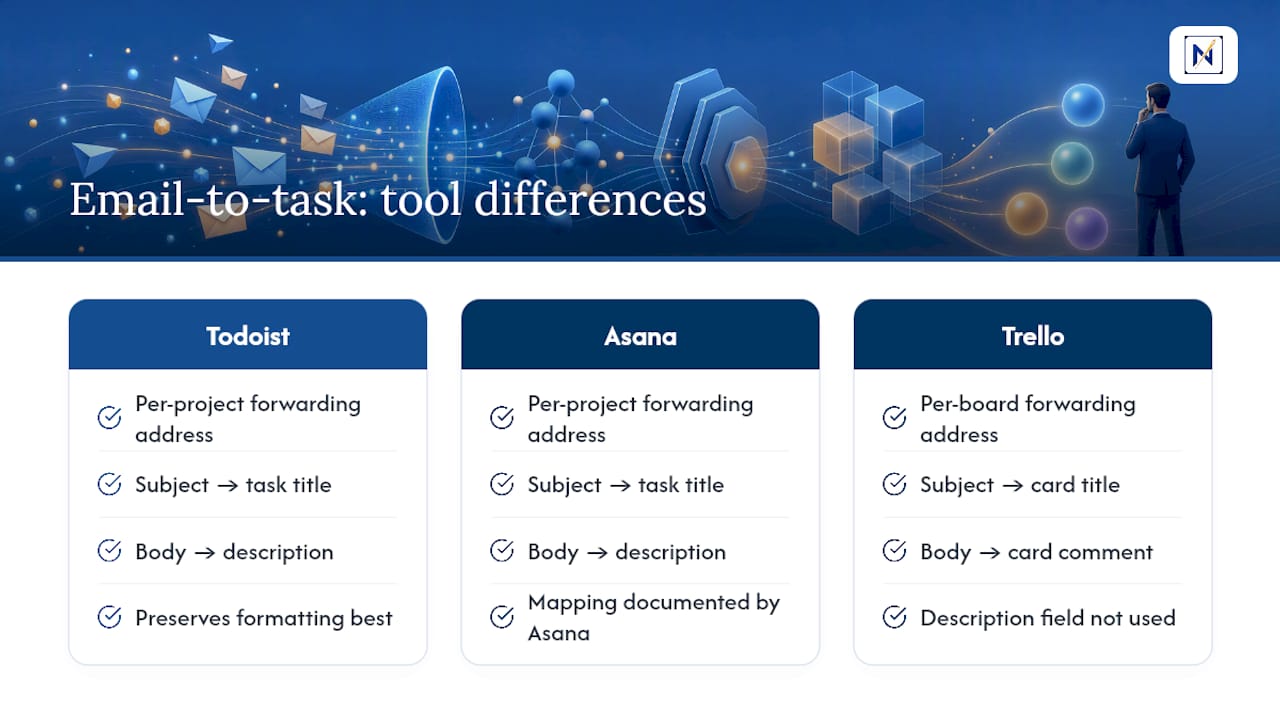
Todoist, Asana, and Trello each offer a unique forwarding address per project or board. Send an email there, and the subject becomes the task title, the body becomes the description, exactly the same mapping documented in Asana’s own forwarding guide. Trello wraps the email into a card comment rather than a clean description field, which is worth knowing before you build a workflow around it. Todoist tends to preserve formatting more faithfully than either.
The practical move is to set up email forwarding once per project, not once per message. Create the forwarding address, save it as a contact or a mail rule destination, and route qualifying emails there automatically instead of manually copying details across two apps every time.
One caveat that trips people up: these systems often require the sending email to be verified or added to a project’s member list before forwards get accepted. An unrecognized sender’s forward can vanish silently or land in an unassigned queue instead of the intended board. Test with a message from your own address first, then confirm colleagues’ addresses are added if they’ll be forwarding too.
None of this replaces judgment about what deserves a task in the first place. It just removes the manual re-typing once you’ve decided.
How Should You Use Flags and Categories to Prioritize Email Tasks?
Flags and categories exist to answer one question fast: does this need attention today, or can it wait? Most people either ignore this system entirely or over-engineer it with a dozen colors nobody remembers the meaning of six months later.

A workable version uses three or four categories, no more. Something like: Urgent (financial or deadline consequence), Waiting (blocked on someone else), Reference (no action, just useful later), and Delegated (someone else owns the next step). Flag anything Urgent immediately on first read, before you even decide whether to convert it into a task.
The mistake worth avoiding is flagging everything. A flag that’s supposed to mean “this matters” stops meaning anything once half your inbox carries one. Reserve it for messages where missing the follow-up has a real cost, a missed refund window, a client deadline, a contract renewal, and let everything else sit in an unflagged category.
Categories also help after conversion, not just before. If your task carries over the category label, you can filter your task list by “Urgent” during a quick morning scan instead of rereading every task’s original context to remember why it mattered. That’s the whole point of tagging in the first place: cutting down on the rereading.
Can AI Tools Suggest or Automate Task Creation From Emails?
AI-assisted email tools now do more than flag messages as important. Several can read the body text, identify a deadline or request buried in a long thread, and suggest a task with a due date pre-filled, cutting out the step where you’d otherwise reread the whole message to extract that detail yourself.
The more useful version of this doesn’t just detect “this email seems actionable.” It distinguishes between actionable and consequential. An email asking you to confirm a meeting time is actionable but low-stakes. An email flagging an overdue invoice or a contract renewal deadline is both actionable and financially consequential. Tools built around one-at-a-time focus lean toward the second category on purpose, surfacing the smaller number of emails where missing the task actually costs you something.
Where this genuinely saves time is on unhandled replies, the messages you meant to respond to and then buried under twenty newer ones. AI detection that watches for threads gone quiet and resurfaces them beats manual scrolling every time, because human memory for “did I ever answer that” is unreliable past a day or two.
The limitation worth knowing: AI suggestion tools still need a human decision at the end. They’re good at surfacing candidates for conversion, not at replacing the two-minute-rule judgment call about whether something’s actually worth a task versus a two-line reply.
A Habit Worth Stealing From Consequence-First Triage
Glen Bover, who covers email workflows for theNeedle, keeps one rule during morning triage: before converting anything to a task, ask whether ignoring it costs money or a relationship. Most mornings, that question kills half the candidate list before a single task gets created.
— Glen Bover
theNeedle: Built for the Emails That Actually Cost You Something
theNeedle is the alternative to sorting every email yourself: instead of another inbox layer to manage, it scans for the messages that carry real consequences, overdue invoices, missed deadlines, unanswered replies, and puts those in front of you first, before you’ve had to triage anything manually.

That maps directly onto the workflows above. Where the two-minute rule and triage lists ask you to judge consequence by hand, theNeedle automates that first pass. A detected example: an overdue invoice reply sitting unanswered for six days gets surfaced as urgent, with the option to convert it straight into a task, rather than waiting for you to stumble across it during a weekly cleanup.
If you’re managing multiple inboxes across Gmail, Outlook, Yahoo, or iCloud and tired of deciding what matters 117 times a day, try theNeedle live and see which of your unread messages it flags first.
Sources
- Create task in new Outlook (Microsoft Q&A)
- Drag a message to create a task | Microsoft Support
- Create a task from an email - Gmail Help
- Email tasks to Asana: create work from your inbox | Asana Help Center