How to Unsubscribe From Emails in Yahoo Mail

Click the Unsubscribe link inside the message, or open the Unsubscribe tab in the Yahoo Mail app to clear out several lists at once. If Yahoo sent the marketing message itself, plan on waiting up to 10 days for it to fully stop. When there’s no unsubscribe option, or the link looks off, mark the message as spam, block the sender, or set up a filter instead.
TL;DR:
- Unsubscribe requests can take up to 10 days to fully process, especially for Yahoo-managed newsletters and marketing messages.
- If no unsubscribe link appears, mark the email as spam, block the sender, or set up filters instead of trying to unsubscribe.
- Certain messages, such as billing notifications and account security alerts, are not eligible for unsubscribing and require account settings adjustments.
- Beware of suspicious unsubscribe links that could be phishing attempts; verify sender domains and avoid clicking links that look off.
- For long-term inbox management, adjust your Yahoo marketing preferences to disable entire categories of marketing emails rather than unsubscribing individually.
Table of Contents
- Quick Yahoo Mail Unsubscribe Checklist
- How Do You Unsubscribe From Yahoo Mail on the Web?
- Unsubscribing in the Yahoo Mail App (and the Unsubscribe Tab)
- Why Can’t You Unsubscribe From Some Yahoo Emails?
- What to Do When the Unsubscribe Link Looks Suspicious
- Adjusting Yahoo Marketing Preferences for the Long Term
- Prioritizing What Matters More Than Unsubscribing From Everything
- Perspective: Manual Cleanup or a Management Tool?
- Try theNeedle for Inbox Overload Yahoo Mail Can’t Fix Alone
- Where to Verify These Yahoo Mail Steps
- Sources
Quick Yahoo Mail Unsubscribe Checklist
You don’t need a tutorial for this, just five minutes and a plan. Here’s the fastest sequence for clearing out subscriptions you no longer want:
- Open the message and look for Unsubscribe near the top or in the footer.
- Tap it, confirm if Yahoo asks you to, and move on to the next unwanted sender.
- On mobile, open the Unsubscribe tab to remove several mailing lists in one pass instead of hunting through your inbox message by message.
- No Unsubscribe button? Mark the message as Spam, block the sender, or build a filter that routes it straight to trash.
- Give Yahoo-processed requests up to 10 days before you assume something failed.
That last step trips people up more than any other. You unsubscribe on Monday, another newsletter lands Thursday, and you assume it didn’t work. It probably did. It’s just still processing.
How Do You Unsubscribe From Yahoo Mail on the Web?
Open the email in your browser and scan the header or footer for an Unsubscribe link, usually sitting right next to the sender’s name or at the very bottom of the message. Click it, and Yahoo typically opens a small confirmation window asking you to verify the request. Confirm, and you’re done with that sender.
There’s a second flow worth knowing about. If you mark a message as spam and Yahoo recognizes the sender as a legitimate mailing list rather than a spam operation, it may offer you an Unsubscribe option instead of just dumping the message in junk. This protects your spam filter from learning the wrong lesson. Yahoo would rather teach the filter to recognize actual spam than train it on a newsletter you happen to dislike.
To confirm the unsubscribe actually stuck:
- Search your inbox for the sender’s name a few days later.
- Check your Spam and Other folders, since some senders route mail there even after you’ve opted out.
- Yahoo tells users to expect up to 10 days for Yahoo-processed unsubscribe requests to fully take effect. That window covers Yahoo’s own marketing and newsletter systems, not necessarily every third-party sender using Yahoo as a delivery platform.
Unsubscribing in the Yahoo Mail App (and the Unsubscribe Tab)
The mobile app gives you two paths, and one of them is faster than almost anyone realizes. Open any unwanted message, tap the More menu (usually three dots), and select Unsubscribe if it’s available. Confirm, and that sender goes quiet.

The better move, if your inbox has accumulated dozens of newsletters over the years, is the dedicated Unsubscribe tab. Yahoo’s mobile app includes a view that lists every mailing list you’re currently subscribed to, with a tap-to-unsubscribe button sitting under each one. Instead of opening message after message, you work through one screen.
To use it:
- Open the Yahoo Mail app and navigate to the Unsubscribe tab.
- Scroll the list of active subscriptions.
- Tap Unsubscribe under each sender you want gone.
- Repeat until the list matches what you actually want to keep.
If a particular message doesn’t show an Unsubscribe option at all, don’t force it. Mark it as spam, block the sender directly, or set up a filter that handles future messages from that address automatically.
Why Can’t You Unsubscribe From Some Yahoo Emails?
Some messages aren’t optional, and that’s by design. Yahoo excludes certain categories from the unsubscribe system entirely because they carry information you’re expected to see regardless of your marketing preferences.
You generally cannot opt out of:
- Billing and payment notifications tied to your account.
- Service outage updates or security alerts.
- Privacy policy and Terms of Service changes.
- Welcome messages sent when you first create an account or sign up for a service.
If one of these feels excessive, the fix isn’t unsubscribing. It’s adjusting your account or billing settings directly, since that’s usually what’s actually generating the message. For everything else that is eligible, remember the timing: Yahoo’s own guidance sets the unsubscribe processing window at up to 10 days, so a message that arrives five days after you clicked Unsubscribe isn’t necessarily a failure. Give it the full window before you escalate to blocking or filtering.
What to Do When the Unsubscribe Link Looks Suspicious
Not every unsubscribe link deserves a click. Phishing emails frequently fake a legitimate unsubscribe button specifically to confirm your address is active and monitored, which makes you a more valuable target for future scams. Watch for mismatched sender domains, urgent language, or an unsubscribe link that redirects to a URL that doesn’t match the supposed sender at all.
When something feels off, skip the link entirely:
- Mark the message as Spam so Yahoo’s filter learns to catch similar mail automatically.
- Block the sender directly if the spam marking doesn’t stop repeat attempts.
- Create a filter that routes anything from that domain straight to trash.
A sudden flood of junk mail can also mean something more serious than an aggressive marketer. Spam bombing is sometimes used to bury a legitimate confirmation email, such as a password reset or purchase receipt, so you miss it in the noise. If your inbox floods out of nowhere, change your password, review your account recovery settings, and check recent financial statements before you assume it’s just spam.
Pro Tip: If you’re suddenly buried in junk right after a sensitive account change, like a password reset or new card on file, treat it as a possible cover for fraud first and a marketing nuisance second.
Adjusting Yahoo Marketing Preferences for the Long Term
Unsubscribing message by message only solves today’s problem. If you want fewer new subscriptions creeping in over the next year, the fix lives in your account settings, not your inbox.
Sign in to Yahoo’s marketing preferences page and you can toggle entire categories, like Entertainment, Finance, or Sports, on or off in one place. This cuts off future marketing mail at the source instead of forcing you to unsubscribe from each new sender individually.
Pair that with basic inbox hygiene:
- Set filters for recurring senders you’ve already unsubscribed from once but keep hearing from again.
- Clear out folders holding large attachments you no longer need.
- Actually empty Trash and Spam, since messages sitting there can still count against your storage and slow down search.
Prioritizing What Matters More Than Unsubscribing From Everything
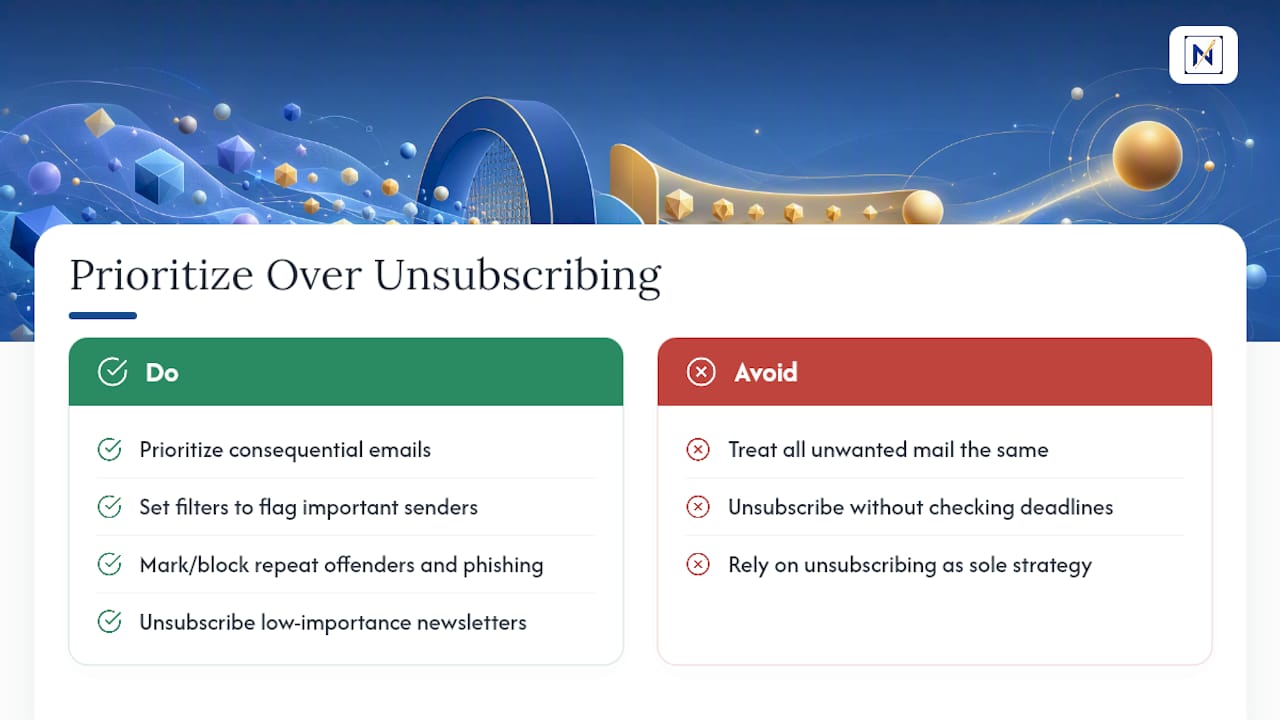
Unsubscribing feels productive, but it’s a maintenance task, not a strategy. The real cost of an overloaded inbox isn’t the newsletters, it’s the deadline or refund notice buried underneath them. Research on daily email volume for the average worker cites roughly 117 messages received per day, and no amount of unsubscribing changes the fact that a handful of those messages carry real financial or professional consequences.
The mistake most people make is treating every unwanted email the same way. A missed conference newsletter costs you nothing. A missed invoice deadline or an unanswered client reply can cost you money or a relationship. Unsubscribing cleans the inbox; it doesn’t tell you what actually needed your attention.
Reserve spam marking and blocking for repeat offenders and anything that looks even slightly like phishing. For the messages that matter, the goal isn’t fewer emails. It’s knowing which ones carry consequences before you scroll past them.
Pro Tip: Before you unsubscribe from a sender, ask whether it’s ever sent you something with a deadline attached. If yes, keep it and set a filter to flag it instead of cutting it off entirely.
Perspective: Manual Cleanup or a Management Tool?
Manual unsubscribing works fine if you get a modest amount of mail and rarely miss anything urgent. It stops working once volume climbs, once you’re juggling more than one account, or once you’ve missed a bill or a client reply buried under marketing noise. At that point, the fifteen minutes you spend clicking Unsubscribe each week is costing you more than the clutter itself.
Ask yourself three things: how many emails hit your inbox daily, whether you’ve missed something important in the last month, and how much time you actually spend maintaining your inbox. If two of those answers worry you, a tool that prioritizes by consequence is worth more than another round of unsubscribing.
— Glen Bover
Try theNeedle for Inbox Overload Yahoo Mail Can’t Fix Alone
Unsubscribing gets rid of noise you don’t want. It doesn’t help you catch the one email buried in that noise that actually needs a response today. theNeedle connects to Yahoo Mail (along with Gmail, Outlook, and iCloud) and surfaces deadlines, financial alerts, and unanswered replies before they get lost, while still offering built-in unsubscribe support for the senders who keep coming back no matter how many times you opt out.

If your inbox runs into the hundreds of messages a day across multiple accounts, start a free trial of theNeedle and see which of today’s messages actually need you first. For a single one-off newsletter, the regular Unsubscribe button still does the job fine, no tool required.
Where to Verify These Yahoo Mail Steps
Every step above comes from Yahoo’s own help documentation, including its guidance on unsubscribing from marketing email and its instructions for the mobile app’s Unsubscribe tab. Visit theNeedle to see how consequence-based prioritization works alongside those tools.