How to Unsubscribe From Newsletters Fast (and Safely)

The fastest safe way to unsubscribe from newsletters is to use your email provider’s native tools first, not a third-party service. Gmail, Outlook, and Apple Mail all build unsubscribe controls directly into the inbox, and they don’t require handing a stranger’s app access to your entire mailbox. Here’s the shortest path to a quieter inbox:
- Open your email client’s built-in unsubscribe or “manage subscriptions” feature and work through your highest-volume senders first.
- If a sender ignores your unsubscribe request after a week or two, report the message as spam instead of clicking their link again.
- Skip broad third-party mailbox access unless you’ve checked exactly what data it stores and shares.
- For ongoing noise, not just one-time cleanup, a tool like theNeedle prioritizes what actually matters and offers a free trial.
Key Takeaways
Unsubscribing from newsletters is most effective when you use your provider’s native tools first and reserve third-party services for edge cases, since native tools now match or beat them on speed and privacy.
| Point | Details |
|---|---|
| Start with native tools | Gmail’s Manage subscriptions, Outlook’s unsubscribe banner, and Apple Mail’s junk filter handle most cases free. |
| Expect a short delay | Unsubscribes can take a few days to process, so one stray email afterward isn’t a failure. |
| Skip broad third-party access | Testing shows many unsubscribe apps under-deliver while requiring risky levels of inbox access. |
| Report, don’t repeat | If a sender ignores two unsubscribe attempts, report as spam instead of clicking again. |
| Solve prioritization separately | theNeedle surfaces consequential emails like deadlines and refunds so cleanup isn’t your only defense. |
Table of Contents
- How Do You Unsubscribe From Newsletters on Each Platform?
- What’s the Best Way to Bulk Unsubscribe From Emails?
- Are Third-Party Unsubscribe Apps Worth the Privacy Trade-Off?
- Why Won’t Some Emails Stop After You Unsubscribe?
- Why theNeedle Fits Once Your Inbox Is Under Control
- A Fresh Perspective on Inbox Overload
- Frequently Asked Questions
- Sources
How Do You Unsubscribe From Newsletters on Each Platform?
Every major email provider has quietly built serious unsubscribe tools into the inbox over the past couple of years. Most people never notice them because they’re tucked into menus nobody clicks. Once you know where to look, removing a newsletter takes about ten seconds.
In Gmail:
- Open the Manage subscriptions view, which lists every sender you’re subscribed to, sorted by how often they email you.
- Scan for the worst offenders. It’s usually retail newsletters and event promoters, not the handful of lists you actually read.
- Tap Unsubscribe next to any sender. Gmail sends the request on your behalf.
- If you see “Go to website” instead of a direct unsubscribe button, that sender requires you to complete the process on their own site. Gmail’s help documentation confirms this happens for a subset of senders, and that unsubscribe requests can take a few days to fully process.
In Outlook (web and desktop apps): Open a newsletter and look above the subject line for the Unsubscribe banner Outlook automatically detects on marketing email. On the web version, you can also right-click a sender in your inbox list and choose the unsubscribe option directly, which works well if you’re clearing out several messages from the same list at once.
In Apple Mail and iCloud: Apple Mail shows an Unsubscribe link near the top of qualifying messages, similar to Outlook’s banner. If a sender doesn’t offer that link, your next move is to mark the message as junk rather than just deleting it, since that trains Apple Mail’s filter to catch future messages from the same address automatically.
Across any platform, a few habits keep you out of trouble. Check the sender’s domain before clicking anything. A newsletter claiming to be from a bank or retailer but sending from a strange or misspelled domain isn’t a newsletter worth unsubscribing from politely. Use the unsubscribe link inside the email itself, or your provider’s built-in tool, rather than forwarding to a random “remove me” address. And never click an unsubscribe link in a message you weren’t expecting in the first place. That’s a common phishing tactic, not a real subscription.
Pro Tip: If you’re not sure whether a link is legitimate, hover over it (on desktop) to preview the destination URL before clicking. A mismatched or oddly long domain is your signal to report spam instead of unsubscribing.
What’s the Best Way to Bulk Unsubscribe From Emails?
Clearing ten newsletters is easy. Clearing 150 without missing something important requires a routine, not just persistence.
Start with Gmail’s Manage subscriptions view, since it’s built specifically for this. CNET’s testing confirms the feature can remove dozens of mailing lists in minutes, and one hands-on writeup from Tom’s Guide describes clearing many lists in seconds using the sorted-by-frequency view alone.
A workable sequence looks like this:
- Sort your subscription list by frequency and unsubscribe from the top ten senders first. That’s usually where the real inbox pressure comes from.
- Create a filter or label for senders you’re not ready to fully cut, like a professional newsletter you skim occasionally. Route those to a folder instead of your main inbox.
- Decide case by case whether a sender deserves a full unsubscribe or just a filter. Not everything needs to go; some things just need to stop interrupting you.
- Recheck after a few days. Because unsubscribes can take time to register, confirm the sender has actually stopped before moving on.
A short daily or weekly cleanup habit works better than one massive purge. Give it five minutes when you open your inbox, unsubscribe from whatever new noise showed up, and the backlog never rebuilds.
- Sort by frequency, not alphabetically. Volume is the real problem, not clutter.
- Filter before you delete anything you might genuinely need later.
- Recheck a week later. If messages persist, move to reporting spam.
Are Third-Party Unsubscribe Apps Worth the Privacy Trade-Off?
Usually not, and the evidence is fairly blunt on this. Wirecutter’s testing found that many email unsubscribe services under-deliver, often taking days or weeks to show results while requiring full access to your inbox to work at all. That’s a steep price for something Gmail already does for free in seconds.
Here’s how most of these services actually operate: you grant an app OAuth access to read your email, it scans your inbox for marketing messages, and it either unsubscribes automatically or shows you a list to approve. The catch is that “read your email” isn’t a narrow permission. It typically means the app can see message content, sender history, and sometimes attachments, not just subject lines.
Before granting that kind of access to any app, check four things:
- Scope of access. Does it need to read everything, or can it request a narrower permission?
- Storage policy. Does the company keep copies of your email data, or does it process and discard?
- Third-party sharing. Is your data sold or shared with advertisers, even in aggregate form?
- Exit clarity. Can you revoke access cleanly, or does the app keep a standing connection?
One insight worth remembering: native provider tools have gotten good enough that third-party unsubscribe apps are now a niche specialist tool, not a necessity. If your goal is simply fewer newsletters, Gmail, Outlook, and Apple Mail cover most cases without a data trade-off. If your goal is ongoing prioritization across a chaotic inbox, that’s a different problem, and it’s worth solving with a tool built specifically for it rather than a bulk unsubscribe app with vague privacy terms.
Why Won’t Some Emails Stop After You Unsubscribe?
A handful of reasons explain almost every case of this. Processing delays are the most common. Gmail’s own documentation notes unsubscribes can take a few days to fully take effect, so one more email after clicking unsubscribe isn’t necessarily a failure.
Some senders also run multiple mailing lists under one brand. You might unsubscribe from their weekly newsletter and still get their promotional blasts, because those are technically a separate list. And a smaller number of senders, particularly disreputable retailers, sell or share their list with data brokers, which means your address keeps circulating even after you’ve unsubscribed from the original source.
Here’s how to triage it:
- If it’s been over two weeks and the sender is legitimate but slow, unsubscribe again and give it another cycle.
- If the sender never offered a real unsubscribe link, search for their contact or privacy page and request removal directly, referencing CAN-SPAM if they’re a US business ignoring the law’s requirements.
- If messages continue after two failed attempts, report as spam rather than unsubscribing a third time. That signal helps your provider’s filter catch future mail automatically.
- Once resolved, keep a filter in place for a few weeks as a backstop while you confirm the sender has actually stopped.
Why theNeedle Fits Once Your Inbox Is Under Control
Unsubscribing solves half the problem. The other half is that even a clean inbox still buries the one email that actually matters under dozens that don’t. theNeedle was built around that gap.
Instead of treating every message equally and asking you to sort through all of them, it identifies emails tied to real consequences, a deadline, a refund window, a reply someone’s waiting on, and surfaces those first. That matters more than it sounds. The average worker gets 117 emails a day, and no amount of unsubscribing eliminates the ones that genuinely require action. theNeedle also includes built-in unsubscribe controls for senders who keep coming back, so you’re not manually repeating cleanup every few months.
For anyone who has just spent an afternoon bulk unsubscribing and still feels behind, that’s usually a sign the problem was never volume alone. It’s prioritization. Starting a trial takes a few minutes and connects directly to Gmail, Outlook, Yahoo, or iCloud.
A Fresh Perspective on Inbox Overload
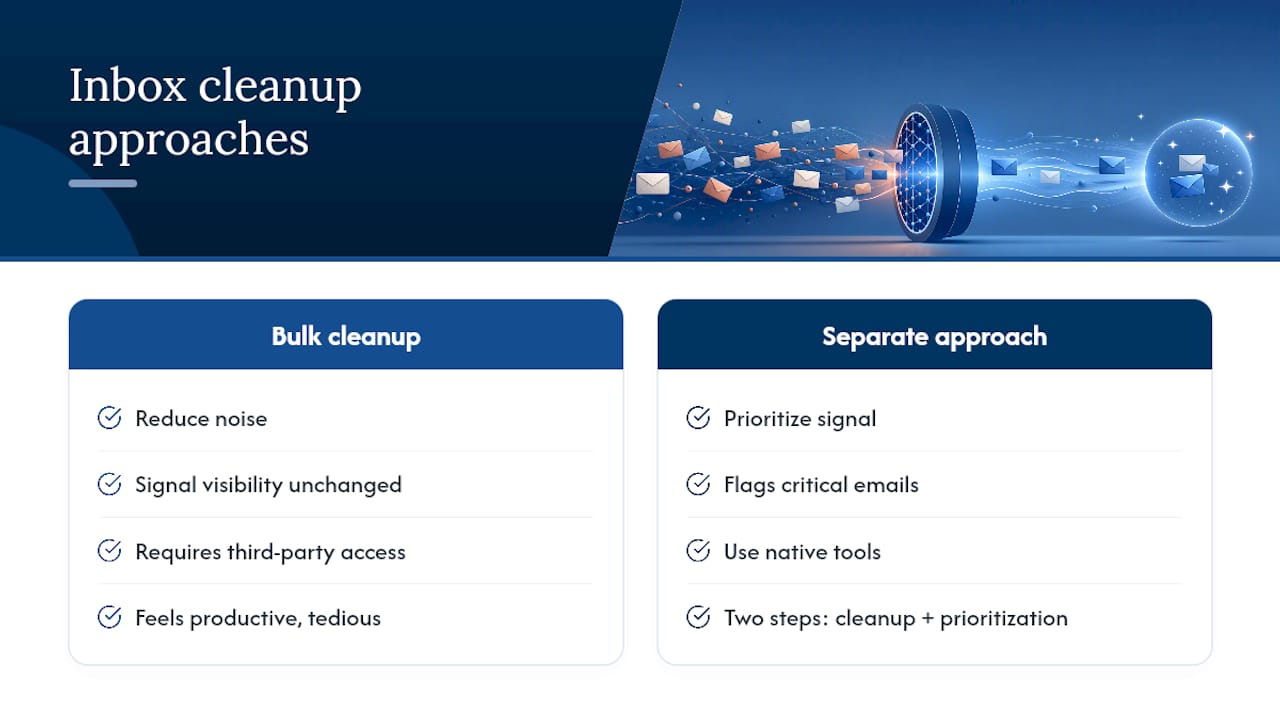
Most advice about unsubscribing treats the inbox like a lawn that needs mowing: cut it back once, repeat as needed, problem solved. That framing misses something important. Newsletter volume isn’t actually the thing costing you money or opportunities. It’s what volume hides.
Unsubscribing from 80 mailing lists feels productive, and it is. But it doesn’t change the fact that the one email confirming a contract deadline or a refund window looks identical, at a glance, to a coupon code from a shoe brand you forgot you bought from once. Bulk cleanup reduces noise. It does nothing to help you spot signal.
This is the part conventional advice underestimates: the goal was never a smaller inbox. It was catching the message that costs you money or a relationship if you miss it. A retailer newsletter ignored for a week is nothing. A vendor invoice or a client’s urgent reply ignored for a week is a real problem. Treating both as equally solvable through unsubscribing conflates two entirely different issues.
The privacy angle deserves the same honesty. A lot of “email cleanup” tools exist because unsubscribing feels tedious, and tedium creates demand for shortcuts. But the shortcut usually means granting broad access to your inbox in exchange for a marginal time savings you could have gotten for free through Gmail’s own tools. That trade rarely makes sense once you actually total up what you’re giving away versus what you’re saving.
The better instinct is to separate the two problems cleanly. Use native tools to cut volume, because they’re free, fast, and don’t require trusting a third party with your data. Then solve prioritization as its own problem, because no amount of unsubscribing will ever flag the one email that actually needed your attention today.
Frequently Asked Questions
How long does it take to unsubscribe from newsletters? Most unsubscribe requests process within a few days. If messages continue past two weeks, treat it as a failed unsubscribe and report the sender as spam.
Is it safe to click unsubscribe links in every email? Only in messages you recognize as legitimate. If a sender’s domain looks unfamiliar or the message arrived unexpectedly, mark it as spam instead of clicking anything inside it.
What’s the difference between unsubscribing and blocking a sender? Unsubscribing removes you from a specific mailing list. Blocking or marking as spam stops all future messages from that address regardless of which list sent it, which is the better move for senders that ignore unsubscribe requests.
Can bulk unsubscribe tools remove emails I’ve already received? No. Unsubscribing only stops future messages. Deleting past emails is a separate action, usually handled through search filters in your inbox.
Do I need a third-party app to mass unsubscribe from emails? Not usually. Gmail’s Manage subscriptions view alone can clear dozens of lists in minutes without granting outside access to your inbox.
Sources
- Gmail launches new “Manage subscriptions” view
- Manage your subscriptions in Gmail - Computer - Gmail Help
- Email Unsubscribe Services Don’t Really Work. Follow This (Free) Advice Instead.
- Gmail has a built-in tool for unsubscribing from everything — here’s how to use it
- CAN-SPAM act compliance guide for business (FTC)