Professionals: One Week to Reclaim 10–15 Hours and Cut Inbox Time

To reduce inbox time by hours each week, combine strict check windows with aggressive inbox hygiene and AI-assisted triage and drafting. Research on combined strategies shows heavy email users can reclaim 10 to 15 hours per week with this approach. Some email management tools build this exact logic into their prioritization engines, so consequential emails surface first and the rest wait their turn.
TL;DR:
- Most email reduction benefits come from unsubscribing from top senders and creating automated filters to divert routine messages into separate folders.
- Implementing two daily check windows, spaced about ninety minutes apart, minimizes refocusing loss and prevents email from turning into unpaid overtime.
- AI triage workflows that summarize, categorize, and draft responses can cut regular inbox processing down to roughly 20 minutes per day.
- Tracking a daily email time cap of 45 to 60 minutes and automating volume reduction first make consistent inbox management achievable.
- The system’s effectiveness relies on batching, filtering, and AI triage working together, with tools like theNeedle emphasizing prioritizing consequential messages.
Table of Contents
- How to Use the Two-Session Batching Rule to Protect Deep Work
- Cut Volume Fast: Unsubscribe Audit and Smart Filters
- Use AI to Triage and Draft: A Three-Pass Workflow
- Short Replies, Templates, and Delegation to Drop Composition Time
- Time-Budget Method: Set a Daily Cap and Measure Progress
- A 7-Day Rollout Plan to Implement the System
- Why This System Works: Research and theNeedle’s Perspective
- Sequence Matters More Than People Think
- theNeedle: How It Fits the System and Where to Try It
- Links to Research and Practical How-To Resources
- Sources
- FAQ
How to Use the Two-Session Batching Rule to Protect Deep Work
Two check windows a day, roughly ninety minutes apart in timing intent, morning and late afternoon, is the default that works for most schedules. Everything else about your inbox strategy sits on top of this one decision, because the quiet cost of email isn’t the reading. It’s the refocusing.
Gloria Mark’s research on interruption cost found that once a worker gets pulled off task by an email, it takes an average of 23 minutes to fully return to the original work. Check your inbox eight times a day and you’re not losing eight moments. You’re losing hours of scaffolding around your attention that never gets rebuilt.
Setting this up takes about twenty minutes:
- Block two recurring calendar slots labeled “Email” so colleagues see you’re occupied, not idle.
- Write a short status line for chat tools (“Checking email at 11 and 4, ping me directly if urgent”).
- Set an auto-reply that names your two windows and gives one emergency contact method.
- Mute notification badges and sounds outside those windows.
Pro Tip: Put your second window before your commute or end-of-day routine, not after. An open-ended evening check turns into unpaid overtime more often than not.
Cut Volume Fast: Unsubscribe Audit and Smart Filters
Before batching can work, you need less arriving in the first place. An inbox with 200 unread messages makes any check window feel impossible, no matter how disciplined the schedule.
Run this audit once, then again lightly each quarter:
- Search your inbox for “unsubscribe” and sort by sender frequency; kill the top twenty senders you never open.
- Build three folders with automated filters: Notifications, Receipts, and Newsletters, so those categories skip the main inbox entirely.
- Route anything with “no reply” in the sender address straight to a folder, since none of it requires action.
- Create a dedicated email address just for newsletters and shopping signups, then check it once a week as a digest, not daily.
- Set a recurring 15 minute slot every Friday to skim and delete anything the filters missed.
Snoozing and muting threads inside your existing email client handles most of the leftover clutter automatically once the filters are in place.
Use AI to Triage and Draft: A Three-Pass Workflow
A three-pass system turns dozens of individual decisions into three batch decisions, and that shift is where most of the time savings actually live. Practical AI triage workflows built this way can collapse routine inbox processing to roughly 20 minutes a day for many professionals.
Here’s how the three passes work:
- Pass one, summarize. Ask your email client’s built-in summary feature or an AI assistant to condense your unread pile into one line per message.
- Pass two, sort. Bucket each summary into four categories: Reply now, Quick acknowledge, Read later, Archive.
- Pass three, draft. Batch-generate draft replies for everything in Reply now and Quick acknowledge using a prompt like “Draft a three-sentence reply confirming receipt and giving a timeline.”
Two safety rules matter here. Always read sensitive or high-stakes threads in full before letting AI touch them. Never send a draft without editing it, since AI tone can drift formal or generic in ways that don’t match how you actually talk to that person.
Short Replies, Templates, and Delegation to Drop Composition Time
Most inbox time isn’t spent reading. It’s spent composing. The two-minute rule fixes that: if a reply takes less than two minutes to draft, write it immediately inside your check window rather than flagging it for later, since flagging itself costs time.
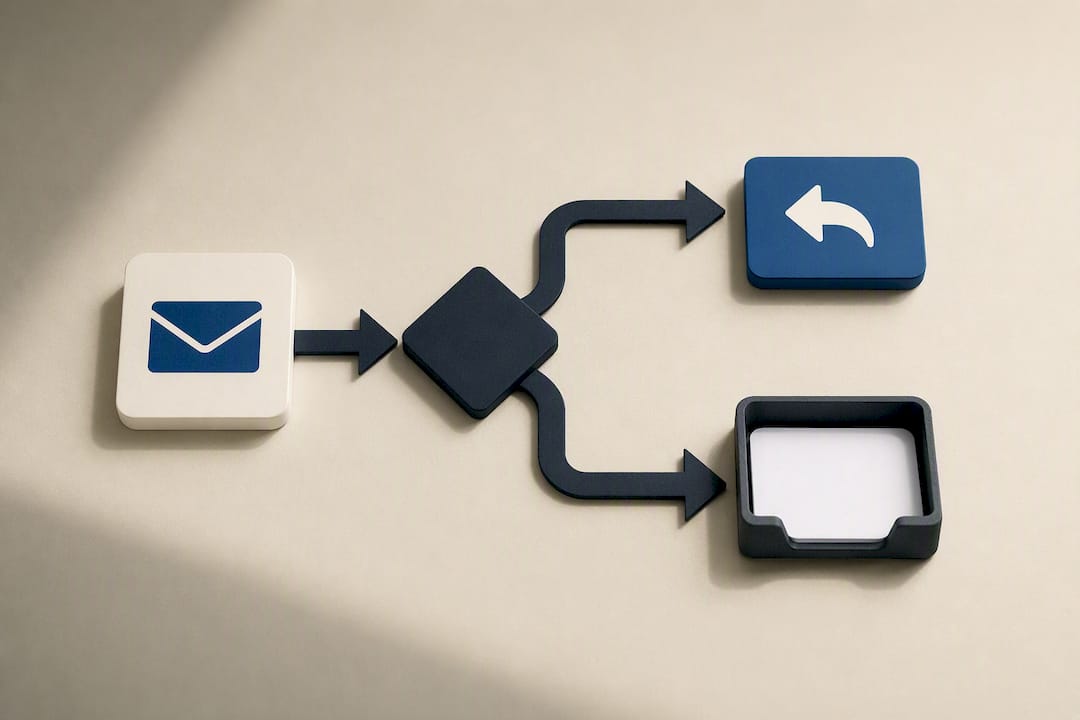
Pair that with a five-sentence guideline for anything longer. Short-reply norms combined with templates change what senders expect from you and lower the mental cost of every response.
Build a template library for the messages you write on repeat:
- Meeting scheduling and rescheduling
- Status updates on ongoing projects
- Polite declines for requests outside your scope
- Introductions and warm handoffs
For anything that isn’t yours to answer, delegate cleanly. Forward with one line of context, name the decision you need made, and set a follow-up date so you’re not hovering. A virtual assistant handling recurring inbox tasks can absorb scheduling and routine replies entirely once your templates exist.
Time-Budget Method: Set a Daily Cap and Measure Progress
Treat email like any other line item: figure out what it costs you, then cap it. Multiply your hourly rate by the 11 to 12 hours a week the average knowledge worker spends managing email, and the number usually gets attention fast.
Set a daily cap, often 45 to 60 minutes total across both windows, and track it against a few simple metrics.
Pro Tip: Start with automation (filters, unsubscribes) before touching your own habits. Removing volume makes the behavior change feel achievable instead of like willpower alone.
A 7-Day Rollout Plan to Implement the System
Spread the changes across a week so no single day feels overwhelming, and expect the habit itself to stabilize over 7 to 10 days of consistent practice.
- Day 1: Run the unsubscribe audit and set up your three filter folders.
- Days 2 to 3: Block calendar windows, write your auto-reply, and set your status message.
- Days 4 to 5: Build your first five templates and identify what you can delegate.
- Days 6 to 7: Test AI summarize-and-draft prompts and start tracking daily minutes.
Expect misclassified filters the first few days. Check your Notifications folder briefly to catch anything important that landed there by mistake. If colleagues push back on slower replies, your auto-reply message is doing its job. Point them to it rather than breaking your windows.
Why This System Works: Research and theNeedle’s Perspective
The math behind this system isn’t guesswork. Combined strategies involving batching, filters, and AI triage show professionals reclaiming meaningful chunks of their week, and AI-specific workflows alone can save up to an hour a day for power users running full triage setups.
The real failure point in most inboxes isn’t volume. It’s that every message gets treated as equally urgent until someone, or something, sorts the consequential ones from the noise. That sorting is the whole job.
Some tools are built around that exact idea: identifying emails carrying deadlines, financial stakes, or unanswered obligations and surfacing those first, rather than just organizing everything else by folder or read status. Paired with the batching and hygiene steps above, most readers should see a measurable drop in daily email minutes within the first two weeks.
Sequence Matters More Than People Think
Cut volume before you batch, and batch before you lean on AI drafting. Doing all three at once usually collapses under its own complexity within a few days. Track your daily email minutes honestly, expect the first two weeks to feel awkward, and keep your auto-reply message simple enough that nobody misreads it as unavailability.
— Glen Bover
theNeedle: How It Fits the System and Where to Try It
This service isn’t another inbox to manage. It is a layer that tells you which of today’s average emails actually carries a deadline, a financial consequence, or a reply someone is still waiting on. Once your filters and templates are handling routine volume, Its job is to make sure nothing consequential ever gets buried in what’s left.

It works alongside the habits in this article, not instead of them. Filters cut the noise, templates cut composition time, and theNeedle makes sure your two daily check windows are spent on the messages that would actually cost you something if missed, a client deadline, a refund window, a reply someone’s been waiting on. That’s the gap most inbox tools ignore: they organize everything equally instead of ranking what matters.
You can try theNeedle’s live preview to see how it prioritizes a real inbox, or check current plans and trial details on the main product page.
Links to Research and Practical How-To Resources
- Gloria Mark’s interruption cost research (CHI)
- Gmail settings to reduce urgency — MakeUseOf
- AI’s role in cutting email time — Fast Company
- How to organize your inbox — theNeedle
Sources
- Gloria Mark — task switching and email interruption research (CHI)
- AI inbox triage workflow — FutureFactors (2026)
- Gmail settings to reduce email urgency — MakeUseOf
FAQ
What is the fastest way to clear up my email inbox?
Run an unsubscribe audit and set up three automated filter folders first. Removing volume before you try to organize what’s left clears most inboxes within an hour.
Why is my Outlook an hour behind?
This usually means your time zone setting under Outlook’s calendar or account options doesn’t match your system clock. Check Settings, then General, then Time and confirm both match your actual location.
Why does my email only go back so far?
Most providers archive or auto-delete older messages based on storage limits or retention policies set by your organization’s IT administrator. Check your account’s storage settings or ask your IT team about retention rules if you need older messages restored.
How do I change my email timing settings?
In Gmail or Outlook, timing settings for send delays, auto-replies, and scheduled sends live under general settings or the compose window’s send options. Look for “schedule send” or “delay delivery” to control when messages go out.
Can theNeedle replace my filters and templates?
No, and it isn’t meant to. theNeedle works best alongside filters and templates, ranking the consequential messages in what’s left after hygiene steps clear the noise.