Prioritize Important Emails by Consequence with theNeedle

The fastest way to prioritize important emails is a one-minute triage the moment they land, paired with two or three scheduled inbox checks a day instead of constant monitoring. The average worker gets many emails daily, so treating every message as equally urgent is the fastest route to missing the ones that actually matter. Tools with automated filtering can help, but the habit works even without software. The sections below break down exactly how.
TL;DR:
- Prioritize emails with a quick decision tree, deleting newsletters and spam immediately, and handling simple replies within two minutes to save time.
- Use specific filters based on sender, recipient level, deadline keywords, and financial language to surface only essential messages and avoid organizational chaos.
- Focus on urgent emails by evaluating deadline, direct address, and financial terms, rather than relying solely on subject line cues like all caps or exclamation points.
- Limit email checks to three scheduled times daily and turn off notifications to reduce distraction and improve response quality.
- Run a manual one-minute triage for a week before relying on automated tools, ensuring genuine importance signals are prioritized over false alarms.
Table of Contents
- How Do You Prioritize Important Emails Quickly?
- Building Filters and Rules That Surface What Matters
- Can Automation Actually Tell Which Emails Are Urgent?
- What’s a Realistic Daily Workflow for Checking Email?
- How theNeedle Handles Consequence-First Prioritization
- Try the One-Minute Habit Before You Trust Any Tool
- Try theNeedle Free and See Your Real Priorities
- Where to Read More
- Sources
How Do You Prioritize Important Emails Quickly?
The best system is a decision tree you run in under a minute, every time a message arrives. It borrows from the classic inbox-zero framework of five actions, adapted into what we’ll call the Five D’s.
- Delete. If it’s a newsletter, a promotion, or spam wearing a disguise, kill it immediately. Don’t archive it “just in case.”
- Do. If the reply takes two minutes or less, write it now. Deferring a two-minute task costs more time than doing it.
- Delegate. If someone else on your team should own this, forward it with one clear instruction, not a vague “thoughts?”
- Defer. Snooze it or drop it on your calendar with a specific follow-up time, not a mental note to “get to it later.”
- Designate. Star, label, or file it for reference if you’ll need it again but it requires no action today.
That handles the easy calls. The harder question is urgency, and here’s where most people get fooled: subject lines in all caps or a red “!!!” flag don’t mean much. A better filter is the 24-hour test: ask yourself what changes if you reply tomorrow instead of right now. If the honest answer is “nothing,” it’s not urgent, no matter how it’s formatted.
Weigh three signals when you’re unsure: whether the message is addressed directly to you (not cc’d), whether it names a specific deadline or date, and whether it uses financial language like “overdue,” “refund,” or “past due.”
Pro Tip: Keep a sticky note near your screen with just the 24-hour question on it. That single reminder catches more false alarms than any inbox tool you’ll install.
Building Filters and Rules That Surface What Matters
Rules only work if they’re built around consequence, not category. Before you write a single filter, decide which senders and phrases actually carry financial or professional weight for you.
- VIP contacts. Flag your manager, your top three clients, and anyone who signs your paychecks. Everyone else waits.
- To versus cc. Messages where you’re the primary recipient deserve more attention than ones where you’re copied for visibility.
- Deadline keywords. Words like “due,” “expires,” or “final notice” should trigger a label, not just sit in a crowded inbox.
- Billing language. Anything mentioning invoices, refunds, or payment failures goes into its own folder so it never gets buried under promotional noise.
Route the rest with the same logic. Newsletters go to a “read later” folder you check once a week. Receipts go to a receipts folder, full stop, no exceptions. Direct client requests get a priority label so they surface at the top no matter when they arrive. Poor organization costs real time. One Business News Daily analysis found that disorganized inboxes lead to hours lost searching for messages that should have been one click away.
Once a message is filtered correctly, don’t let it disappear. Use snooze features to bring deferred emails back at a specific time, and set follow-up reminders so anything you’re waiting on doesn’t quietly die in someone else’s inbox.
Pro Tip: If a filter rule requires more than two conditions to work, it’s probably fixing a symptom instead of the real problem. Simplify it or rethink the source.
Can Automation Actually Tell Which Emails Are Urgent?
Automated urgency detection works when it combines several signals instead of leaning on one. Explicit deadlines, escalation language (“second request,” “final reminder”), evidence of blocked work, and financial terms all carry weight together in a way that no single flag does alone. Operion’s research on urgency detection makes the case plainly: sender-based flags alone become meaningless fast, because everyone eventually marks everything as high priority.
A well-calibrated system flags a minority of incoming mail as truly urgent. If your urgent folder is regularly a large portion of your inbox, the thresholds are too loose and you’re back to treating everything as equally important.
- Test any rule or classifier against a batch of real emails before trusting it live.
- Track false positives weekly. If a flagged message turns out routine, adjust the trigger phrase.
- Watch time-to-first-response on flagged items. If it isn’t dropping, the flagging isn’t doing its job.
Tools like the Workforce Playbook urgency-detection library offer a useful starting point for testing classifiers against sample messages before rolling anything out.
What’s a Realistic Daily Workflow for Checking Email?
Three checkpoints a day beats constant monitoring, and the data backs that up. Roughly 43% of workers check their inbox every few hours outside standard work hours, a habit that fragments focus without actually speeding up response times.
- Set three fixed check times. Morning, early afternoon, and end of day works for most schedules. Add an out-of-office note or signature line stating when you check email, so senders calibrate their expectations instead of guessing.
- Convert important emails into tasks immediately. If a message requires action beyond a two-minute reply, drop it into your calendar or task manager with a real deadline attached, not a vague “this week.” A template resource from Otterwatch offers ready-made language for setting expectations when you delegate or delay a response.
- Route notifications by verified urgency only. Push or text alerts should fire only for confirmed high-stakes items. Everything else stays silent until your next scheduled check.
Pro Tip: Turn off badge counts and banner previews entirely. Seeing “47 unread” every time you glance at your phone creates pressure that has nothing to do with actual urgency. For a deeper walkthrough on turning this into a repeatable system, theNeedle’s inbox organization guide covers the setup in more detail.
How theNeedle Handles Consequence-First Prioritization
theNeedle was built around one idea: the goal isn’t managing more email, it’s catching the few messages that actually carry consequences. With the average professional receiving around 117 emails a day, sorting by sender or subject line alone misses the point. theNeedle instead looks for signals tied to real stakes.
- Deadlines. Contract due dates, application windows, and time-sensitive requests get surfaced instead of buried under routine traffic.
- Financial risk. Billing alerts, refund windows, and payment failures rise to the top automatically.
- Overdue replies. theNeedle flags conversations you started but never finished, the kind that quietly damage client relationships.
- Opportunity tracking. Credits, refunds, and time-limited offers get caught instead of expiring unnoticed.
This mirrors the same triage logic covered above, just automated. It tends to help most for people juggling high email volume across multiple accounts, freelancers tracking client deadlines, or anyone whose job depends on not missing a financial notice buried in a crowded inbox.
Try the One-Minute Habit Before You Trust Any Tool
Before adding software, run the one-minute triage plus three fixed check times for seven days on your own. It sounds too simple to matter, but the friction is usually not the system, it’s the urge to check email between blocks out of habit. Expect the first two days to feel uncomfortable and the rest to feel like relief. If you want a companion read on why doing one consequential thing beats juggling ten trivial ones, theNeedle’s piece on handling one thing at a time is worth five minutes.
— Glen Bover
Try theNeedle Free and See Your Real Priorities
Some tools skip manual filter building entirely by scanning your inbox for messages with financial or professional consequences and surfacing those first, requiring no setup.

During onboarding, users connect supported email accounts to start identifying overdue replies, financial alerts, and deadline-driven messages hiding in their backlog. It won’t organize your newsletters or clean up your promotional folders. That’s not the job. What it does solve is the far more expensive problem: the one email with a real deadline or dollar amount attached, lost in a sea of 117 daily messages. If flagged urgent items matter enough to reach your phone, you can also set up SMS alerts for verified urgent mail so nothing critical waits for your next scheduled check. Start with the live demo to see how it sorts your own inbox before committing to anything.
Where to Read More
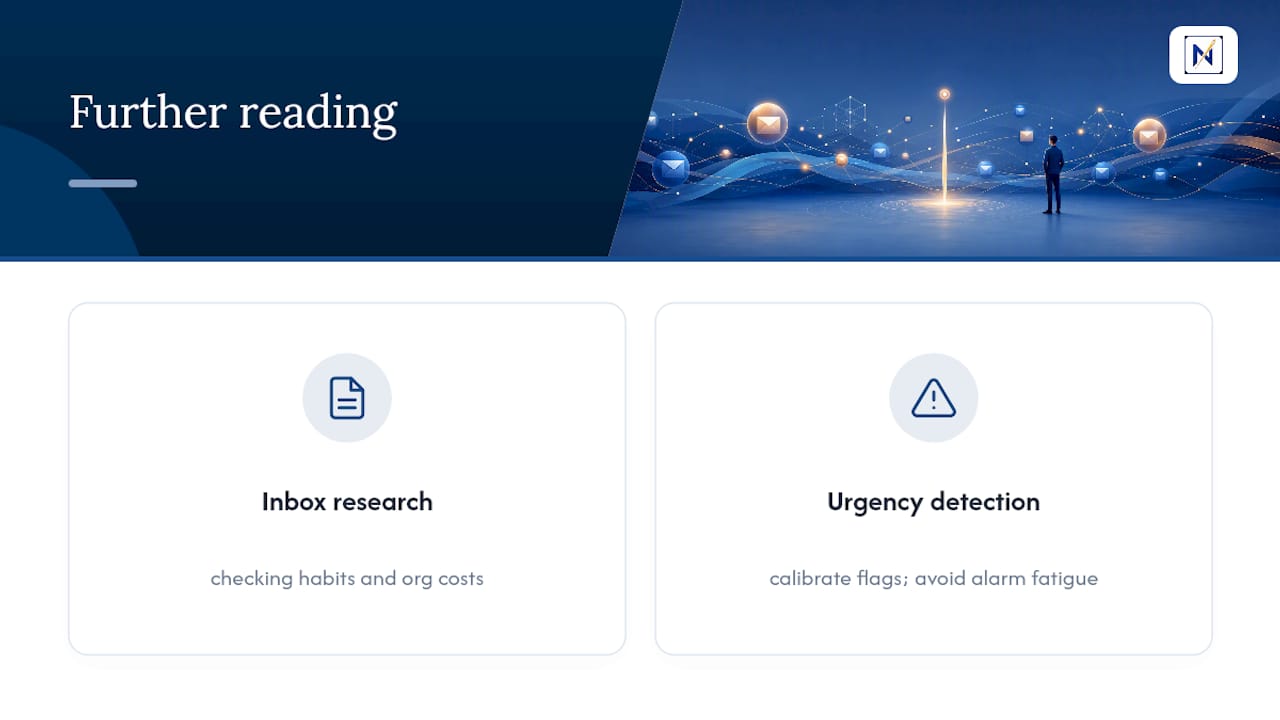
Two resources anchor most of the guidance above. Business News Daily’s inbox research covers checking habits and organizational costs, while Operion’s urgency detection guide explains how to calibrate automated flagging without triggering alarm fatigue.
Sources
- Email habits and inbox management | Business News Daily
- Urgency detection | Operion Learn
- How to Know If an Email Is Actually Urgent | DeftBrain
- Monday