Busy Professionals: Train Outlook Prioritize With 2–4 Prompts

Enable Outlook’s Prioritize feature through the Copilot menu, and it will scan new incoming mail and mark the messages that matter most with a visual up arrow. Turning it on takes under a minute and starts working quietly in the background, flagging high-priority mail with short explanations you can check anytime. If you need guaranteed, rule-based behavior instead of adaptive scoring, pair Prioritize with Outlook’s rules or Focused Inbox, which we cover below.
TL;DR:
- Outlook’s Prioritize feature only scores new incoming mail after activation, so existing messages remain unranked until new mail arrives.
- Effective teaching of Prioritize involves using specific, impact-focused natural-language prompts rather than vague keywords, and refining them over time.
- Rules and Focused Inbox remain reliable manual alternatives for predictable filtering and separating high-importance messages, especially when AI scoring isn’t suitable.
- Prioritize performs best for individual inboxes and may misjudge automated or system-generated messages, shared mailboxes, or older emails not received after activation.
- For multi-account management, theNeedle offers cross-platform, consequence-driven prioritization that captures urgent emails beyond Outlook’s scope.
Table of Contents
- How Do You Enable Outlook Prioritize on Each Platform?
- How Does Copilot Decide What’s Important?
- How Do You Teach Copilot What Matters to You?
- What Are the Manual Alternatives to Copilot Prioritization?
- Best Practices and Troubleshooting for Reliable Results
- When Outlook’s Features Fall Short: How theNeedle Complements Prioritization
- What Doesn’t Prioritize Evaluate?
- Author Perspective: Mixing AI Prioritization With Explicit Rules
- theNeedle: A Complementary Option for Consequence-First Email Prioritization
- Sources
- FAQ
How Do You Enable Outlook Prioritize on Each Platform?
Outlook prioritize emails features live inside the Copilot menu, but where you find that menu depends on your device. Here’s how to switch it on wherever you read mail.
- On Windows: Click the small arrow next to the Copilot button at the top right of the Outlook window, then select Prioritize. Outlook confirms the feature is active and begins scoring new mail as it arrives.
- On Mac: Open the What’s New pane, look for Prioritize your mail, and select Try it. The setup mirrors the Windows flow but sits in a different menu location because of how Mac Outlook organizes feature announcements.
- On mobile: Go to Settings > Copilot > Set up Prioritize. One quirk worth knowing: some mobile clients don’t display the low-priority icon the way desktop does, so a message that looks unmarked on your phone may actually carry a low-priority tag on your laptop.
A few activation notes save confusion later. Prioritize only evaluates messages that arrive after you turn it on, according to Microsoft’s own documentation, so your existing inbox stays untouched. It can also take a short while before you start seeing prioritized markers, since Copilot needs a handful of new messages to begin applying its scoring consistently.
How Does Copilot Decide What’s Important?
Copilot assigns each new message a rating of high, normal, or low priority based on a mix of signals: who’s on the thread, the sender’s job title, the actual content of the message, and whether the email requires you to take action. That last factor carries real weight. A newsletter and a client email asking for a signature by Friday can look similar on the surface, but only one demands something from you.
You’ll see the results in two places. The message list shows an up or down arrow next to high or low priority mail, along with a brief summary line. Open the message itself, and the reading pane shows Copilot’s own explanation for why it scored the way it did.
A few operational details matter for how you use this day to day:
- Scoring happens in parallel with delivery, so there’s no delay waiting for a separate process to run.
- Prioritize does not re-score mail that was already sitting in your inbox before you enabled it.
- You can sort or filter your inbox by priority the same way you’d sort by date or sender.
The busier your inbox, the more this filtering matters. Research cited by Microsoft’s Inside Track team frames the feature around surfacing high-impact communication rather than just organizing volume, which is a meaningfully different goal than traditional folder sorting.
How Do You Teach Copilot What Matters to You?
Copilot’s default scoring is a starting point, not a finished product. You improve it by adding natural-language prompts under Settings > Copilot > Prioritize, and the phrasing you choose matters more than most people expect.
Use full phrases, not single keywords:
- “Emails from my manager”
- “Emails about Project Phoenix”
- “Invoices with due dates”
Inside Track’s reporting on the feature notes that Prioritize is built around impact, not rigid keyword matching, so vague single-word prompts like “urgent” tend to underperform compared to descriptive phrases tied to real senders, projects, or document types.
Treat this as an iteration loop rather than a one-time setup. Add two to four prompts, watch how the reading pane explains its scoring over the next few days, then refine anything that seems to be catching the wrong messages. If a prompt is pulling in noise, narrow it or add an exclusion.
Pro Tip: Keep your prompts mutually exclusive rather than overlapping. Two prompts that both describe “emails from leadership” in slightly different words confuse the scoring more than they help. Test each new prompt against a small batch of recent mail before assuming it’s tuned correctly.
What Are the Manual Alternatives to Copilot Prioritization?
Not every Outlook user has Copilot access, and not every workflow wants adaptive, context-aware scoring. Sometimes you need behavior that’s predictable every single time, especially for compliance work or high-volume automated filing. Outlook’s built-in tools handle that case well.
- Build inbox rules. Create rules that automatically flag, categorize, or move messages from specific senders or containing specific subject terms. Rules apply in the exact order they appear in your rules list, and you can reorder them to control which one takes precedence when a message matches more than one.
- Turn on Focused Inbox. This splits your inbox into “Focused” and “Other,” separating messages Outlook thinks you’re likely to read from lower-priority mail like automated notifications.
- Mark messages as important manually. Outlook mark important flags work as a quick, one-off signal for a single email that needs attention, and you can build search folders around flagged or high-importance mail to keep it visible.
- Choose the right tool for the job. Rules work best for clear, repetitive criteria, such as invoices from one vendor always landing in a specific folder. Prioritize works best when the criteria are fuzzier and context-dependent, like distinguishing a genuinely urgent client request from routine correspondence with the same person.
Microsoft’s own best practices guidance recommends leaning on rules for filtering and Focused Inbox for separating likely-to-read mail, treating them as complements to AI scoring rather than replacements for it.
Best Practices and Troubleshooting for Reliable Results
Start small. Two to four clear, specific prompts outperform a long list of vague or overlapping ones, and you can always add more once you’ve confirmed the first batch is working the way you expect.
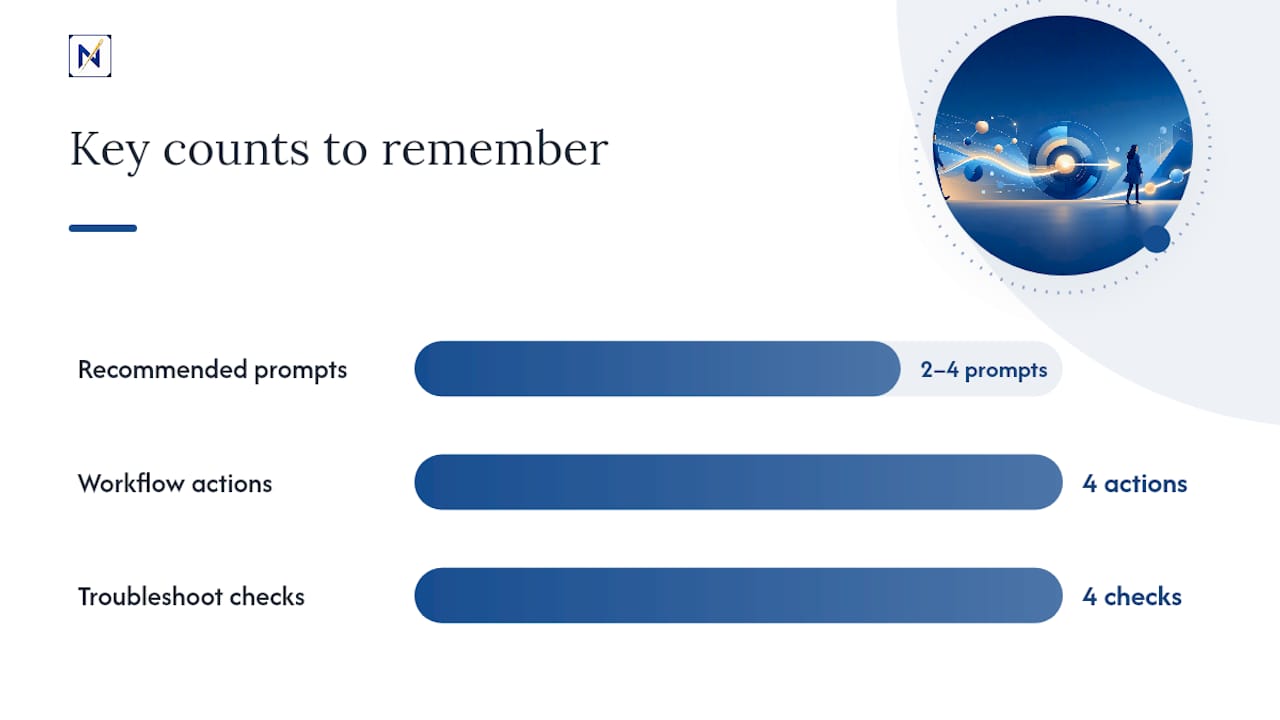
Once mail is prioritized, you still have to act on it. Microsoft’s guidance points to the Four Ds workflow: delete, do, delegate, or defer. Without a routine like this, prioritized mail just becomes “seen but not handled,” which defeats the point of flagging it in the first place.
If something isn’t working, check these first:
- Feature not visible: confirm your Outlook version and whether Copilot has rolled out to your organization’s tenant yet.
- No prioritized marks appearing: give it time. Scoring needs a small batch of new mail before patterns stabilize.
- No effect on old messages: expected behavior. Prioritize never re-scores mail that arrived before activation.
Pro Tip: When a message gets flagged in a way that surprises you, open it and read Copilot’s explanation in the reading pane. That explanation is your best debugging tool for figuring out which prompt or signal to adjust.
When Outlook’s Features Fall Short: How theNeedle Complements Prioritization
Prioritize is built for a single inbox. If you’re juggling a Gmail account, a Yahoo account, and an Outlook account at once, Copilot’s scoring stops at the Outlook boundary, and nothing tells you that a refund deadline in one inbox conflicts with a client deadline in another.
That’s the gap theNeedle is built to close. It connects across Gmail, Outlook, Microsoft, Yahoo, and iCloud, and instead of scoring every message, it hunts specifically for the ones with real consequences.
- Surfaces overdue, urgent, and high-priority messages across every connected account, not just one.
- Flags emails you replied to that never got a response, so nothing quietly stalls.
- Tracks opportunities like credits or refunds that are easy to miss in a crowded inbox.
- Offers one-at-a-time focus, which is especially useful if you find a scored list still overwhelming to work through.
The average worker gets 117 emails a day, and consequence, not volume, is what actually deserves your attention.
What Doesn’t Prioritize Evaluate?
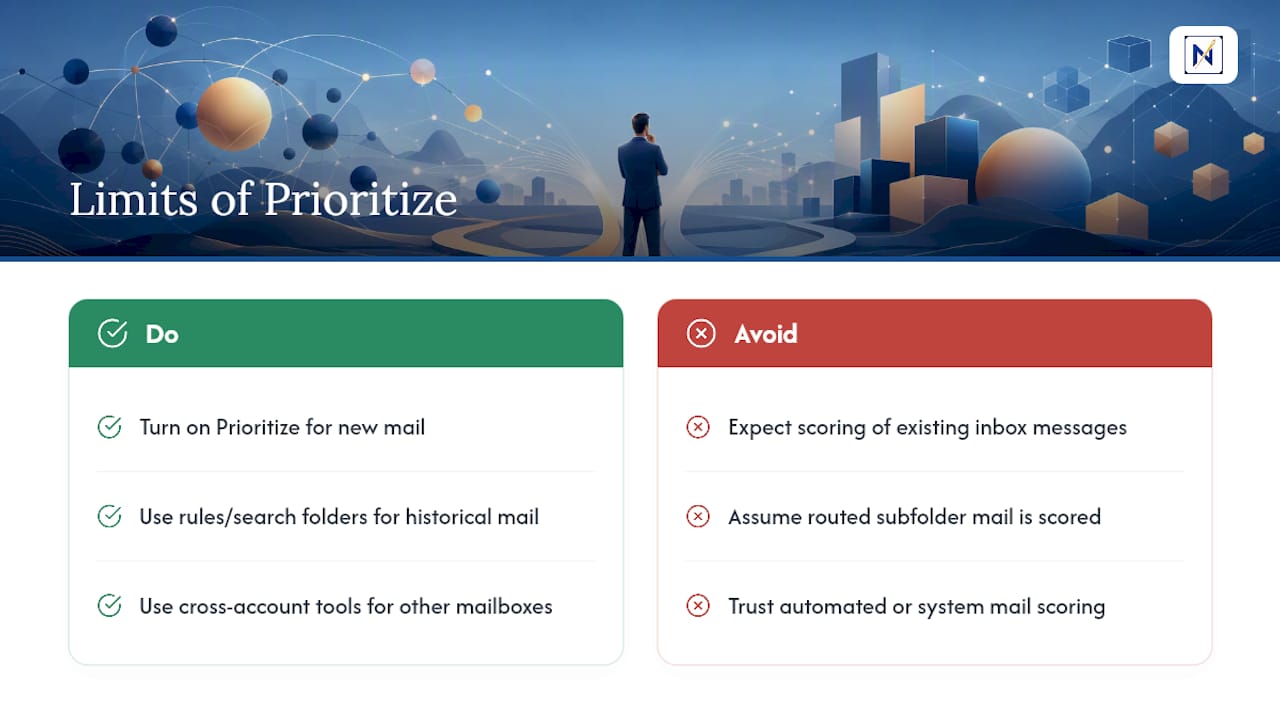
Prioritize has real limits, and knowing them keeps you from over-trusting the feature. It only scores mail arriving after you turn it on. Everything sitting in your inbox before activation, along with anything already filed into folders, stays unscored and unmarked, even if it’s genuinely urgent.
Prioritize also focuses on your primary inbox rather than every folder or shared mailbox you have access to. A message that gets automatically routed into a subfolder by a rule may never pass through Copilot’s scoring at all, since the evaluation happens as mail lands, not as a background sweep of your entire mail structure.
Certain message types get less reliable treatment too. Automated notifications, calendar invites, and system-generated mail don’t always carry the same contextual signals (sender relationships, job titles, thread history) that Copilot relies on for a confident score. You may see these marked as normal priority even when one buried in the details actually needs a response.
Shared and delegated mailboxes are another gray area. Prioritize is designed around your personal inbox and its patterns, so a shared team mailbox with mixed senders and inconsistent context tends to produce less accurate scoring than your own account.
None of this makes Prioritize unreliable. It just means the feature is a real-time filter for what’s coming in, not a full audit of what already exists. If you need historical mail evaluated or scoring across mailboxes that aren’t yours, that’s a job for rules, search folders, or a cross-account tool built for that purpose.
Author Perspective: Mixing AI Prioritization With Explicit Rules
Copilot’s scoring is genuinely good at catching context a human skims past, but it’s still probabilistic. I’d trust it for the gray area, the emails that could go either way, and lock down anything with legal or compliance weight using rules instead. That’s not a compromise; it’s matching the tool to the risk. My honest take: the goal was never sorting more mail faster. It’s making sure the message with real consequences never gets buried under the one that doesn’t.
— Glen Bover
theNeedle: A Complementary Option for Consequence-First Email Prioritization
Outlook’s Prioritize feature is genuinely useful, but it’s scoped to one inbox and one kind of scoring. theNeedle focuses on finding messages likely to carry important consequences, such as deadlines or financial alerts, across multiple connected email accounts, not just Outlook.

That distinction matters if you’re managing more than one email address, which most busy professionals are. theNeedle’s one-at-a-time focus presents a single message at a time instead of a scored list you still have to work through, and its built-in unsubscribe tools cut down the senders creating noise in the first place. If Copilot’s scoring feels like a good start but you’re still missing things across accounts, try theNeedle and see whether consequence-based sorting catches what inbox volume alone would bury.
Sources
Check Microsoft’s Prioritize documentation and browse productivity workflow guidance for broader AI email strategies, or explore theNeedle’s inbox organization approach.
- Prioritize my inbox - Microsoft Support
- Wrangling our email with the Prioritize My Inbox feature in Microsoft Outlook - Microsoft Inside Track
FAQ
How Do I Prioritize Certain Emails in Outlook?
Turn on Prioritize through the Copilot menu, then add natural-language prompts like “emails from my manager” under Settings to teach it which senders and topics matter most to you.
How Do You Change the Order of Emails in Outlook?
Sort your inbox by priority instead of date once Prioritize is active, or build inbox rules that move specific senders or subjects to the top using search folders and categories.
How Do I Prioritize Emails From a Specific Sender in Outlook?
Add a prompt naming that sender directly, such as “emails from my manager,” under Settings > Copilot > Prioritize, or create a rule that automatically flags every message from that address.
How Do I Mark an Email as High Priority?
Use Outlook’s built-in importance flag to manually mark any single message as high priority, or let Prioritize automatically apply an up arrow to messages it scores as high priority based on sender and content.