Find Urgent Messages First: Prioritize Across Five Outlook Accounts

Yes, Outlook handles multiple accounts natively, no workaround required. For most people, adding every account (work, personal, freelance) into one profile is the right call. If you need hard separation for compliance or a shared computer, use separate profiles instead. The catch: the desktop unified inbox is limited, and modern authentication can trip up older logins. Start at File > Add Account or Settings > Accounts.
TL;DR:
- Using multiple accounts in Outlook requires careful management of the From field to avoid sending from the wrong mailbox, especially when switching quickly.
- Outlook’s unified inbox features are limited on desktop, making folder management or search filters essential for efficient multi-account handling.
- Separating accounts into individual profiles provides greater security and prevents accidental cross-account actions on shared or compliance-sensitive devices.
- Modern authentication methods are critical for stable syncing, with re-authentication or app password generation often necessary when connection issues arise.
- Implementing rules, folder pinning, and scheduled checks helps maintain daily inbox organization and reduces overwhelm across multiple email accounts.
Table of Contents
- How to Add an Account in New Outlook and Classic Outlook
- How Do You Switch Accounts and Set a Default Sender?
- Does Outlook Have a True Unified Inbox?
- Should You Use Separate Outlook Profiles Instead?
- Why Do Sync and Login Errors Keep Happening?
- What Daily Habits Keep Multiple Inboxes Manageable?
- Why Prioritization Beats Unification for Busy Inboxes
- A Simpler Way to Handle Multiple Inboxes at Once
- Sources
How to Add an Account in New Outlook and Classic Outlook
Outlook’s account-adding process differs slightly depending on which version you’re running, but the underlying logic is the same everywhere: verify your identity, connect the mailbox, confirm mail flows both ways.
Before you touch a single menu, have three things ready: your email address, your password, and your multifactor authentication method (an authenticator app, a text code, or a hardware key). If you’re connecting an iCloud or older IMAP account, generate an app password ahead of time. You’ll need it, and providers don’t always make it obvious where to find it.
- New Outlook for Windows: Go to File > Account Info > Accounts > Your Accounts, then select Add Account. You can also reach this through View > View Settings. Microsoft’s own setup guide confirms support for Microsoft 365, Outlook.com, Gmail, Yahoo, iCloud, and generic IMAP/POP.
- Classic Outlook: File > Add Account, then follow the provider’s authentication prompt. For anything outside the major providers, choose the advanced setup option and enter IMAP/POP server details manually.
- Outlook on the web and Outlook for Mac: Both follow a nearly identical flow through Settings, though Mac sometimes routes Gmail through a separate Google sign-in window rather than an embedded prompt.
Add one account at a time, and send yourself a test email before moving to the next. Gmail specifically requires granting Google permissions during setup, and if two-step verification is active, you’ll need an app password or OAuth consent to finish the connection. Skipping that step is the single most common reason a Gmail add fails silently.
How Do You Switch Accounts and Set a Default Sender?
Once you’ve got two, three, or six accounts loaded, the real skill isn’t adding them. It’s knowing which mailbox you’re actually looking at and, more importantly, which one you’re about to send from.
- Switch mailboxes by clicking the account name in the folder pane on the left. Each account gets its own expandable folder tree.
- When composing, check the From field at the top of the message. In new Outlook, changing the From address sometimes opens an entirely new compose window rather than swapping in place, which catches people off guard the first few times.
- Set your primary account through Settings > Accounts > Manage, or File > Account Settings in classic Outlook. This determines which mailbox new messages default to.
- Assign a distinct signature to each account so a client doesn’t get an email closed out with your side-project’s branding.
Getting the From field wrong is the classic multi-account blunder, and it happens most often when you’re moving fast between windows. Get in the habit of glancing at it before you hit send, every time.
Does Outlook Have a True Unified Inbox?
Not fully, and not consistently across platforms. New Outlook for mobile supports an All Accounts unified view that pulls every connected mailbox into one scrollable feed. Desktop is a different story. Both new Outlook and classic Outlook on Windows offer limited or no true unified list, meaning you’re often clicking between separate account folders to see what landed where.
A few workarounds close the gap:
- Use Favorites to pin your highest-traffic folders across accounts to the top of the pane.
- Search across all accounts at once using Outlook’s global search bar instead of hunting folder by folder.
- Build a rule that forwards specific senders or subject lines into a single priority folder.
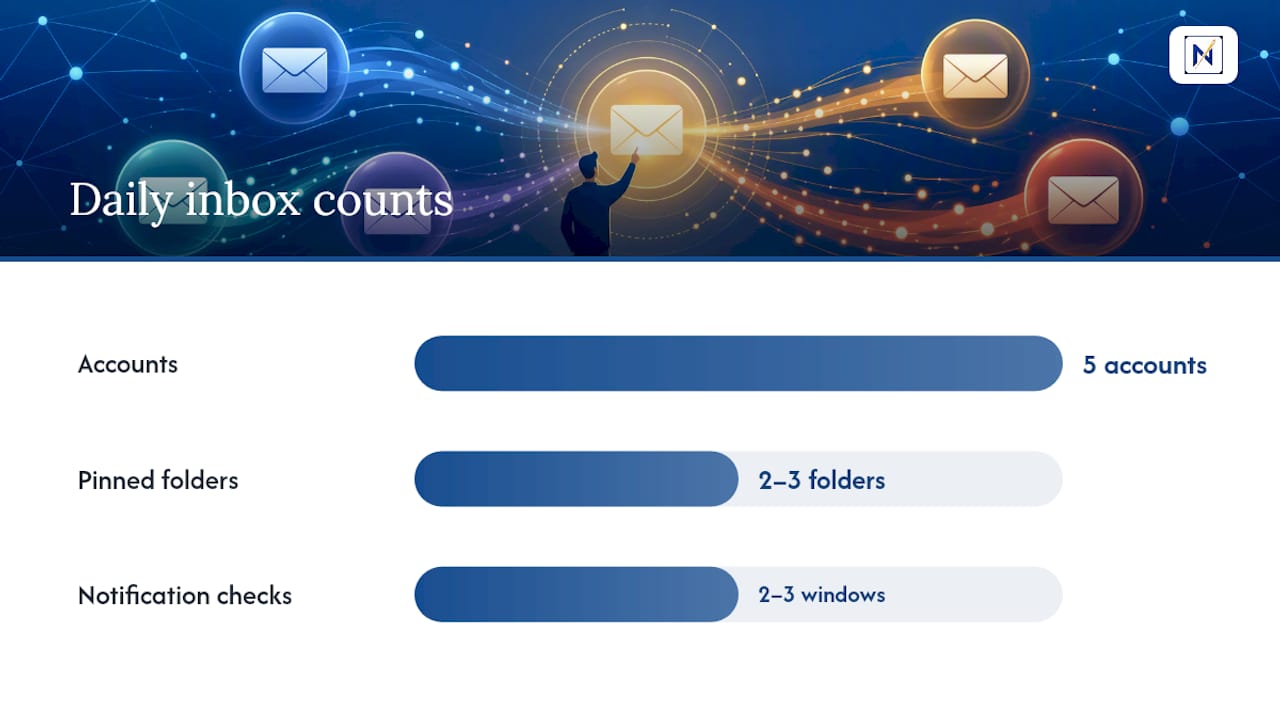
- Set two or three scheduled check times a day rather than reflexively tabbing between five mailboxes.
Forwarding mail between accounts to fake a unified inbox has a real tradeoff: it centralizes sensitive data in one place, and new Outlook may sync non-Microsoft accounts to the Microsoft cloud to power features like this. Worth knowing before you consolidate everything into one login.
Pro Tip: If you manage a work and personal account, forward only specific senders (your accountant, your kid’s school, your bank) rather than your entire inbox. You get the visibility without the exposure.
Should You Use Separate Outlook Profiles Instead?
Accounts and profiles are not the same thing, and mixing them up causes real confusion. An account is a single mailbox connection. A profile is a container that isolates data, settings, and, in classic Outlook, entire PST/OST files, from other profiles entirely.
Here’s when separate profiles beat multiple accounts in one profile:
- Shared computer: If a family member or coworker uses the same device, separate profiles keep your mail out of their view entirely.
- Compliance requirements: Some employers require work email to be physically isolated from personal accounts, not just visually separated by folder.
- Reducing accidental cross-account mistakes: Separate profiles physically store data apart, which prevents replying from the wrong identity far more reliably than a shared inbox with color-coded folders.
Create a new profile through the Mail control panel (Windows) or launch Outlook while holding the option key (Mac) to trigger a profile picker. One real limitation: you can’t switch profiles while Outlook is running. You have to close it fully first.
Why Do Sync and Login Errors Keep Happening?
Most authentication failures trace back to one cause: outdated sign-in methods. Modern authentication using OAuth2 has become the standard, and providers are steadily phasing out the older basic-auth logins that used to work fine.
- If a Gmail or Yahoo account suddenly stops syncing, it’s often because the account needs re-authorization under the newer OAuth2 flow.
- iCloud and some legacy IMAP setups still require a dedicated app password rather than your regular login credentials.
- On-premises Exchange accounts aren’t universally supported in new Outlook for Windows, so if yours isn’t connecting, classic Outlook may be your only functional path.
- Confirm your Outlook client license actually covers the account type you’re adding; not every subscription tier supports every connection method.
When something breaks, work through it in order: re-authenticate first, then remove and re-add the account if that fails, check for a stuck MFA prompt, and generate a fresh app password as a last resort. Most sync issues resolve within these four steps.
What Daily Habits Keep Multiple Inboxes Manageable?
Adding the accounts is the easy part. Living with five of them without losing your mind day to day takes a bit of structure.
- Build rules that route incoming mail into account-specific folders, or better, a single priority folder that pulls the messages that actually need a response.
- Double-check the From field before every send, especially right after switching between mailboxes.
- Pin your two or three most-used folders across accounts so you’re not digging through nested menus.
- Batch your notification checks into two or three windows a day instead of reacting to every ping.
- Run periodic unsubscribe and archive sweeps to cut volume before it cuts into your attention.
Building a real organization system across your inbox matters more once you’re juggling multiple accounts, because clutter in one mailbox now competes with clutter in three others for the same slice of your attention.
Pro Tip: Set your busiest account’s notifications to sound-only and mute the rest. You’ll stop context-switching every time a low-stakes newsletter lands somewhere in the stack.
Why Prioritization Beats Unification for Busy Inboxes
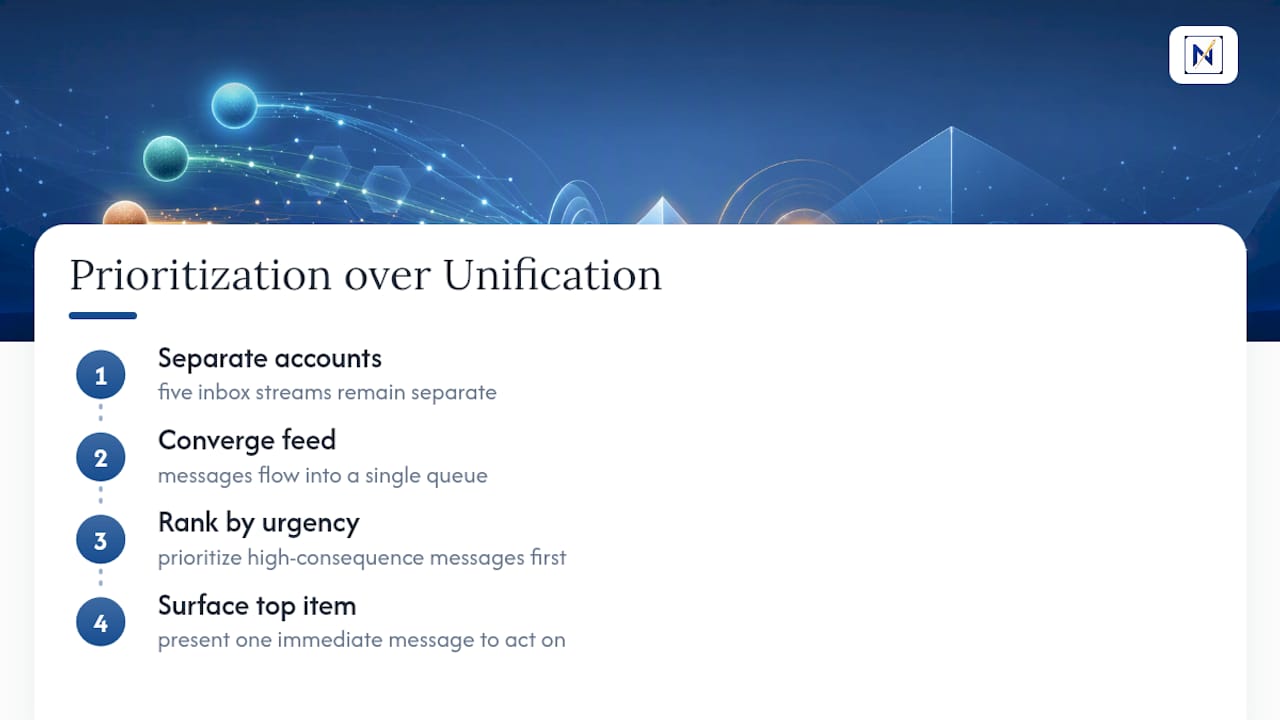
Unifying every account into one view solves a visibility problem. It doesn’t solve the actual problem, which is that important messages get buried under unimportant ones regardless of how many inboxes you’re staring at. Consolidating mail from five accounts into one feed just means you’re now scanning a bigger pile for the same handful of things that matter: the invoice with a due date, the client waiting on a reply, the refund window closing tomorrow.
That’s the gap Outlook’s multi-account tools don’t close on their own. A properly connected setup, spread across separate profiles or one convenient login, still asks you to do the triage yourself. Prioritization tools flip that: instead of asking which account to check next, they surface the one message across every account that actually carries consequence. Techniques like body doubling work for the same reason. Narrowing focus to one thing at a time beats juggling five open tabs of “maybe important.”
— Glen Bover
A Simpler Way to Handle Multiple Inboxes at Once
theNeedle is built for exactly the moment this article describes: you’ve got Outlook connected to Gmail, Yahoo, iCloud, and a work account, and somewhere in that stack is one email with a deadline attached. theNeedle connects across Gmail, Outlook, Microsoft, Yahoo, and iCloud, then surfaces overdue, urgent, and high-priority messages instead of leaving you to scroll five separate folders looking for them.

It also flags replies you never got around to, tracks opportunities like credits or pending refunds, and includes a built-in unsubscribe tool for the senders who won’t stop emailing you regardless of how many times you click the link at the bottom. None of this replaces Outlook’s account setup. It runs alongside it, adding a layer of consequence-based ranking on top of whatever profile or account structure you’ve already built.
If missing one important message has cost you money or a relationship before, start a trial on theNeedle’s live page and see what your inboxes actually needed you to see this week.
Sources
- MSOffice: Switching Profiles (training PDF)
- How to manage more than one email account – Microsoft 365 Life Hacks