Find Missing Refund Emails in 5 to 10 Minutes

Start with three places, in this order: your Spam or Junk folder, a mailbox-wide search using the merchant’s name and order number, and your bank, card, or PayPal activity log. If the merchant’s account shows the refund posted, that’s your proof, even if the email never shows up. Never treat an unexpected refund email as legitimate until you verify it through the account or bank itself.
TL;DR:
- Refund emails often end up in spam, trash, or are never sent due to merchant system glitches, so searching all folders and account logs is essential.
- Using the “in:anywhere” operator in Gmail drastically improves search results by covering all mailbox folders, including Spam and Trash.
- Checking your merchant, PayPal, or bank account provides confirmation of refunds regardless of email receipt, especially when delays or filtering occur.
- An email claiming a refund from the IRS or merchants should be verified through official websites, as scam emails frequently mimic legitimate notices.
- Automating the detection of financial emails with consequence-based tools like theNeedle prevents missed refund confirmations in cluttered inboxes.
Table of Contents
- How to Find Refund Emails in 5 to 10 Minutes
- How Do You Find Refund Emails in Gmail?
- How to Search Outlook and Apple Mail for Missing Refunds
- Why Your Merchant Account Might Be Faster Than Your Inbox
- Is That Refund Email Real, or Is It a Scam?
- Recovering Deleted Messages and Requesting a Resend
- When Should You Contact the Merchant, Bank, or Card Issuer?
- How a Consequence-Aware Inbox Catches Refunds You’d Otherwise Miss
- A Few Habits That Cut Down on Missed Refund Emails
- Stop Losing Refund Confirmations in the Noise
- Sources
- FAQ
How to Find Refund Emails in 5 to 10 Minutes
Missing refund emails almost always fall into one of three buckets: filtered into Spam, buried under hundreds of other messages, or simply never sent because the merchant’s system glitched. This checklist works through all three.
- Search your entire mailbox, not just the inbox. Use the merchant’s name, your order number, and words like “refund,” “credit,” or “receipt” together.
- Open Spam, Junk, and Trash folders directly. Refund confirmations from smaller merchants or third-party payment processors get auto-filtered more often than you’d expect.
- Check for recently deleted messages. Most webmail clients hold deleted items for a set window before permanent removal.
- Log into your merchant account and payment provider (card issuer, bank, or PayPal) to see if the refund already posted, regardless of whether an email exists.
- Request a resend if none of the above turns up anything. Most merchants can push a fresh confirmation to your account email.
Pro Tip: Search for the word “credit” or “adjustment” instead of just “refund.” A lot of merchants use different language in their subject lines, and that mismatch is why a mailbox-wide search for “refund” alone often comes up empty.
If you finish this checklist and still find nothing in your inbox or your account, that’s a signal to contact the merchant directly, covered further down.
How Do You Find Refund Emails in Gmail?
Gmail’s default search only looks at your primary folders unless you tell it otherwise, which is exactly why so many refund confirmations feel like they disappeared. They didn’t. They’re sitting in Spam or Trash, outside the default search scope.
The fix is a single operator: in:anywhere. Typing something like in:anywhere refund order12345 pulls results from every folder, including Spam and Trash, in one pass. That one change refines your Gmail search to cover the entire mailbox instead of the slice Gmail shows by default.
A few other combinations worth trying:
from:merchantname subject:refundnarrows results fast when you know the sender’s domain.- Add the order number directly in the search bar alongside the merchant name for a tighter match.
- Use date range filters or the search chips under the search bar if you know roughly when the refund was issued.
- Search “credit” or “return confirmation” if “refund” alone returns nothing, since merchants word these emails inconsistently.
Once you locate the message in Spam, don’t just read it and move on. Click Not spam. Skipping that step means the next refund confirmation from the same sender likely gets buried again, and you’ll be back here repeating the same search next month.
How to Search Outlook and Apple Mail for Missing Refunds
Outlook’s default search scope is usually just your current folder, which means a refund email sitting in a subfolder or Junk Email folder won’t show up unless you widen the search.
- Use Instant Search and expand the scope dropdown to All folders, or build an Advanced Query Search (AQS) string that includes specific senders and keywords.
- If the message was deleted, check Deleted Items first. If it’s not there either, look in Recoverable Items, a secondary holding area Outlook keeps for a limited time after permanent deletion.
- Outlook.com users should use the same AQS keywords (like
from:,subject:, and date filters) directly in the web search bar rather than relying on the basic keyword box. - Apple Mail users should switch the search scope to All Mailboxes at the top of the search results instead of leaving it on the current folder.
- If searches consistently miss messages you know exist, an Apple Mail mailbox rebuild (Mailbox menu, then Rebuild) can fix a corrupted local index.
Once you find the message, drag it back to the Inbox, or in Outlook, use Move so it stops competing with Trash or Recoverable Items for your attention next time you search.
Why Your Merchant Account Might Be Faster Than Your Inbox
An email can get delayed, filtered, or never sent at all, but the refund itself usually shows up in the merchant’s system or your payment account whether or not a message ever arrives. That’s why checking the source, not the inbox, is often the fastest way to confirm a refund actually happened.
- Log into the merchant’s site and open your order history. Most retailers show the refund amount, the method (original payment, store credit, wallet balance), and the date it was issued.
- If you paid through PayPal, filter your Activity feed by Refunds. Opening the transaction shows the exact status and expected timeline, and a pending refund typically finishes posting within about five business days.
- Check your card or bank statement for a posted credit. Reference IDs on the statement often match the merchant’s own transaction number.
- Don’t assume a refund lands back on your card automatically. Some merchants issue store credit or a marketplace wallet balance instead, which won’t show up as a card reversal at all.
An email confirming the refund is nice to have. The account balance is the actual proof.
Is That Refund Email Real, or Is It a Scam?
Unsolicited refund emails, especially ones claiming to be from the IRS, are one of the most common phishing setups out there. The IRS does not initiate contact by email or text to request personal or financial information, full stop. If a message claims to be the IRS and asks you to click a link, confirm your Social Security number, or verify a bank account, it isn’t legitimate.
The safer move is to check your refund status directly through Where’s My Refund? or your IRS Online Account, which requires your SSN or ITIN, filing status, tax year, and exact refund amount to pull up real status information.
Watch for these red flags in any refund related email, not just tax ones:
- Urgent language pushing you to act “immediately” or “within 24 hours.”
- Spelling and grammar mistakes, or a sender domain that’s almost right but not quite (like “paypa1.com”).
- Requests for payment, gift cards, or two-factor authentication codes to “release” a refund.
If something looks suspicious, don’t click anything inside it. Forward it as an attachment where your email client allows, then report it to phishing@irs.gov if it claims to be IRS-related, or to the merchant’s fraud line if it’s posing as a retailer. For a broader look at how these scams are built to trick you, this breakdown of phishing tactics is worth a few minutes.
Recovering Deleted Messages and Requesting a Resend
If the refund confirmation was deleted rather than filtered, recovery is usually possible but time sensitive.
- Check Deleted Items (Outlook) or Trash (Gmail) first. Most clients hold deleted messages for a window before they’re gone for good.
- In Outlook, if the message isn’t in Deleted Items, look in Recoverable Items, a secondary recovery layer that holds messages a bit longer.
- Restore the message directly to your Inbox once found, rather than leaving it in the recovery folder where you’ll lose track of it again.
- If recovery comes up empty, check whether the merchant offers a resend option. Epic Games, for example, documents a process for resending a refund receipt to your account email, and many retailers offer something similar.
- When requesting a resend, include your order number, the transaction date, and the last four digits of the payment method used. That’s usually enough for support to locate it fast.
Save any confirmation or ticket number you get back, and follow up within a few days if you hear nothing.
When Should You Contact the Merchant, Bank, or Card Issuer?
Start with the merchant. Give them the order number and any payment reference, and ask directly whether the refund was issued and through which method. If they confirm it was sent but you still can’t find it anywhere, that’s when you escalate.
- Contact your card issuer or PayPal next, giving them the merchant’s transaction reference and the date the merchant says it was posted.
- Understand that merchant processing and bank posting run on different clocks. A merchant can mark a refund “issued” while your bank takes several more business days to post it.
- If the merchant confirms a refund was promised but your bank shows nothing after a reasonable window, you can dispute the charge with your card issuer or file a complaint with the payment processor.
Pro Tip: Always ask the merchant for the exact refund method in writing (email or chat transcript). If it turns into a dispute later, that record is worth far more than a verbal “it’s on its way.”
How a Consequence-Aware Inbox Catches Refunds You’d Otherwise Miss
Refund confirmations rarely announce themselves. They land quietly among newsletters, shipping updates, and promotional noise, which is exactly why so many people end up searching Spam folders days later. theNeedle takes a different approach: instead of sorting by sender or date, it flags messages by consequence, meaning a refund notice, a billing credit, or a payment reversal gets surfaced the moment it lands, not buried under forty other emails.
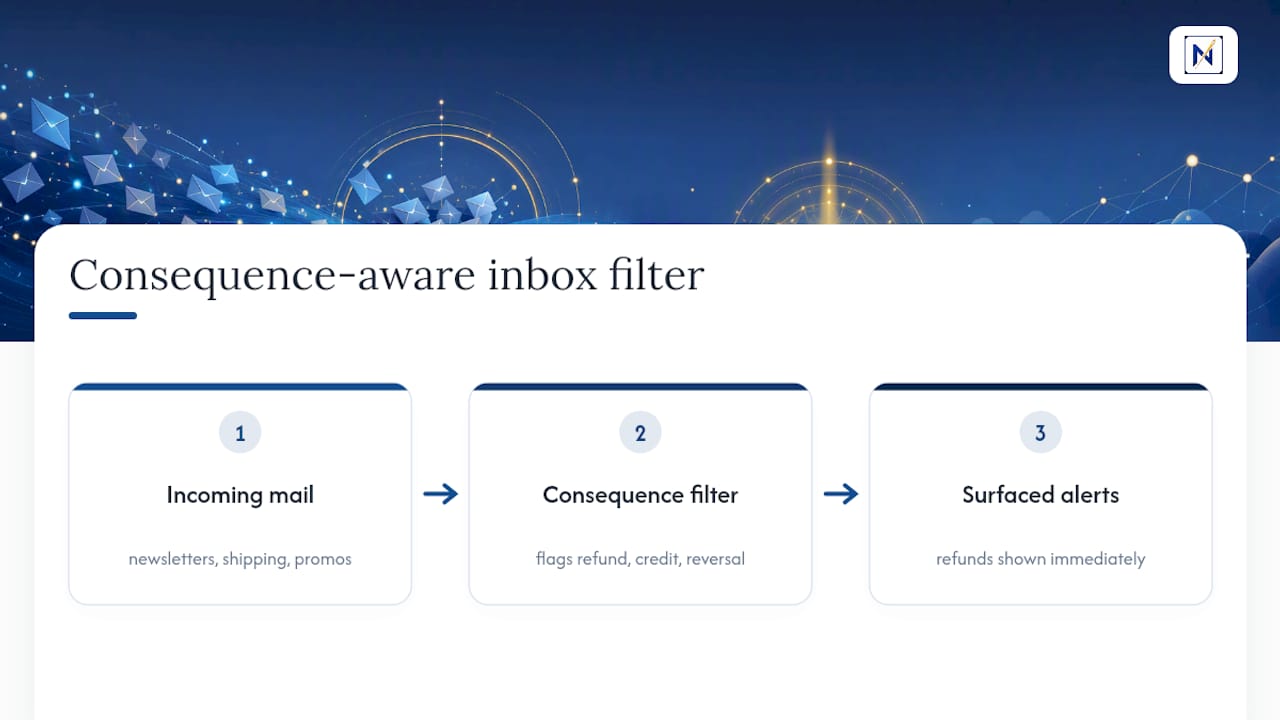
For someone who’s requested several returns and lost track of which ones actually processed, that consequence-driven view catches the confirmation before it goes cold in an unread inbox. It’s the same logic behind avoiding the quiet cost of missed financial emails, where a single overlooked message can mean a forfeited return window or an unresolved charge.
A Few Habits That Cut Down on Missed Refund Emails
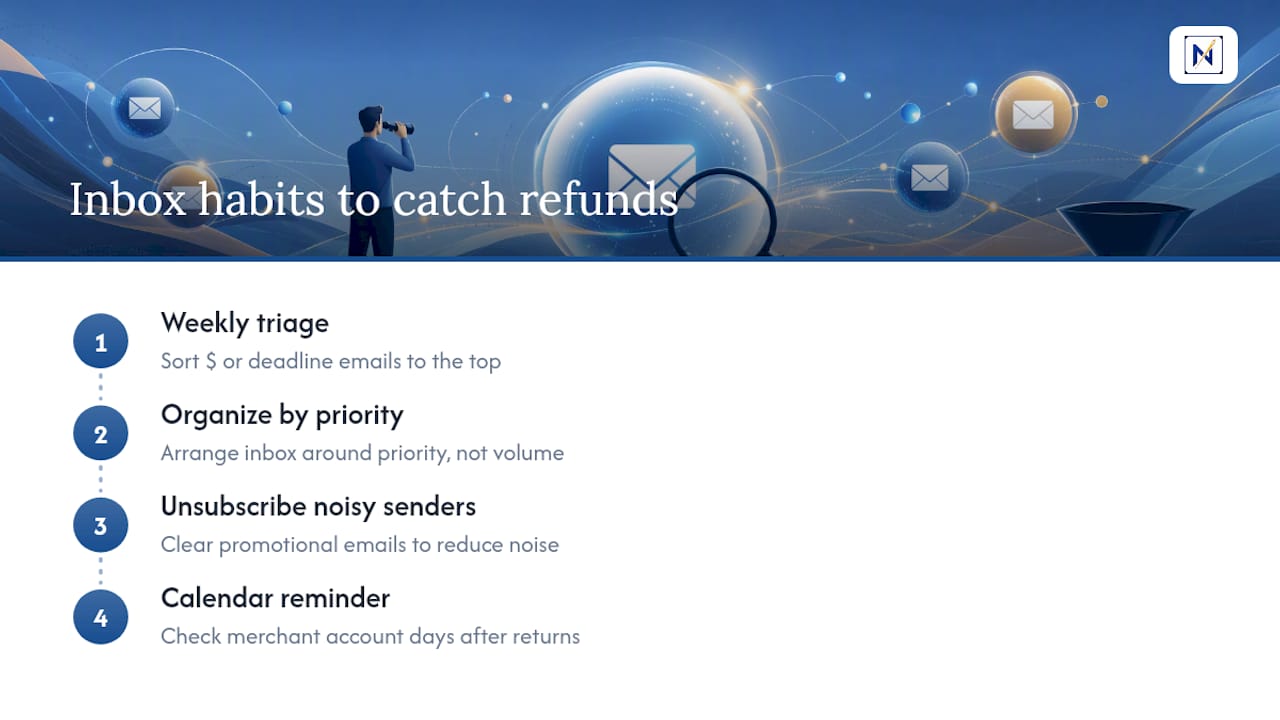
Most missed refunds come down to inbox habits, not bad luck. A quick weekly triage, sorting anything with a dollar sign or deadline to the top, catches far more than sporadic searching ever will.
Unsubscribing from noisy senders matters more than people think; every promotional email you clear out makes the one refund confirmation easier to spot. Pair that with a calendar reminder to check your merchant account a few days after any return, and you’ll stop relying on the email showing up at all. For a broader system, organizing your inbox around priority instead of volume solves this permanently, not just for refunds.
— Glen Bover
Stop Losing Refund Confirmations in the Noise
Some email management tools are built for exactly this problem: instead of scanning a flooded inbox for one refund email among dozens of newsletters, they flag financial alerts like refunds, credits, and payment confirmations automatically, so they don’t need finding at all.

If you’ve ever lost track of a return because the confirmation got buried, this is the fix. Some email management tools connect to popular email services and rank your inbox by consequence instead of volume, meaning overdue refunds, unresolved payment issues, and unhandled replies rise to the top automatically. Pricing details are available directly on the site. You can try theNeedle live and see how it handles your own inbox before deciding whether it’s worth keeping around.
This article is general information, not a substitute for advice from a qualified financial advisor. Consult a qualified financial professional about your own circumstances before acting on anything here.
Sources
- Refine searches in Gmail - Computer - Gmail Help
- Recover and restore deleted items in Outlook | Microsoft Support
- Refunds | Internal Revenue Service
- Where is my refund? | PayPal help
- How can I get a receipt for my Epic Games purchase refund? | Epic Games Help
FAQ
Are Tax Refund Emails Real?
The IRS does not send emails or texts requesting personal or financial information to initiate contact about your refund. Any email claiming to be the IRS asking you to click a link or confirm account details is a scam, and you should verify status only through Where’s My Refund? or your IRS Online Account.
How Do I Track a Refund If I Can’t Find the Email?
Skip the inbox and check the source directly: your merchant order history, your PayPal Activity filtered by Refunds, or your bank and card statement for a posted credit. These accounts show the exact refund status and date whether or not an email ever arrived.
Is This Refund Check or Email Real?
Treat any unexpected refund notice with caution, especially if it pressures you to act fast, asks for payment details, or comes from a slightly misspelled domain. Verify independently through the merchant’s official site or your bank rather than clicking anything inside the message itself.
What’s the Fastest Way to Find a Missing Refund Email?
Run a mailbox-wide search using the merchant’s name, your order number, and terms like “refund” or “credit,” then check Spam and Trash directly. In Gmail, the in:anywhere operator pulls results from every folder at once, which usually resolves the search in under a minute.
Can a Tool Help Me Stop Missing Refund Emails?
Yes. theNeedle flags financial and refund related emails based on consequence rather than sender or date, so confirmations surface automatically instead of getting lost in inbox volume. You can see how it works on theNeedle’s live product page.