Combine Email Accounts: The Right Way to Unify Your Inbox

No provider lets you push a single button and merge two email accounts into one. What you actually get is a choice between two different jobs. You can build a unified view, where a mail client or Outlook sync pulls every account into one feed while the mail stays put on its home server. Or you can migrate history, copying old messages out of one account and into another with POP3, a desktop export, or a migration tool.
For most people juggling Gmail, Outlook, and maybe a work account, the unified view wins. It’s faster to set up, it keeps your “send as” identity correct, and it doesn’t touch your existing archives. Migration only makes sense when you need every old message searchable inside one account.
- Want one inbox to check daily? Add your accounts to a desktop client or sync them into Outlook.
- Need historical search in a single account? Use Gmail’s POP3 importer or a dedicated migration tool.
- Just tired of missing important stuff? That’s a prioritization problem, not a consolidation problem, and it’s worth solving separately.
Key Takeaways
Combining email accounts means choosing between a unified live view and a one-time migration of history, and most readers only need the first one.
| Point | Details |
|---|---|
| No true merge exists | Google and Microsoft both require data transfer or syncing instead of a one-click account merge. |
| Unified view fits most people | Desktop clients or Outlook’s cloud sync give one live inbox without moving any mail. |
| Migration has real limits | Gmail’s Mail Fetcher caps at five accounts and drops folder structure, so large archives need a dedicated tool. |
| Check work account restrictions early | Admin-managed Google Workspace or Microsoft 365 accounts can block forwarding before you even start. |
| Prioritization solves a different problem | theNeedle flags consequential messages across connected accounts instead of requiring migration to reduce missed mail. |
Table of Contents
- Can You Actually Combine Email Accounts?
- How Do You Build a Unified Inbox Without Moving Mail?
- How Do You Copy Old Emails Into One Account?
- Which Consolidation Method Fits Your Situation?
- What Should You Do Right After Consolidating?
- When Prioritization Beats Full Consolidation
- Why Do Consolidation Setups Break, and How Do You Fix Them?
- What the Research Actually Supports
- Try a Different Route: Prioritize Instead of Migrate
- Frequently Asked Questions
- Sources
Can You Actually Combine Email Accounts?
Not in the way most people picture it. Google is explicit about this: separate Google Accounts cannot be merged into one. Microsoft doesn’t offer a true merge either. What both companies offer instead is data transfer, syncing, or a shared inbox view, which look similar on the surface but behave very differently underneath.
It helps to keep three concepts separate:
- Merge would mean one account absorbs another, permanently. This doesn’t exist for consumer email.
- Unify means you see multiple accounts in one interface while each stays independent on its own server.
- Migrate means you copy messages from account A into account B, usually one time, sometimes on a schedule.
Work and school accounts add another wrinkle. A Google Workspace or Microsoft 365 admin can block forwarding or restrict third-party app access entirely, so a method that works fine on a personal Gmail account might fail silently on a managed one. And email is only one piece of your digital life. Contacts, calendar entries, and files in Drive or OneDrive live in separate systems and need their own transfer steps, something people frequently forget until they’ve already switched accounts.
How Do You Build a Unified Inbox Without Moving Mail?
This is the setup most readers should start with. Instead of copying mail anywhere, an IMAP-connected client (or Outlook’s sync feature) leaves every message on its original server and layers one combined, chronologically sorted feed on top. Delete a message in the unified view, and it’s deleted at the source too, because you’re looking at the real inbox, not a copy.
Two paths get you there:
- Sync to Microsoft’s cloud. In new Outlook, add your Gmail, Yahoo, or iCloud accounts, and Microsoft will sync them to the Microsoft Cloud so mail, contacts, and calendars all surface inside Outlook.
- Use a dedicated desktop client. Apple Mail, Thunderbird, or Mailbird all let you add multiple accounts and turn on a unified inbox view that stacks every account’s mail into one feed while preserving correct send-as behavior for each account.
The benefits show up immediately. Sync is real-time instead of on a schedule. Replies go out from the correct address automatically, so nobody on the other end sees an unexpected sender. And each account’s folder structure stays intact behind the scenes, even though the unified view flattens everything into one list.
There are limits worth knowing before you start. Some mobile mail apps cap the number of accounts you can add, and Gmail’s own web interface won’t accept certain account types the way a desktop client will. You’ll also run into two different authentication methods: modern OAuth logins that just require a sign-in popup, and older app passwords that some providers still require for third-party clients. If a client asks for a password and rejects your normal one, that’s usually the app-password requirement kicking in, not a broken setup.
Expect small cosmetic differences too. Gmail’s labels and Outlook’s folders don’t map to each other one-to-one, so a unified view sometimes shows an “All Mail” style category next to normal folders from other accounts. That’s cosmetic, not a data problem.
Pro Tip: Before you add a work or school account to a personal client, check with your IT admin. Many managed Microsoft 365 and Google Workspace accounts block third-party app access by default, and you’ll waste twenty minutes debugging a login that was never going to succeed.
How Do You Copy Old Emails Into One Account?
Copying history is a different job than viewing accounts together, and it comes with real trade-offs around storage, formatting, and time.
- Back up first. Before touching any import or export tool, make sure you have a separate copy of your mail somewhere else, whether that’s Google Takeout or an existing local backup.
- Use Gmail’s Mail Fetcher for small imports. Gmail’s built-in POP3 importer, found under “Check mail from other accounts,” pulls messages from up to five external addresses. It’s throttled by design and it does not preserve folders or labels, so everything lands in your inbox as flat, unsorted mail.
- Export and import for desktop control. Outlook and Thunderbird both support exporting a mailbox to a
.pstor.mboxfile and importing it into another account. Confirm you have enough local storage for the export before you start, since large archives can run into gigabytes. - Consider a migration tool for large or structured archives. If you have years of mail organized into folders you actually rely on, a dedicated migration service is usually worth the cost, since it can preserve folder structure and metadata that POP3 import throws away.
- Verify before you delete anything. Check message counts, spot-check a few folders, and confirm attachments opened correctly before you consider the source account disposable.
A five-account cap and no folder preservation are the two limits that surprise people most about Gmail’s own import tool. If your goal is a clean, organized single archive rather than a fast one-time copy, a migration tool that explicitly preserves structure is the better investment.
Common pitfalls include duplicated messages when you run an import twice, broken conversation threading because the receiving account doesn’t recognize the original thread headers, and attachments that go missing during a rushed export. Whatever method you use, also configure “Send mail as” properly on the destination account; skip this step and your replies will appear to come from your primary address instead of the account you’re forwarding from, which confuses anyone who emails you back.
Which Consolidation Method Fits Your Situation?
The right answer depends on three things: how many accounts you’re juggling, whether your providers mix Gmail, Outlook, and managed work accounts, and whether you genuinely need to search old mail in one place.
- Multi-account professional with 3 or more inboxes: A desktop client is usually your best bet, since testing across clients shows they win on sync speed, correct send-as behavior, and searching across every account at once.
- Gmail-centric user with five or fewer accounts to fold in: Gmail’s Mail Fetcher handles this without extra software, as long as you’re fine losing folder structure.
- Minimalist who just wants one inbox to check: Set up forwarding from secondary accounts with “send as” configured properly, and skip migration entirely.
Before acting on any of these, run a quick checklist: back up what matters, confirm you have recovery access to every account involved, and check whether a work or school account has admin restrictions that will block the method you’re planning.
What Should You Do Right After Consolidating?
Getting mail into one place is only half the job. The other half is making sure nothing else quietly breaks.
- Update notification addresses on critical accounts. Banking, subscriptions, and government services often send security alerts to whichever address they have on file, so update these first.
- Move contacts and calendars separately. Email consolidation tools don’t touch these, so export and import them on their own, and transfer file ownership in Drive or OneDrive where relevant.
- Lock down security before you walk away. Remove old app passwords you no longer need, turn on two-factor authentication everywhere, and keep a local backup or Google Takeout archive before you delete any source account.
Pro Tip: Don’t delete a source account the same week you consolidate. Give it thirty days. That’s usually enough time to discover a service you forgot was tied to that address.
When Prioritization Beats Full Consolidation
Consolidating inboxes solves a location problem: where is my mail? It doesn’t solve an attention problem: which of these 117 messages actually matters today? The average worker receives 117 emails daily, and merging five accounts into one doesn’t shrink that number. It just puts all 117 in the same place.
theNeedle approaches this differently by tagging consequential messages, deadlines, financial alerts, unanswered replies that are aging, rather than adding volume to a single feed. A simple version of this workflow: handle one flagged message at a time, tag it by consequence instead of by sender, and set up light forwarding only for the handful of accounts where something time-sensitive might land.
The real risk isn’t having mail scattered across three accounts. It’s having the one email that mattered buried on page four of an inbox you already unified.
Why Do Consolidation Setups Break, and How Do You Fix Them?
Most consolidation problems trace back to authentication, sync timing, or mismatched expectations about what a method actually does.
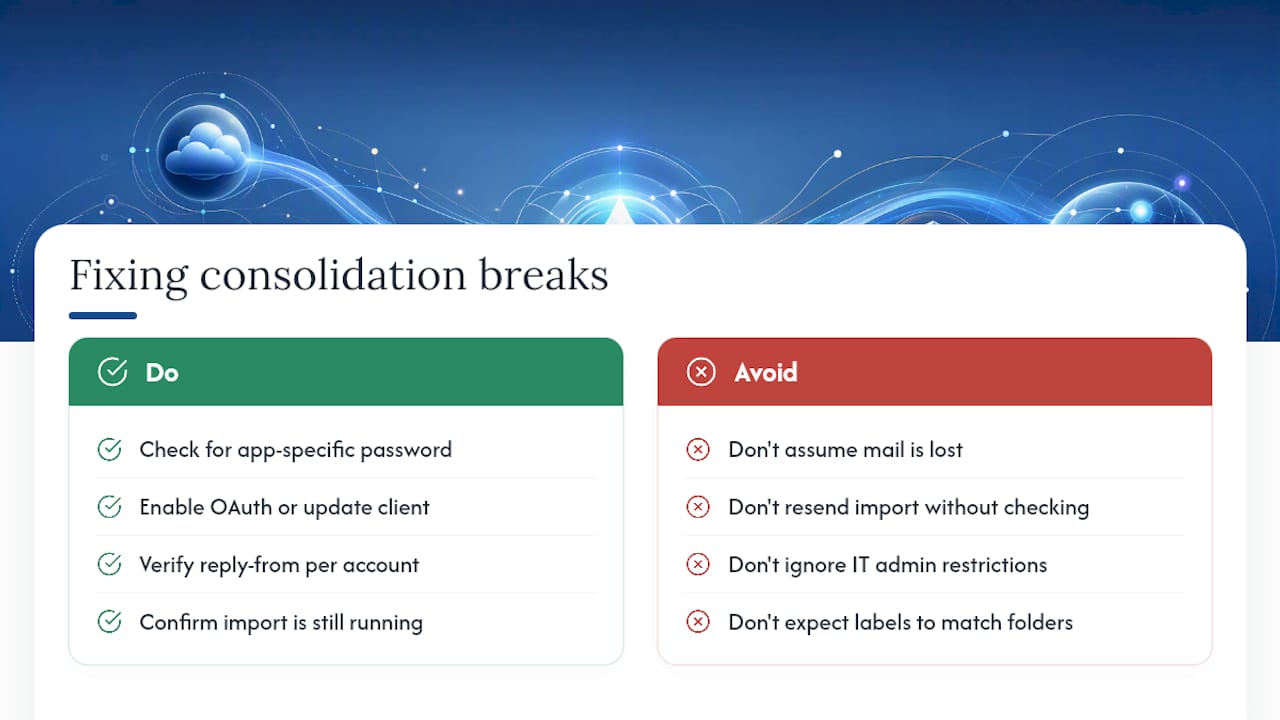
Login rejected even with the right password. This almost always means the provider wants an app-specific password instead of your normal login, or it requires OAuth and the client you’re using is outdated. Check the provider’s account security settings for an “app passwords” option.
Replies going out from the wrong address. This is a “send mail as” configuration miss. Go back into your client’s account settings and confirm the reply-from address is set explicitly for that account, not inherited from your default.
Messages missing after an import. Check whether the import is still running. POP3 imports in particular are throttled and can take hours or days for large mailboxes, so what looks like missing mail is often mail still in transit.
Duplicate messages after an import. This usually means the import ran twice, or two overlapping methods pulled the same mail. Most clients have a “remove duplicates” tool, or you can sort by date and manually clear the overlap.
Work account won’t connect to a personal client. This is almost always an admin restriction, not a bug on your end. Confirm with IT whether third-party app access is enabled for your account.
Folders or labels look wrong after consolidating. Gmail labels and Outlook folders were never designed to map to each other cleanly, so some visual mismatch is normal and not a sign anything is broken.
What the Research Actually Supports
Most advice on this topic treats “combine your accounts” as one job with one best answer. It isn’t. Treating unification and migration as the same decision is exactly how people end up frustrated, either migrating mail they didn’t need to move, or building a unified view when what they actually needed was searchable history in one place.
The bigger blind spot, though, is assuming consolidation itself fixes the underlying complaint. Most readers who search for this topic aren’t struggling with account locations. They’re struggling with missed deadlines and buried replies scattered across inboxes they already know how to check. A unified view or a clean migration solves the visibility problem. It does nothing for the attention problem.
If you manage three or more accounts, start with a desktop client for the unified view, since it’s reversible and low-risk. Save migration for the rare case where you genuinely need old mail searchable in one place. And if your real complaint is “I keep missing important stuff,” treat that as a separate, more urgent problem than where your inboxes live.
Try a Different Route: Prioritize Instead of Migrate
If your real frustration isn’t scattered accounts but missed deadlines and buried replies, moving mail around won’t fix it, sorting what matters will. theNeedle connects to Gmail, Outlook, Yahoo, and iCloud at once and scans every connected account for messages with real consequences: overdue items, financial alerts, unanswered replies that are aging past a reasonable window.

Instead of asking you to pick a migration method, theNeedle surfaces the handful of emails across all your accounts that actually need action today, with one-at-a-time focus built for people who find a crowded inbox paralyzing rather than motivating. It also flags things like credits or refunds you might otherwise let expire, and it comes with built-in unsubscribe tools for senders you’ve stopped reading anyway.
If you’re managing multiple inboxes and the real problem is what you’re missing, not where your mail sits, start a free trial with theNeedle and see which messages it flags in your first week.
Frequently Asked Questions
Can you combine email accounts into one without losing any mail? Yes, if you choose migration and back up first. A unified view loses nothing because it never moves mail in the first place; it just displays multiple accounts together.
How do you combine Gmail and Outlook accounts? Add your Gmail account to new Outlook and let it sync to the Microsoft Cloud, or add both accounts to a desktop client like Thunderbird for a unified inbox view without moving any mail.
Is there a limit to how many accounts you can link in one client? Desktop clients generally allow many accounts, but Gmail’s own POP3 importer caps at five external addresses, and some mobile mail apps impose their own lower limits.
Will forwarding break my reply identity? It can, unless you configure “send mail as” for each forwarded account. Without that setup, replies appear to come from your primary address instead of the one the message was sent to.
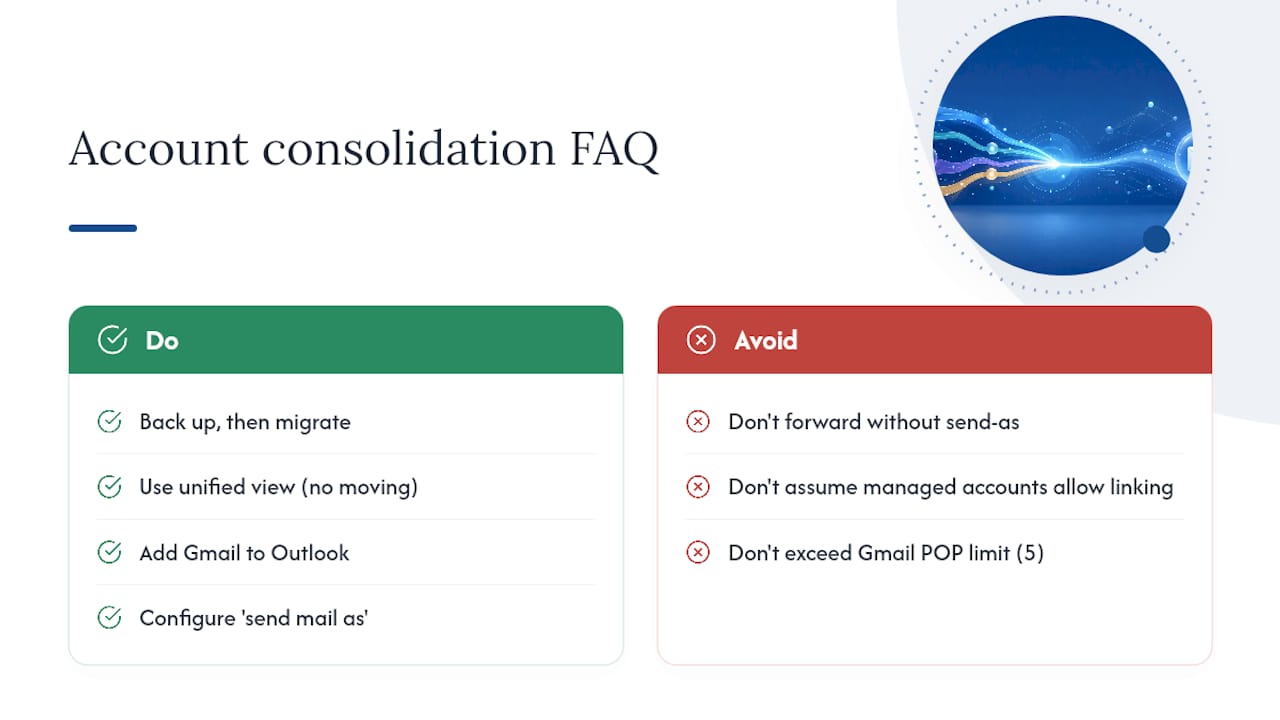
Do work or school email accounts consolidate the same way as personal ones? Not always. Admins can restrict forwarding or block third-party app access entirely, so check with your IT department before setting up any consolidation method on a managed account.
Sources
- Sync your account in Outlook to the Microsoft Cloud | Microsoft Support
- How to Set Up a Unified Inbox for Multiple Accounts
- How to Combine Gmail Accounts: A 2026 Step-by-Step Guide - Recurrr
- Merging accounts - Google Help