Archive vs Delete Email: What Each One Actually Does

Archive keeps a message searchable and out of your way. Delete sends it to Trash, where it sits until your provider permanently erases it, usually within a set retention window.
Once that window closes, the message is gone for good. Here’s the quick breakdown:
- Archive = the email leaves your inbox but stays fully searchable in a folder like All Mail.
- Delete = the email moves to Trash, then gets purged automatically after the retention period. In Gmail, that’s 30 days.
Here’s the catch most people miss: archived mail still counts against your storage quota. Archiving cleans up your view. It doesn’t free up space.
Key Takeaways
Archiving preserves and keeps messages searchable, while deleting sends them to Trash for permanent removal once the retention window closes.
| Point | Details |
|---|---|
| Archive keeps mail searchable | Archived messages leave the inbox but stay in All Mail or the Archive folder, fully indexed. |
| Delete starts a countdown | Deleted mail sits in Trash and is purged automatically after 30 days in Gmail. |
| Storage only frees up after purging | Archiving doesn’t reduce your quota; only deleting and emptying Trash does. |
| Use the three-question checklist | Ask if it’s legally important, needed later, or recoverable elsewhere before deciding. |
| Prioritize before you organize | Theneedle surfaces consequential emails first, so archive or delete decisions get easier. |
Table of Contents
- Archive vs Delete Gmail and Other Platforms: How Each One Behaves
- What Happens When You Delete an Email
- Should I Archive Emails or Delete Them? A Decision Checklist
- How to Recover an Archived or Deleted Email
- A Quick, Safe Cleanup Workflow for Your Inbox
- Why Prioritizing Consequential Emails Changes This Whole Equation
- My Take: Why I Stopped Archiving Everything
- Theneedle Helps You Decide What’s Worth Keeping in the First Place
- Sources
Archive vs Delete Gmail and Other Platforms: How Each One Behaves
Archiving pulls a message out of your inbox and drops it into a holding folder, but it never actually leaves your account. In Gmail, that folder is All Mail, and every archived message stays fully indexed and searchable. Outlook calls it the Archive folder, and the behavior is nearly identical: the message disappears from your primary view but remains one search away.
That’s the consumer version of archiving, and it’s worth separating from enterprise-grade archiving, which adds legal hold, audit trails, and retention enforcement that a personal Gmail or Outlook account simply doesn’t offer.
- Archived mail keeps its labels, threads, and attachments intact.
- It shows up in normal searches, not just a dedicated archive search.
- It still occupies space against your storage limit, whether that’s Gmail’s combined quota or Outlook’s mailbox cap.
Storage matters more than most people assume. How-To Geek notes that archived mail counts the same as inbox mail toward your quota. If you’re on a free tier and running out of room, archiving alone won’t solve it.
What Happens When You Delete an Email
Deleting moves a message to Trash (or Deleted Items in Outlook), and that’s not the end of the story. It’s the start of a countdown.
Gmail automatically empties Trash after 30 days, and once that clock runs out, the message and any attachments are gone. Emptying Trash manually has the same effect immediately. Outlook’s Deleted Items folder works on a similar principle, though the exact retention window can vary by account type.
- Delete moves mail to Trash, not to permanent removal.
- After 30 days (Gmail) or a manual empty, recovery is no longer possible for a typical consumer account.
- Only actual purging, not just moving to Trash, reclaims your storage quota.
This is the piece people get backward: deleting doesn’t instantly free space. The space comes back only after Trash is emptied, whether that happens automatically or by your own hand.
Should I Archive Emails or Delete Them? A Decision Checklist
Most people default to one habit and stick with it forever, which is exactly how inboxes end up either bloated or dangerously thin. A better approach is asking three quick questions every time you’re staring at a message you don’t need in your inbox anymore.
- Is it legally or financially important? Tax records, contracts, warranty confirmations, and invoices belong in the “keep” category. If you’re bound by any kind of organizational retention policy, enterprise archiving rules may require you to keep certain mail longer than instinct suggests, and deleting early can create real compliance exposure.
- Will you need it later, even if you can’t say exactly when? If the honest answer is “maybe,” archive it. You lose nothing by keeping it searchable.
- Is it recoverable somewhere else? A shipping confirmation you can pull from an app, a promo code you’ll never use again, a one-time passcode that’s already expired: none of that needs a permanent home in your inbox.
As a rule of thumb: archive receipts, contracts, anything tied to money or legal standing, and threads you might reference in six months. Delete one-time codes, expired promotions, and anything a sender will happily resend if you ever need it again.
Starred or flagged messages deserve a beat of caution. If something is important enough to flag, it’s usually important enough to archive rather than delete, even if you’re fairly sure you’re done with it.
Pro Tip: When you’re not sure which bucket a message belongs in, archive it. Archiving is reversible and searchable, so it’s the safer default when a decision feels close.
How to Recover an Archived or Deleted Email
Losing a message you actually need is almost always fixable, as long as you act inside the right window.
- Search for archived mail using Gmail’s search bar or Outlook’s search box. Archived messages don’t have a special search mode. They show up in your regular results because they’re still indexed.
- Check Trash or Deleted Items if the message was deleted. Select it and move it back to your inbox. This works only inside the retention window, so the sooner you check, the better your odds.
- If the window has closed, check whether your account has a backup or export you set up earlier. For a business or school account, contact your admin, since organizational accounts sometimes retain deleted mail longer than personal ones. Otherwise, reach out to your provider’s support team, though recovery past the retention period is rarely possible for consumer accounts.
A Quick, Safe Cleanup Workflow for Your Inbox
A clean inbox doesn’t require an afternoon. It requires a narrow, repeatable process that won’t accidentally erase something you’ll want back.
Start with scoped searches instead of blanket deletes. A query like older_than:1y category:promotions targets exactly the low-value mail piling up without touching anything tied to a sender you actually care about. Practical cleanup guidance recommends this kind of layered filtering specifically because blind age-based deletion tends to catch tax receipts and warranty confirmations along with the junk.
- Run a narrowed search (age plus category) before you touch the delete key.
- Skim your top senders list. A handful of newsletters and retailers usually account for most of the clutter.
- Bulk-delete promotions and social notifications first. They’re the lowest-risk category.
- Empty Trash afterward. Deleting without emptying Trash doesn’t reclaim any storage.
Once the backlog is under control, automate the boring part. Set a filter to auto-archive statements you’ll rarely open and another to auto-delete newsletters you never read anyway. Put a 15-minute inbox audit on your calendar once a quarter, and the whole system stays manageable without becoming a weekly chore.
Pro Tip: Exclude starred and important messages from any filter rule. A blanket “delete everything older than a year” filter is the fastest way to lose something you actually needed.
Why Prioritizing Consequential Emails Changes This Whole Equation
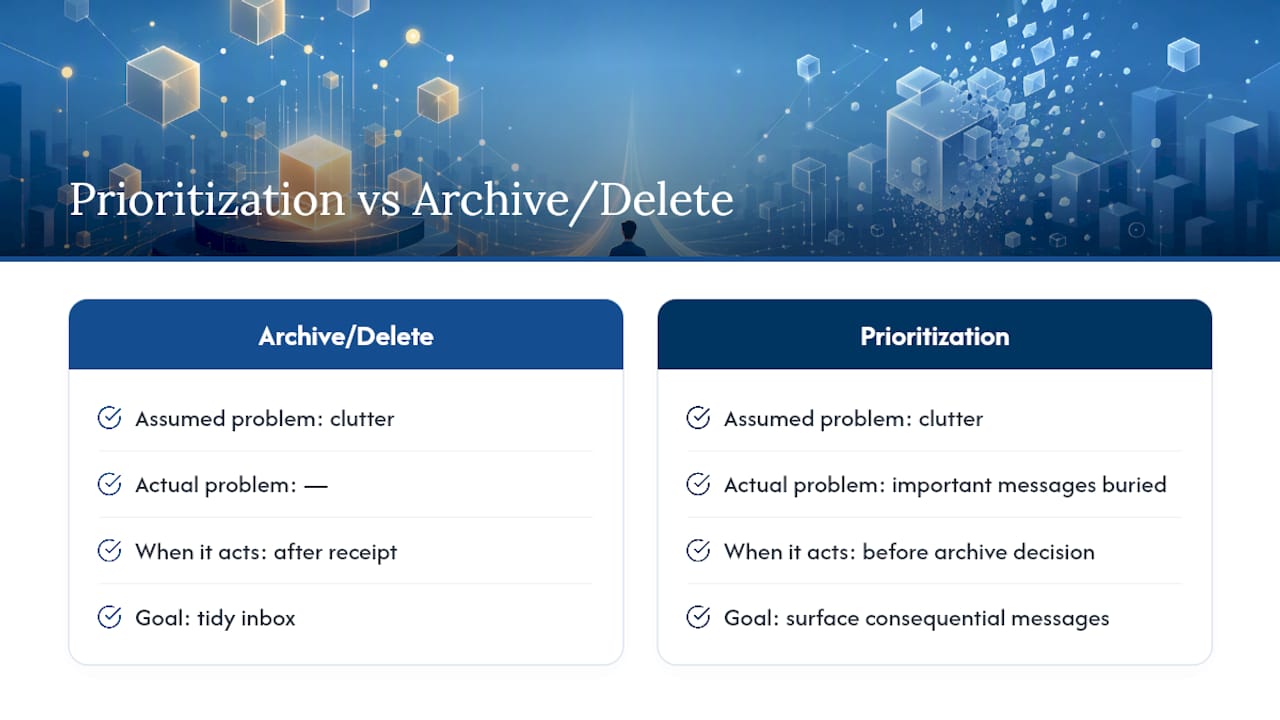
The archive versus delete debate assumes the real problem is clutter. It usually isn’t. The real problem is that important messages get buried under unimportant ones before you ever decide what to do with them.
The average worker receives 117 emails a day, and no filing system, however disciplined, fixes the fact that a deadline notice and a marketing blast look identical in a list view. Theneedle’s approach starts earlier than the archive-or-delete decision: it identifies which incoming messages carry real consequences, deadlines, financial alerts, unanswered requests, and surfaces those first.
The goal isn’t a perfectly organized inbox. It’s never missing the one email that actually costs you money or a relationship if it slips by unnoticed.
Run the decision checklist on the noise. Let prioritization handle the signal.
My Take: Why I Stopped Archiving Everything

For years, my rule was simple: archive, never delete. Then search started returning forty results for a term that should have returned three, and “safe” quietly became “useless.”
Here’s a seven-day experiment worth trying. Apply the checklist above to everything that hits your inbox this week. Set two filters, one auto-archive, one auto-delete, based on the low-effort categories you already know are noise. At the end of the week, check your storage and notice how much less effort search takes.
— Glen
Theneedle Helps You Decide What’s Worth Keeping in the First Place
Archiving and deleting only matter once you’ve spotted the messages that actually need a decision, and that’s the step most inboxes get wrong. Theneedle scans your Gmail, Outlook, or iCloud account and surfaces the emails with real consequences first: deadlines, financial alerts, unanswered replies, refunds you’re owed, so the archive or delete call becomes obvious instead of guesswork.

It also includes built-in unsubscribe tools for the senders who keep coming back no matter how many filters you set, plus a one-at-a-time focus mode that works well if a cluttered inbox tends to derail your attention. If you’re tired of triaging 117 emails a day just to find the three that matter, try theNeedle and see what your inbox looks like when it sorts itself by consequence instead of chronology.
Sources
- Decide whether to delete or archive in Google Mail — Brown IT Help
- How to get rid of old emails quickly (2026 workflow) — Email Tools